Fedora 14 Install Guide (Live CD/Live USB) – Windows Dual Boot

This is Fedora 14 Install Guide with screenshots using Live CD or Live USB and Dual Booting with Windows. Fedora 14 Installation is also possible with using Fedora NetInstall (Net Install) with gPXE and BFO (boot.fedoraproject.org). Read more info about Fedora 14 features.

If the aim is upgrade to Fedora 14, then check Upgrade Fedora 13 to Fedora 14 guide.

1. Before Fedora 14 Installation

1.1 Download Fedora 14 LiveCD Image

Download Fedora 14 here.

Select your favorite Live CD (Gnome, KDE, LXDE, XFCE) and architecture i686 or x86_64. On this guide I use Gnome Live CD and i686 version.

1.2 Burn Fedora 14 Image to CD or Create Live USB and Boot Computer Using Fedora 14 Installation Media

Check Fedora 14 Live CD image MD5 sum and burn image to CD with your favourite CD burner or create Live USB example with liveusb-creator. And boot computer using Fedora 14 Installation Media.

2. Fedora 14 Installation

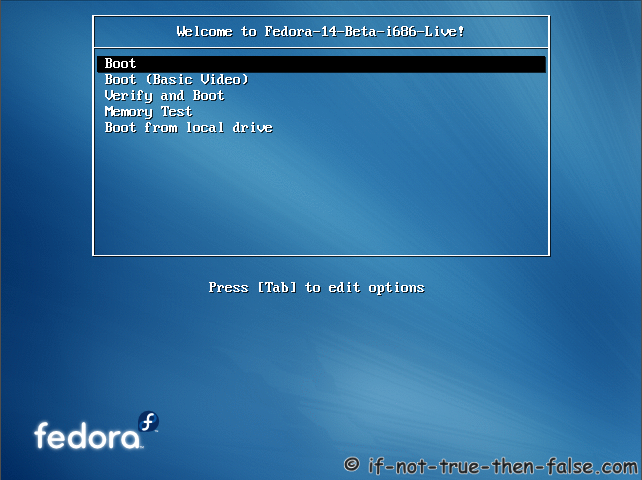
2.1 Fedora 14 Laughlin Grub

2.2 Fedora 14 Laughlin Live Media Booting

2.3 Start Fedora 14 Installation Click Install to Hard Drive

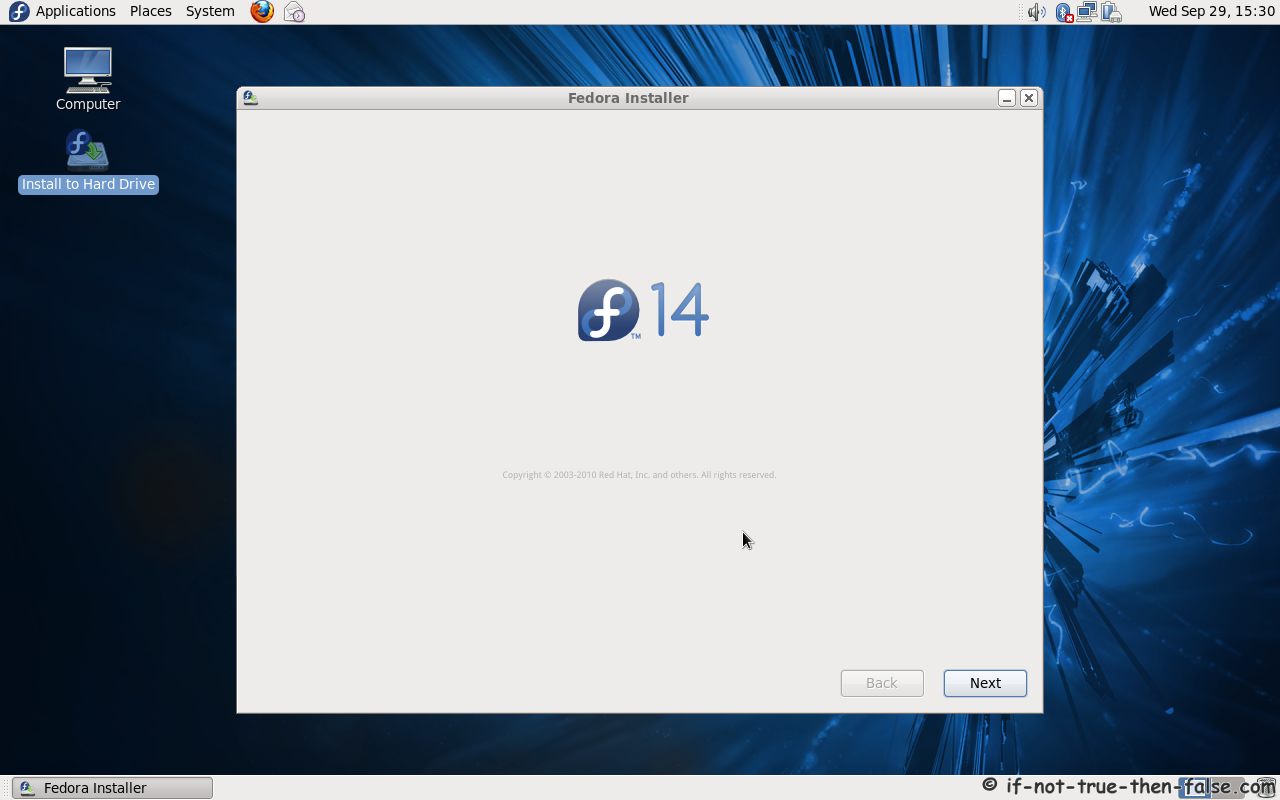
2.4 Fedora 14 Installer Started

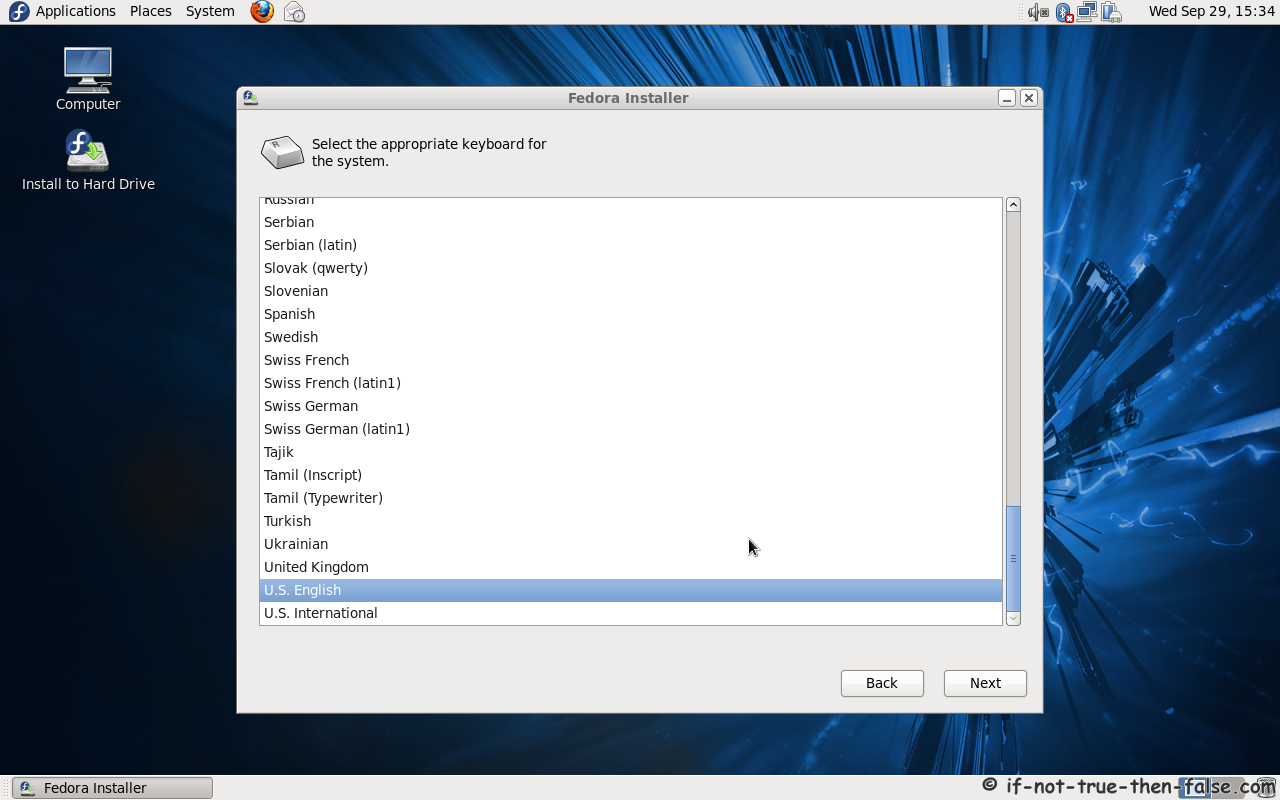
2.5 Select Keyboard Layout

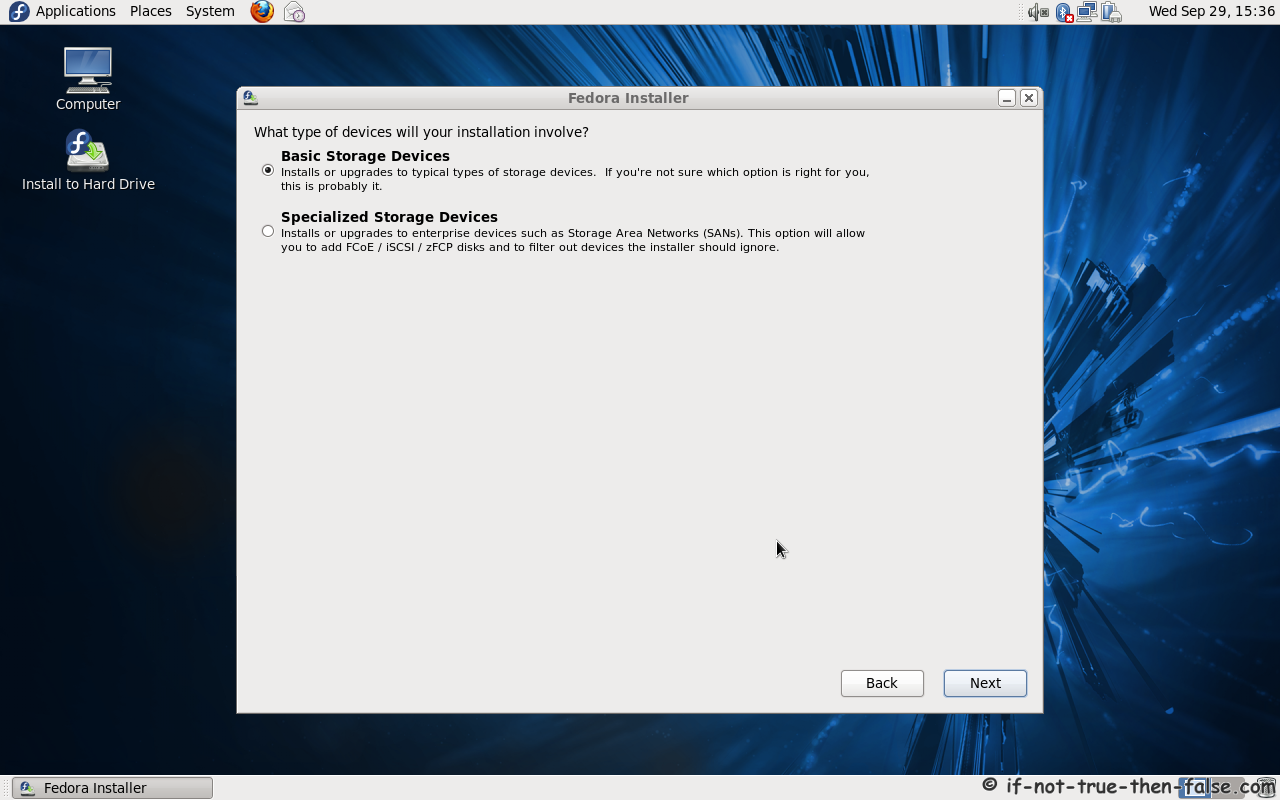
2.6 Select Storage Device

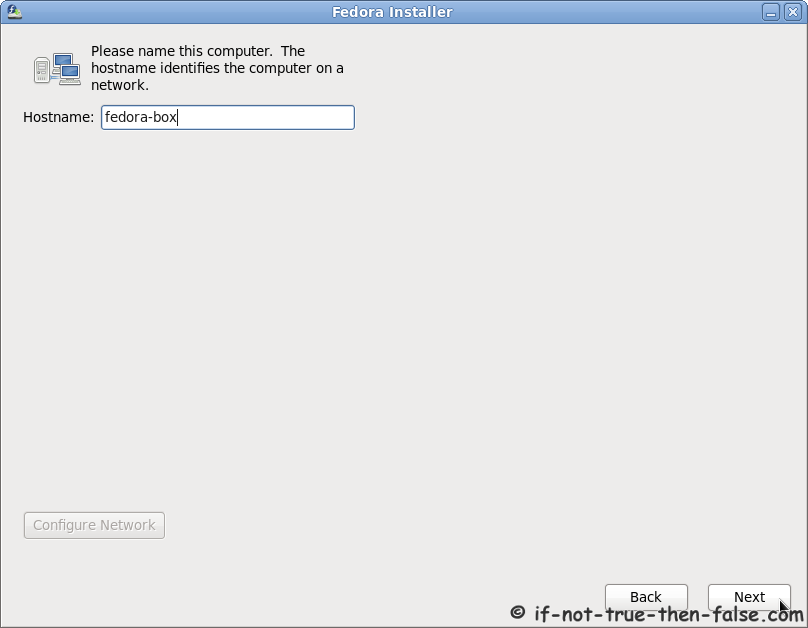
2.7 Set Hostname

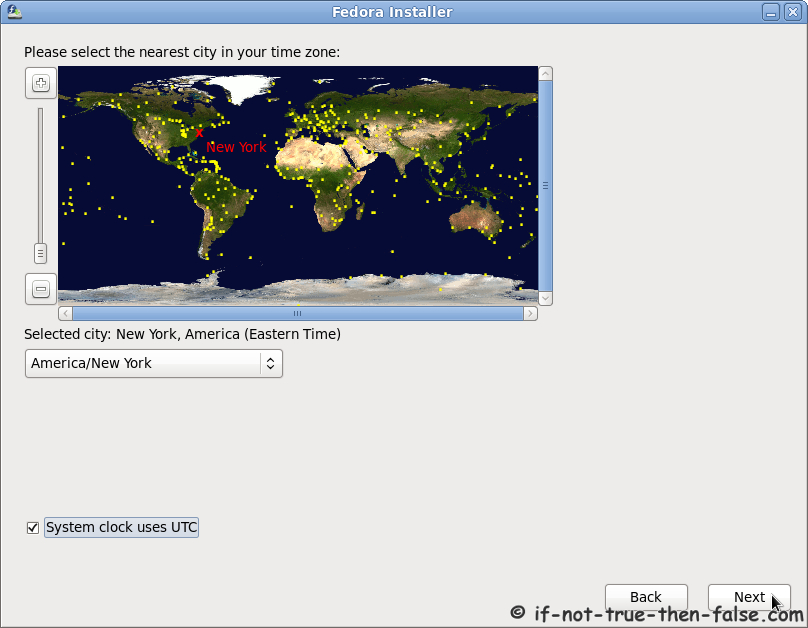
2.8 Select Timezone

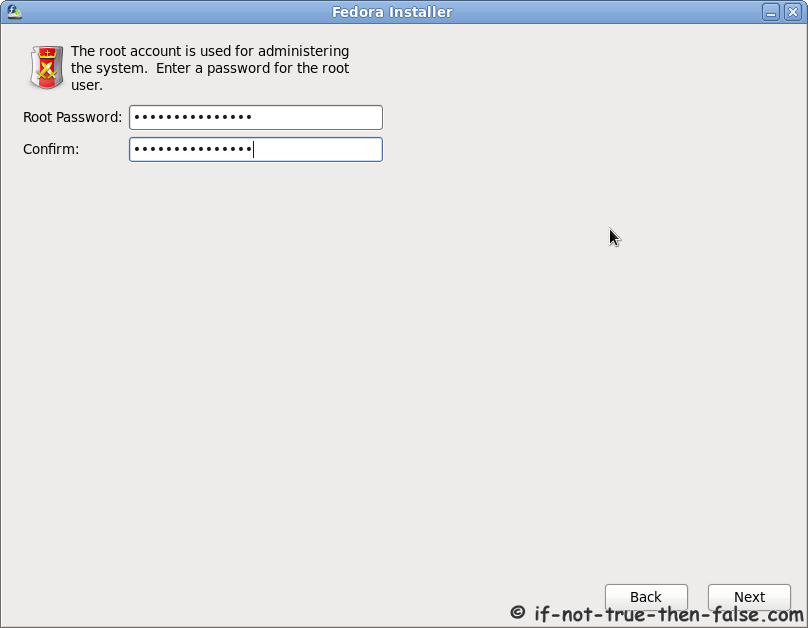
2.9 Enter root Password

Select good and secure password for root user.
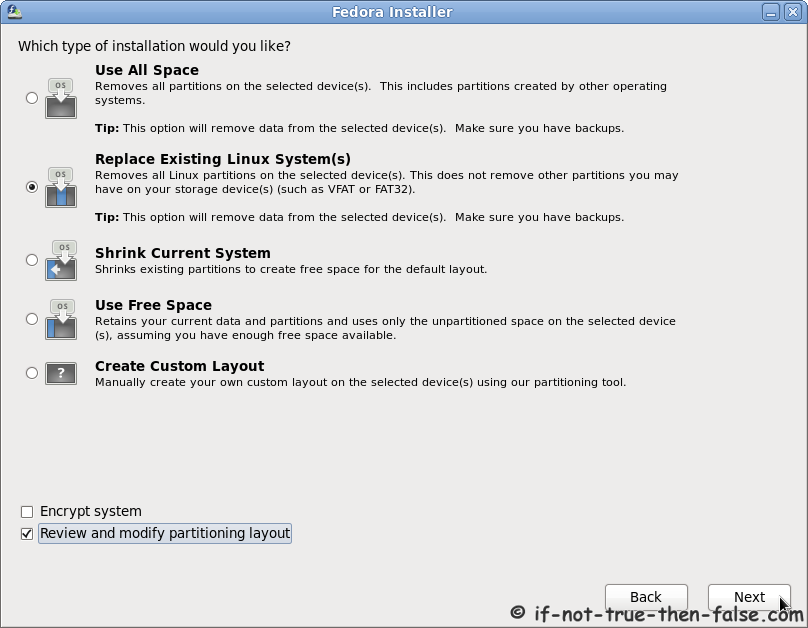
2.10 Select Installation Type

It’s good to create custom partition layout or at least review and modify partition layout.
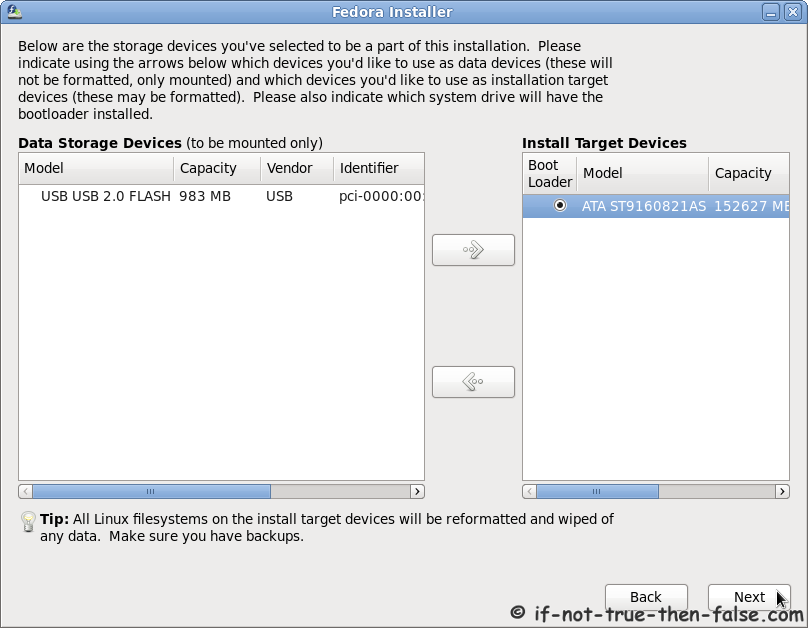
2.11 Select Install Target Devices

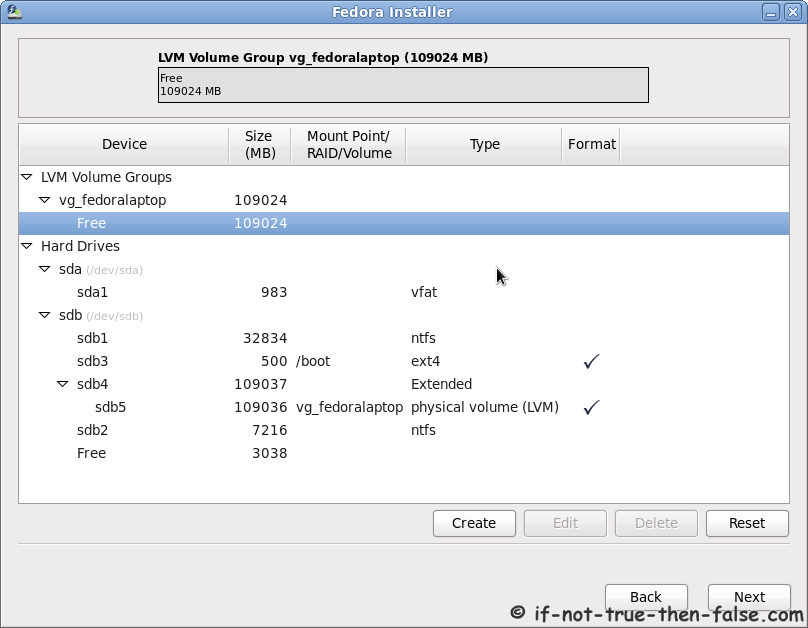
2.12 Partition Layout

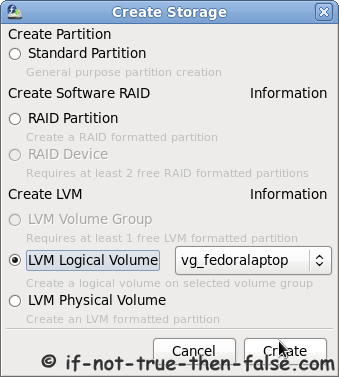
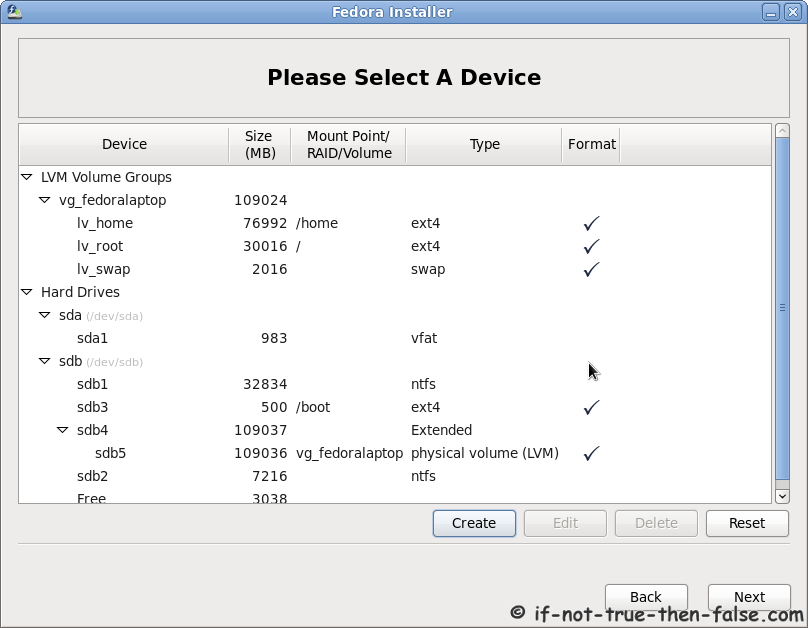
Modify partition layout here as you wish. I leave Windows partition sdb1 untouched, because I’m setting up Windows and Linux dual boot. And create LVM group for Fedora 14 partitions:
Create LVM Logical Volume:
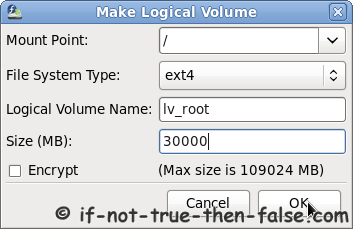
Create LVM Volume example for root, home and swap, I use ext4 here:
Final partition layout:
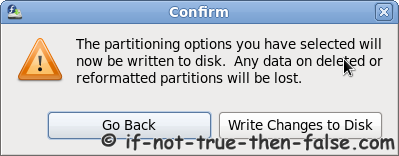
Confirm partition setup and write changes to disc:
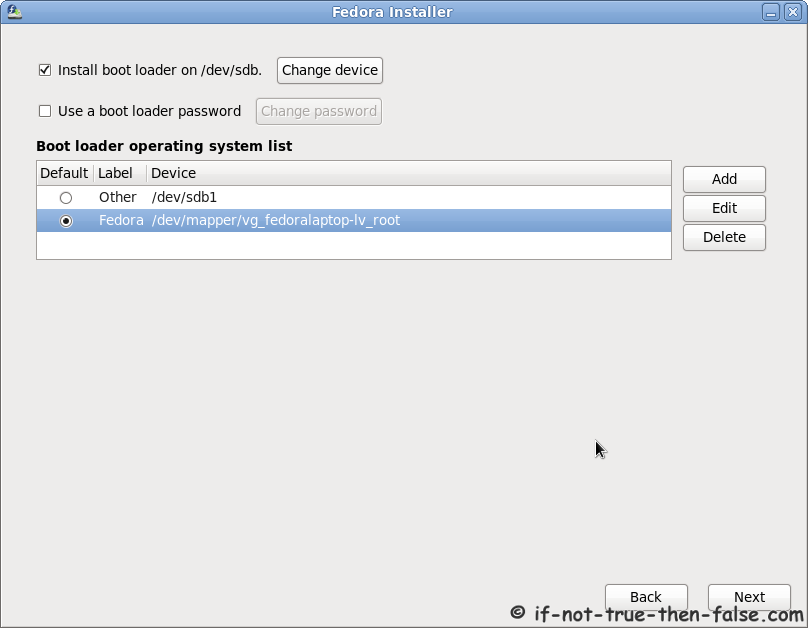
2.13 Configure Fedora 14 Bootloader and Setup Dual Boot with Windows

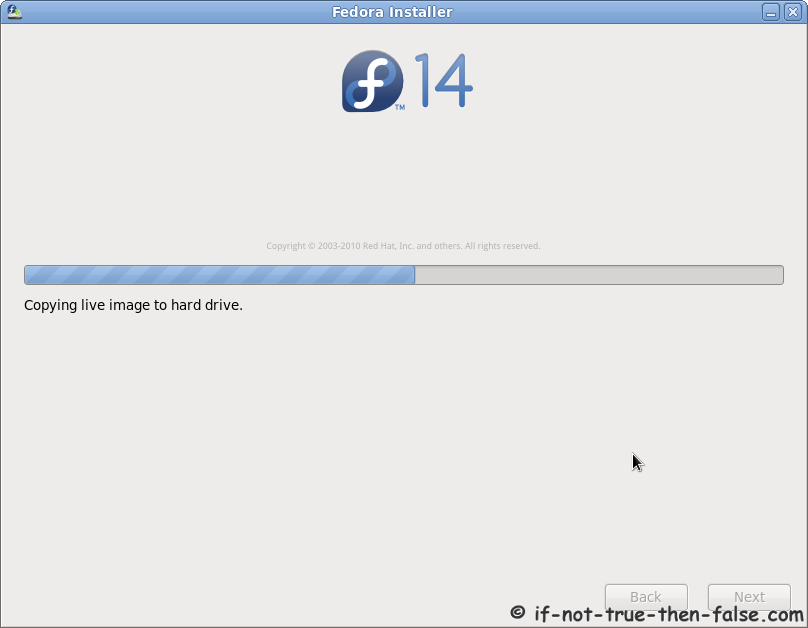
2.14 Installing Fedora 14

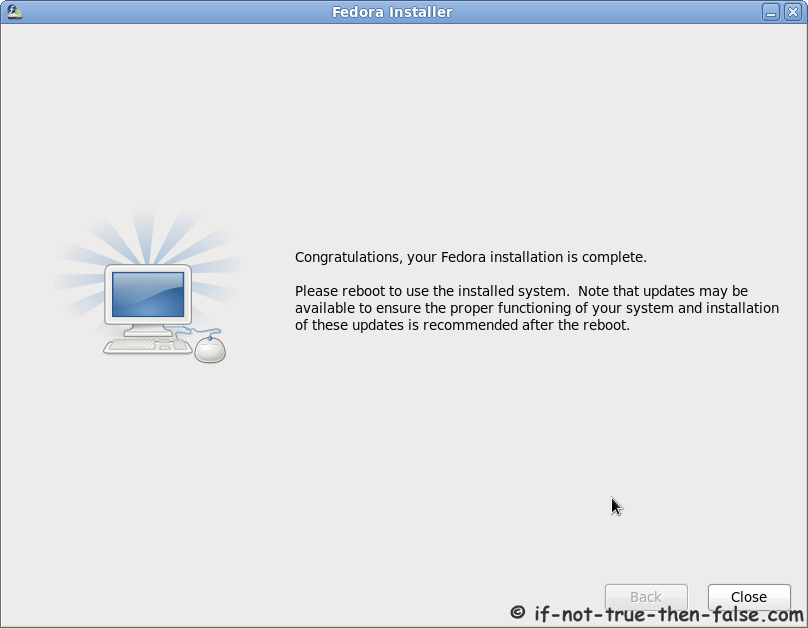
2.15 Installation Completed

Then simply reboot computer.

3. Finishing Fedora 14 Installation

3.1 Booting Fedora 14

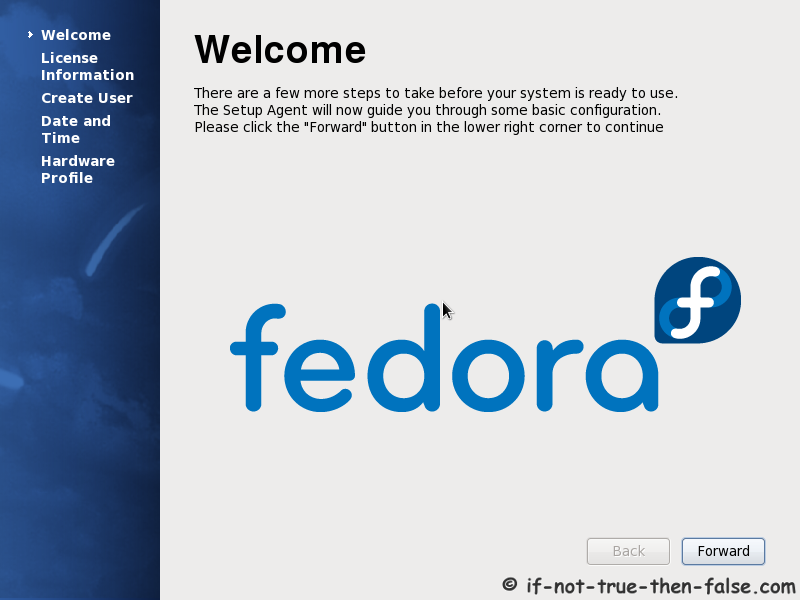
3.2 Fedora welcome screen

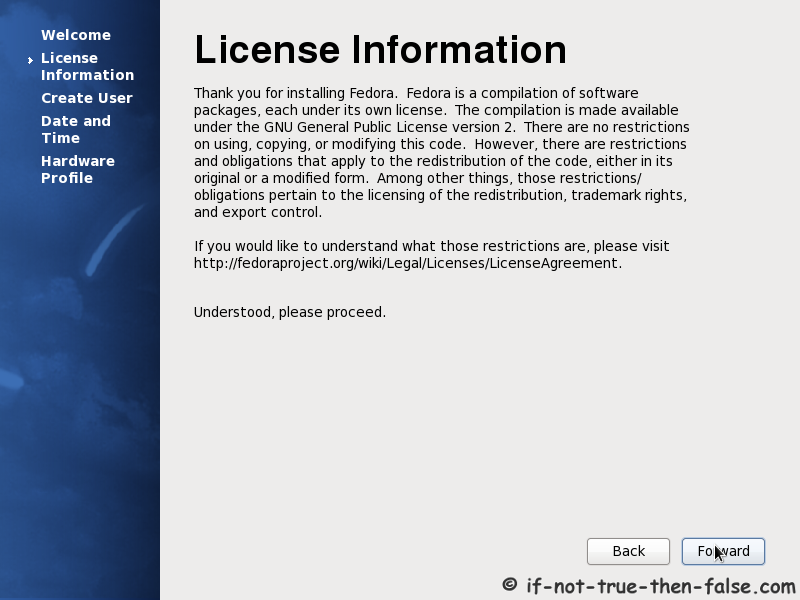
3.3. Accecpt Fedora License

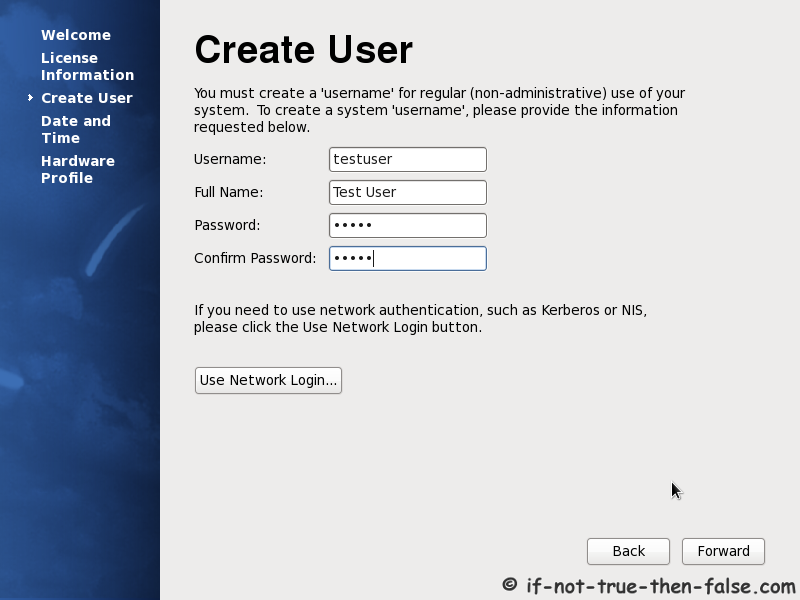
3.4 Create Fedora user

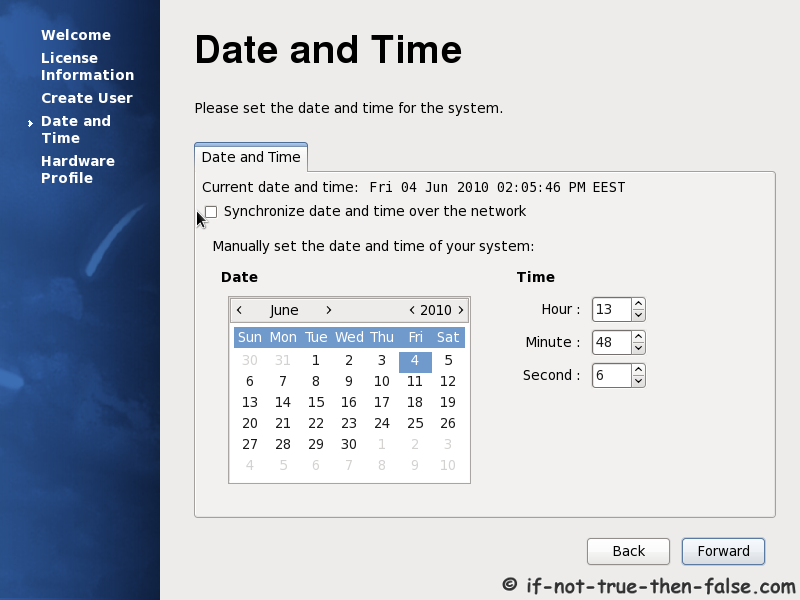
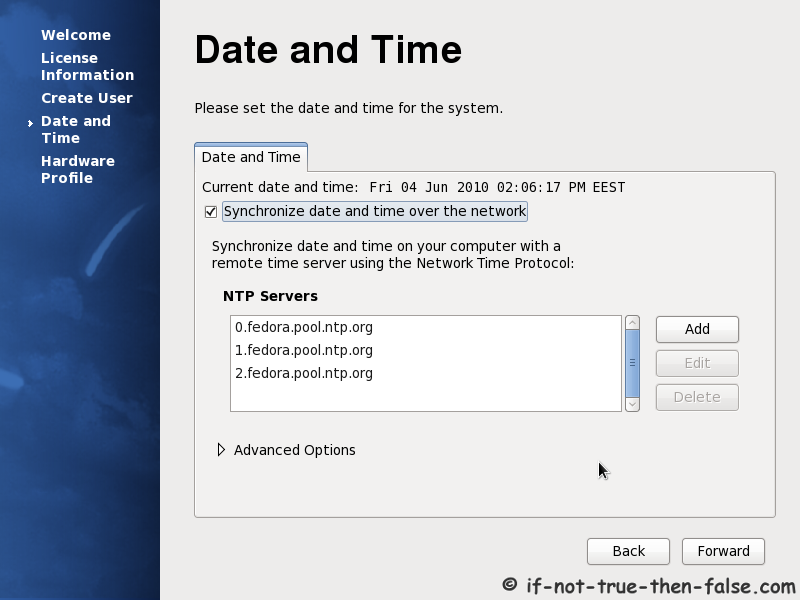
3.5 Setup date and time – Set NTP servers

Then send Hardware Profile or not and Login.

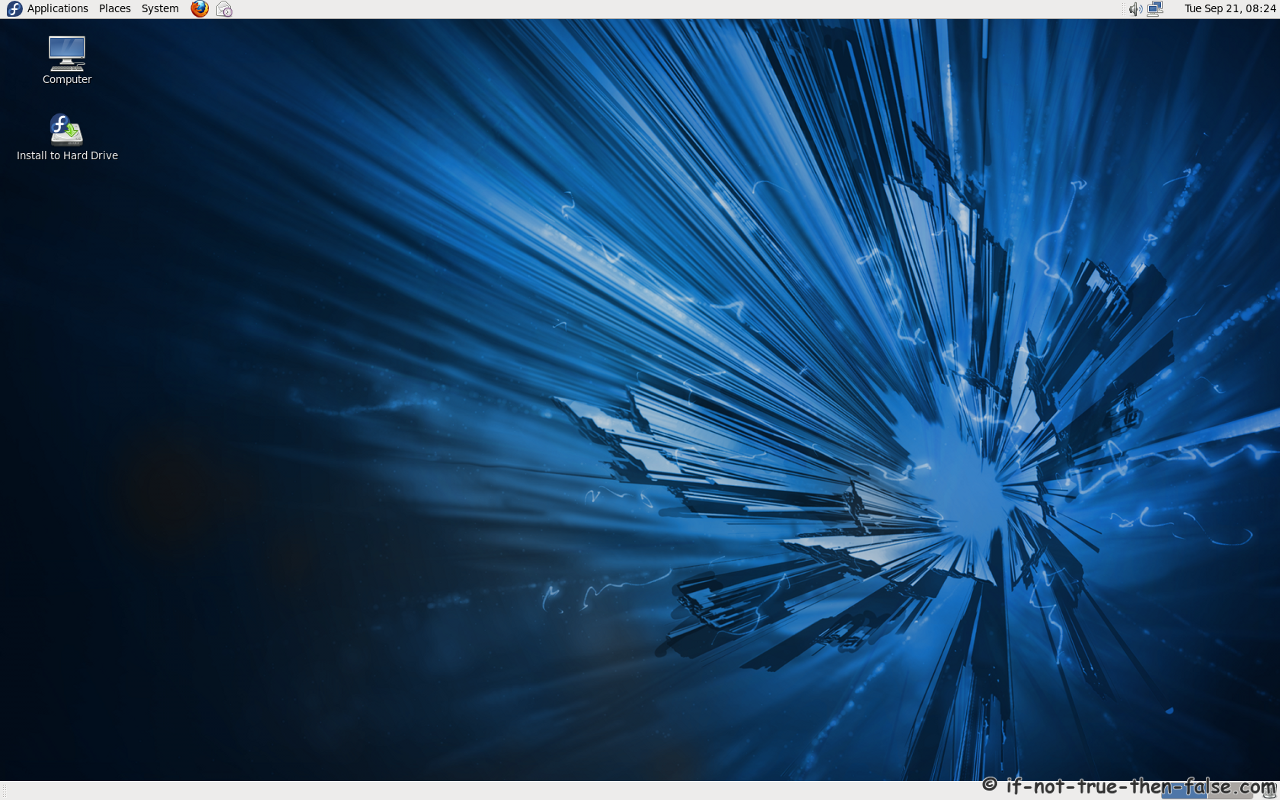
3.5 Fedora 14 desktop

4. Fedora 14 Laughlin Guides/Howtos

Install Google Chrome with YUM on Fedora 14 >>

Install Chromium (dev) Browser on Fedora 14 >>

Install Firefox 4 (beta 6) on Fedora 14 >>

Install/Update Opera on Fedora 14 >>

Install Sun/Oracle Java JDK/JRE 6 on Fedora 14 >>

Install Sun/Oracle Java JDK/JRE 7 (b110) on Fedora 14 >>

Install Eclipse SDK 3.6.1 (Helios) on Fedora 14 >>

Install LAMP (Linux, Apache, MySQL, PHP) on Fedora 14 >>

Install MySQL 5.1 on Fedora 14 >>

Install Apache (httpd) and PHP 5.3.3 on Fedora 14 >>

Install WordPress 3.0.1 on Fedora 14 >>

Apache Userdir with SELinux on Fedora 14 >>

Install Adobe Flash Player 10.1 on Fedora 14 >>

Install Adobe (Acrobat PDF) Reader on Fedora 14

Install OpenOffice.org 3.2.1/3.3.0 on Fedora 14 >>

Install VirtualBox 3.2.10 on Fedora 14 >>

Install VirtualBox Guest Additions on Fedora 14 >>

Follow If Not True Then False Updates!

8 Comments

  1. This tutorial was indeed helpful.

  2. Thanks :)

  3. Hi……
    I need to have a dual boot on my system now……
    Is it possible to install windows without overwriting the Fedora 14?….if possible please guide me with the installation…….

    • Hi Mahesh,

      Yes it’s possible to Install Windows without overwriting Fedora 14, but you need ready windows partition or maybe another hard drive before installation.Windows might override your MBR (I’m not sure about newest Windows) so then you lost your Grub and you have to restore it with LiveCD. Or another way is use Windows own bootloader to boot Fedora.

  4. Hi JR,
    one more query…..
    How to login to the system as root user through the GUI?……i m not able to find an option to login as root…..Please help……..i m very new to linux and i m loving it day by day…….

    • You should never log on to your desktop as root user.

      And also using any graphical programs as root is very bad idea too.

  5. Well i’ve been interested in Fedora and encouraged to do many things . BUt iam afraid whether something will happen to my windows partition , Can you give me an assurance that everything will almost OK if i follow the above procedure . I hope for a positive reply . Forgot , but i’ve to say your good in creating tutorial

  6. Great tutorial I found it very helpful, I am trying to create a bootable fedora 14 on my external hardrive, I have followed these steps but when I reboot it says Error loading operating system, not sure where I went wrong or is there a few things I should check?

Leave a Comment

Your email address will not be published. Required fields are marked *

You may use these HTML tags and attributes: <a href="" title=""> <abbr title=""> <acronym title=""> <b> <blockquote cite=""> <cite> <code> <del datetime=""> <em> <i> <q cite=""> <strike> <strong>