NetBeans 7.2 on Fedora 18/17, CentOS/RHEL 6.3/5.8

NetBeans 7.2 is released and this is guide with screenshots, howto install NetBeans 7.2 on Fedora 18/17/16/15/14/13/12, CentOS 6.3/6.2/6.1/6/5.7 and Red Hat (RHEL) 6.3/6.2/6.1/6/5.7.

What is NetBeans?

The NetBeans IDE (integrated development environment) is available for Windows, Mac, Linux, and Solaris. The NetBeans project consists of an open-source IDE and an application platform that enable developers to rapidly create web, enterprise, desktop, and mobile applications using the Java platform, as well as JavaFX, PHP, JavaScript and Ajax, Ruby and Ruby on Rails, Groovy and Grails, and C/C++.

Whats New on NetBeans 7.2?

  • Significant performance increase on remote filesystems, improved project scanning speed, and background project scanning
  • Java Editor enhancements
  • Java SE Development Kit 7 Update 4 support
  • Redesigned search history in supported version control systems and support for Mercurial Queues
  • Ant 1.8.3 is supported and bundled with the IDE
  • Bundled version of Maven is upgraded to 3.0.4
  • Debugger improvements
  • PHP 5.4 support

Install NetBeans 7.2 on Fedora 18/17/16, CentOS 6.3/5.8, Red Hat (RHEL) 6.3/5.8

1. Install Sun’s Java

You have to install Sun’s Java, because NetBeans won’t currently run with OpenJDK. Here is the guide, howto install Sun/Oracle Java JDK 7 on Fedora, CentOS, Red Hat (RHEL).

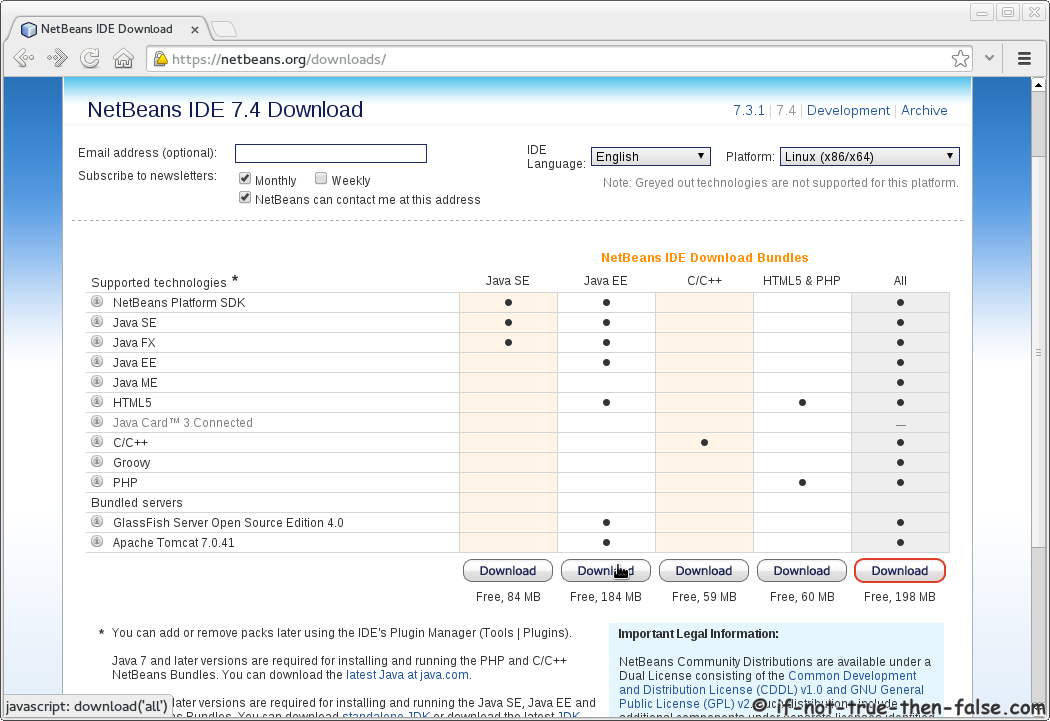
2. Download NetBeans 7.2

from Sun’s NetBeans 7.2 download page.

Select best suitable version or select whole package.

3. Change to root

su -
## OR ##
sudo -i

4. Make package executable

NetBeans 7.2

chmod +x netbeans-7.2-ml-linux.sh

4. Run installer (as root)

NetBeans 7.2

./netbeans-7.2-ml-linux.sh

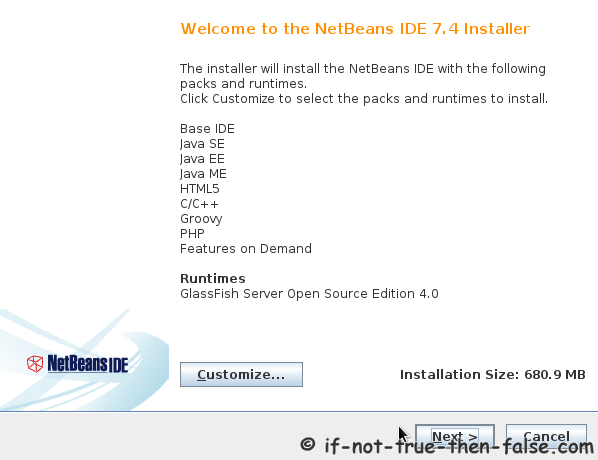
5. NetBeans IDE Welcome Screen

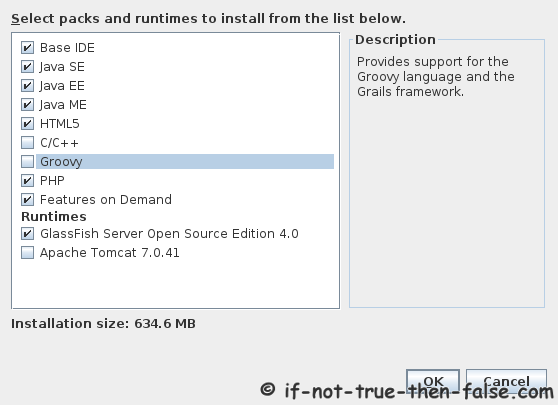
With full package is possible customize module selection, with clicking customize button:
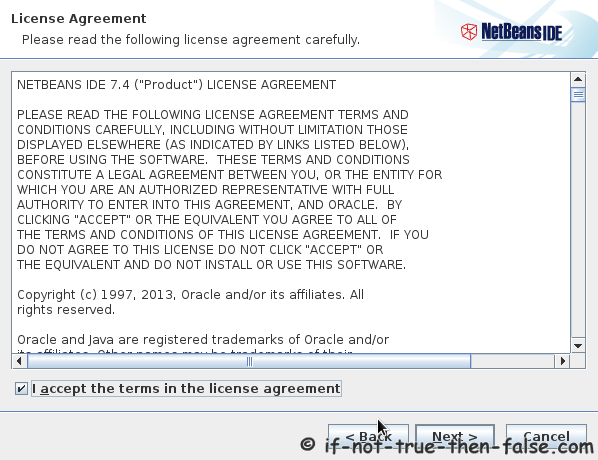
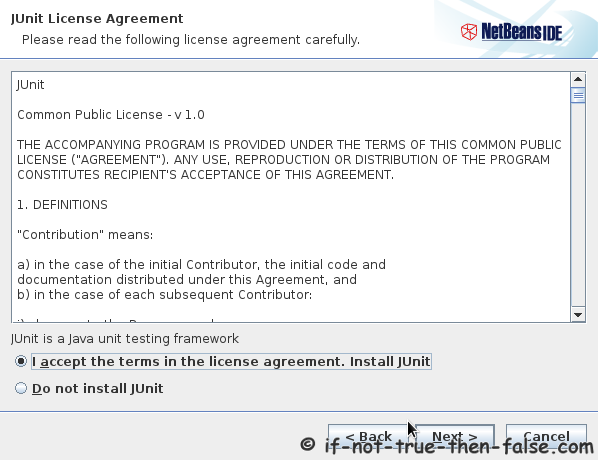
6. Accept NetBeans Licenses

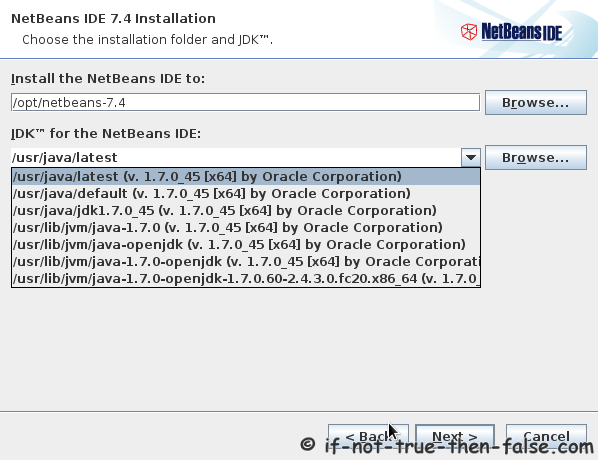
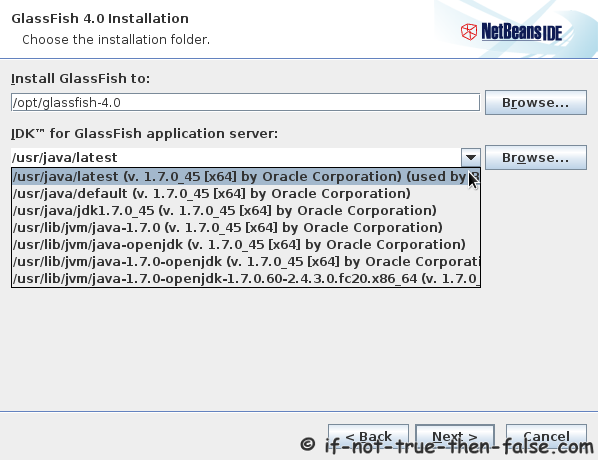
7. Choose a NetBeans Installation Directory and JDK version

If GlassFish Application Server is also selected to Installation then select Directory also for GlassFish:
8. Check NetBeans Installation Summary

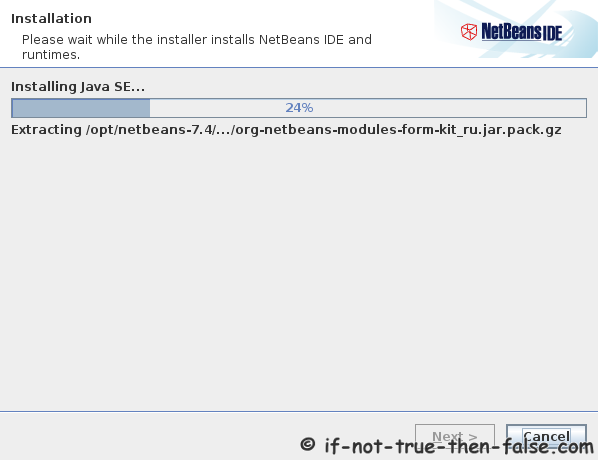
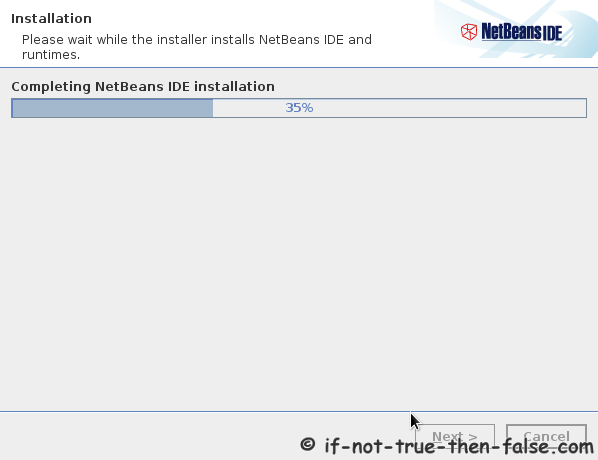
9. Installing NetBeans IDE

10. NetBeans IDE Installation Complete

11. Start NetBeans 7.2 IDE

/path/to/netbeans-7.2/bin/netbeans
 
## Example ##
/opt/netbeans-7.2/bin/netbeans

Or Start NetBeans with using desktop launcher.

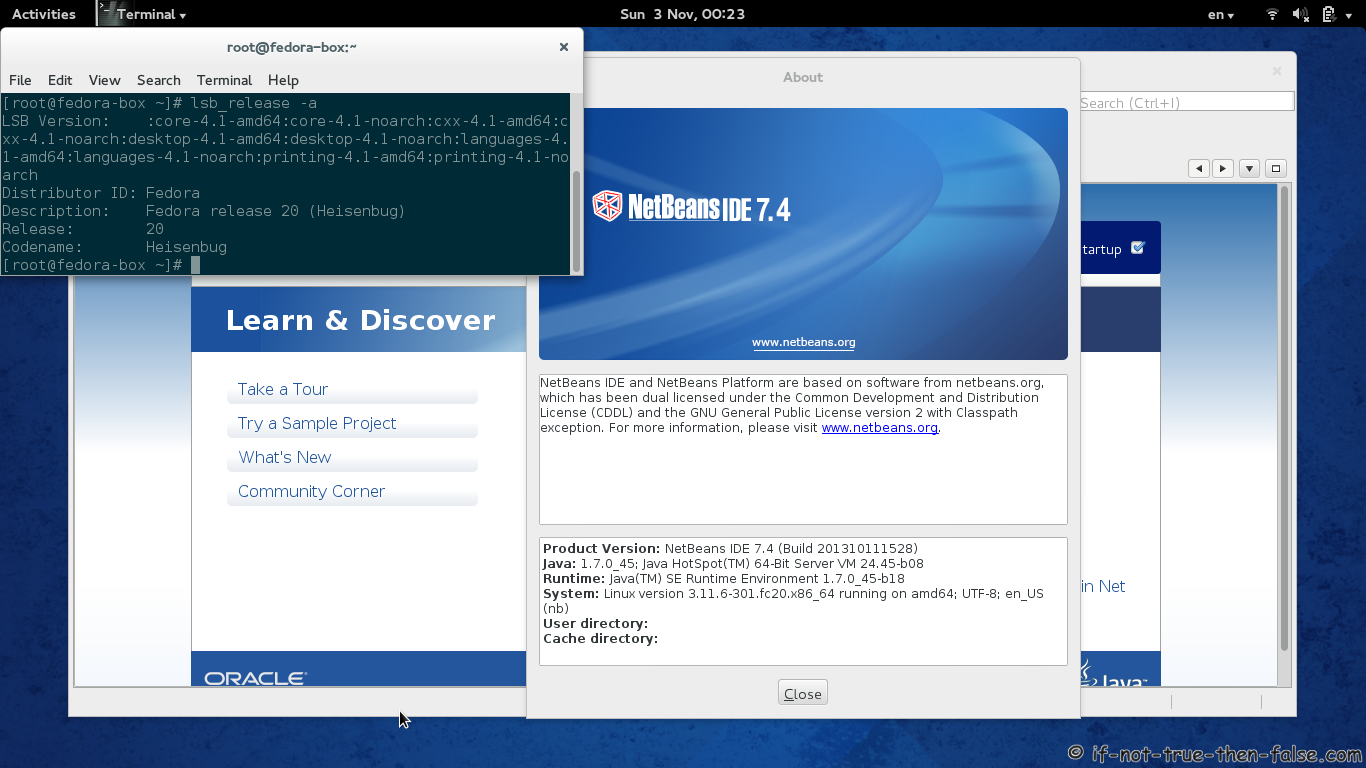
12. NetBeans 7.2 IDE running on Fedora 17 (Screenshot)

Follow If Not True Then False Updates!

15 Comments

  1. I have installed Netbeans 7.1RC2. It works, except with Maven. You cannot create Maven-Projects and existing Maven-Projects cannot be processed as usual. – After having lost to much time with fedora16 and Netbeans I have to change to the detested Windows 7 because there its all working fine.

  2. Buenas tardes.
    En Fedora 16 version de 64 bits, instale el netbeans 6.9 pero por cualquier cosa se cierra, también probé con la versión 7 y pasa lo mismo. si de pronto conocen la solucion, muchas gracias..

  3. Dumelang,

    I have just successful installed and tested a Zend project in ¨/var/www/html/test-project¨. Then I created a new Zend PHP project in ¨/home/Quet/NetBeansProjects/PhpProject1¨, but it doesńt run. When I and try and run the project, i get The requested URL /PhpProject1/ was not found on this server on ¨http://localhost/PhpProject1/¨

    So, I tried to create a new project, but this time in ¨/var/www/html/PhpProject1¨, BUT netbeans 7.1 tells me ¨Sources folder is not writable¨. So I then proceed to ¨[root@localhost www]# chmod -R 0775 ./html/¨.

    I am clearly clueless, so please advice me on how to properly set-up my Netbeans, PHP and Zend environment to get up and going.

    thanks
    ¨

  4. I need to run Netbeans as “root” in F16 because I can’t write to /var/www/html where my projects reside. I know about besuu command which is a GUI for su but didn’t know how to change the Netbeans path at Activities launcher, any help?

    • Hi ReynierPm,

      Maybe you should change your project directory permissions or whole project directory location?

  5. The directory is at /var/www/html/cmv and is owned by apache:reynierpm with 777 permissions and still can’t write nothing there

    • Could you post output of following commands:

      ls -la /var/www/html/cmv
       
      ls -la /var/www/html
       
      ls -la /var
  6. Just wanted to say you post awesome guides. Keep up the good work. I may have a question or two, if I run into anything.

  7. Quick question: Can’t I use netbeans with just IcedTea, and how much of a difference would it really make in speed?

    $ java -version
    java version “1.6.0_24″
    OpenJDK Runtime Environment (IcedTea6 1.11.3) (rhel-1.48.1.11.3.el6_2-x86_64)
    OpenJDK 64-Bit Server VM (build 20.0-b12, mixed mode)

    • Hi RW,

      And thank you for compliments. Very nice to hear that you like my guides. :)

      NetBeans should work with IcedTea. It’s almost impossible say is there any speed difference.

      • Netbeans installation is not working with openjdk. No compatibleJdk found error.

        java version “1.7.0_09-icedtea”
        OpenJDK Runtime Environment (fedora-2.3.5.3.fc17-x86_64)
        OpenJDK 64-Bit Server VM (build 23.2-b09, mixed mode)

        • Thanks Dinesh,

          I removed OpenJDK part from guide too.

  8. Hi JR, thanks for the quick response. I guess I am going to have to get Sun’s Java, which is ok, since I have to work on an enterprise app anyway using this. It apparently does not recognize the version of Ice Tea that I have. I am on CentOS 6.3. I am using your Get Java guide that you linked earlier, within this guide.

    • I actually just checked NetBeans 7.2 system requirements and looks like Java JDK 6 Update 26 or later is required to install the NetBeans IDE. So that’s why OpenJDK 1.6.0_24 won’t work.

      But yes you could install newer Sun/Oracle Java 7 or install newer OpenJDK. Maybe Java 7 is good choice… :)

Leave a Comment

Your email address will not be published. Required fields are marked *

You may use these HTML tags and attributes: <a href="" title=""> <abbr title=""> <acronym title=""> <b> <blockquote cite=""> <cite> <code> <del datetime=""> <em> <i> <q cite=""> <strike> <strong>