Red Hat 6 Installation Guide – RHEL 6 Install Screenshots
This is Red Hat 6 RHEL (Red Hat Enterprise Linux) installation guide, step-by-step walkthrough with screenshots. Current version of Red Hat 6 is Beta, but also this RHEL 6 Beta version looks very stable and good OS, so that’s why I decided to write this RHEL 6 Installation guide.
The Red Hat Enterprise Linux 6 Beta is available on the following architectures:
- i386
- AMD64/Intel64
- System z
- IBM Power (64-bit)
Download Red Hat 6 Beta DVD images here.
Some of the many improvements and new features that are included in Red Hat Enterprise Linux 6
- Power management – tickless kernel and improvements through the application stack to reduce wakeups, power consumption measurement by Powertop, Power Management (ASPM, ALPM), and adaptive system tuning by Tuned, all enhance more efficient system power usage.
- Next generation networking – comprehensive IPv6 support (NFS 4, CIFS, mobile support [RFC 3775], ISATAP support), FCoE, iSCSI, and a new and improved mac 802.11 wireless stack.
- Scalable filesystems – ext4 file system provides support for larger file sizes and significantly reduces repair times over ext3. XFS® is a high-performance file system that supports extremely large files and is optimized for large data transfers.
- Virtualization – KVM includes performance improvements and new features, sVirt protects the guest and host from unauthorized access, SR-IOV and NPIV deliver high-performance virtual use of physical devices, and libvirt leverages kernel resource management functionality.
- Enterprise security enhancement – SELinux includes improved ease of use, application sandboxing, and significantly increased coverage of system services, while SSSD provides unified access to identity and authentication services as well as caching for off-line use.
- Development and runtime support – SystemTap improvements, ABRT is a new framework for simple collection and reporting of bug information, and improvements are made to GCC (version 4.4.3), glibc (version 2.11.1), and GDB (version 7.0.1).
On this guide I use Graphical Installer. There is also Kickstart automated installation method and Text-based Installer available. And I install this machine for Software Development Workstation and testing environment. So package selection is following: Desktop, Web server, Databases, Compiling tools, Java. Same method works also for servers, normal desktops and other setups, but of course different software selection. So let’s begin installation…
Burn Downloaded Image to DVD and Boot Computer Using Red Hat 6 Installation DVD
Check RHEL image MD5 sum and burn image to DVD with your favourite CD/DVD burner. And boot computer using Red Hat Installation DVD.
Red Hat 6 RHEL Installation
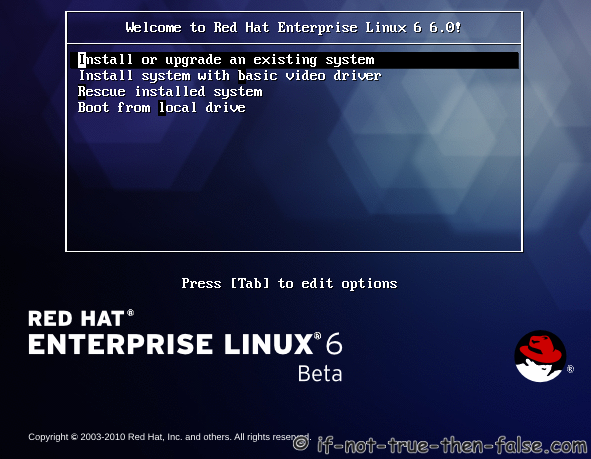
1. Select Install or upgrade an existing system option on Grub Menu
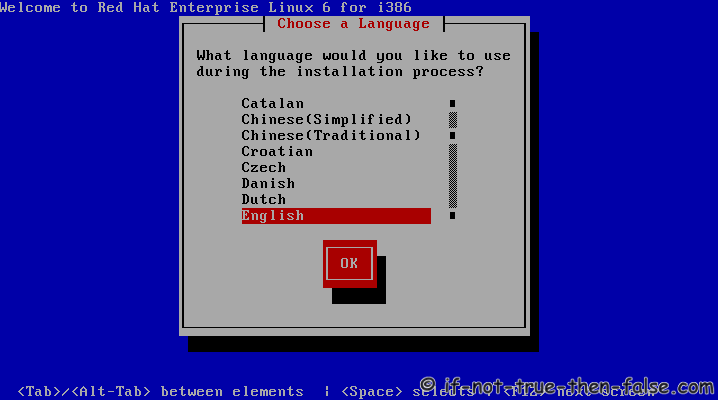
2. Choose a language
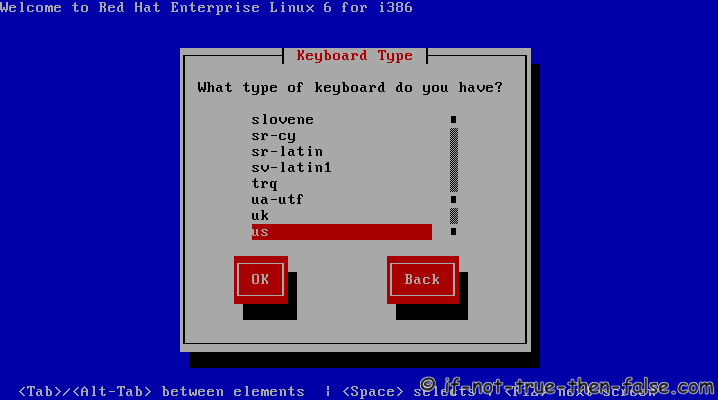
3. Choose a keyboard type
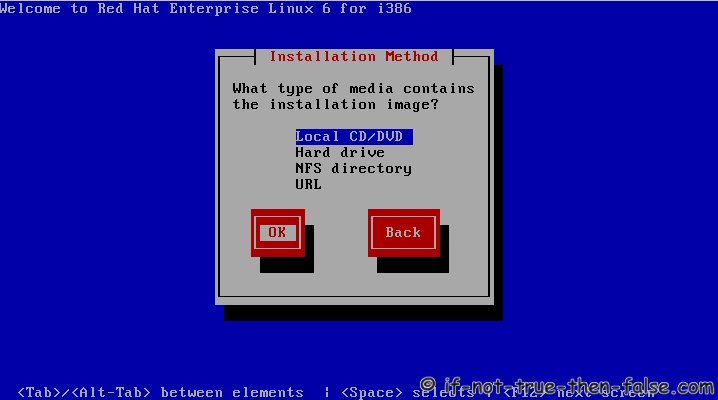
4. Choose a installation media
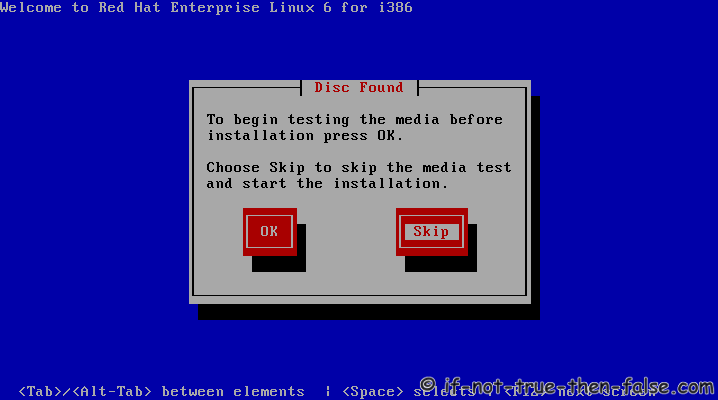
5. Skip DVD media test (or select media test, if you want to test installation media before installation)
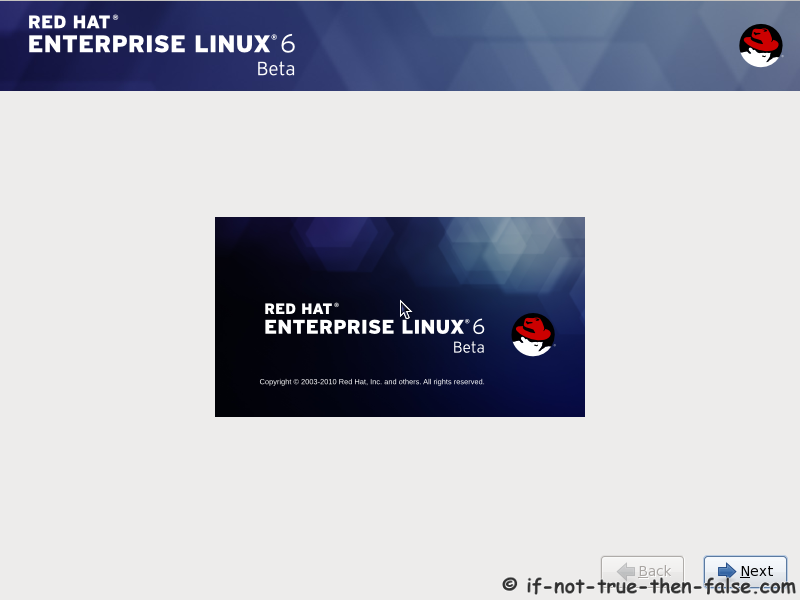
6. Red Hat 6 graphical installer starts, select next
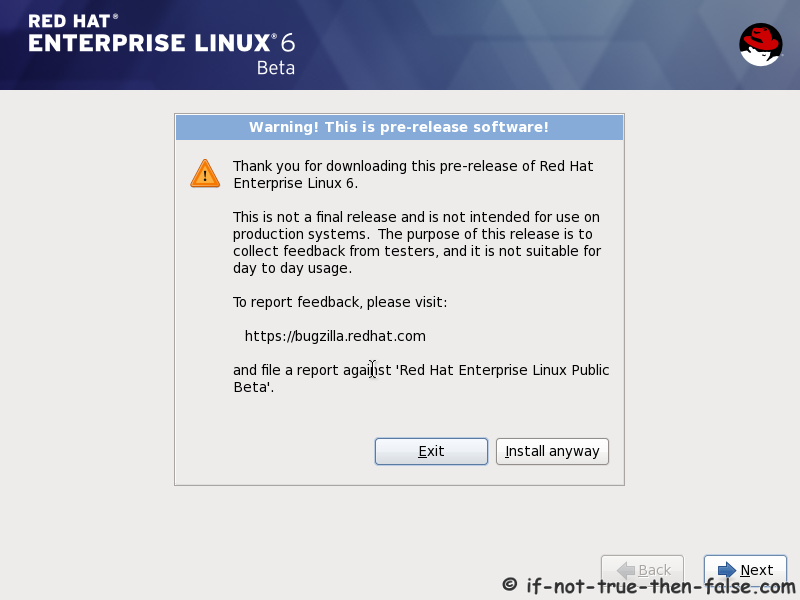
7. Accepct Pre-Release Installation
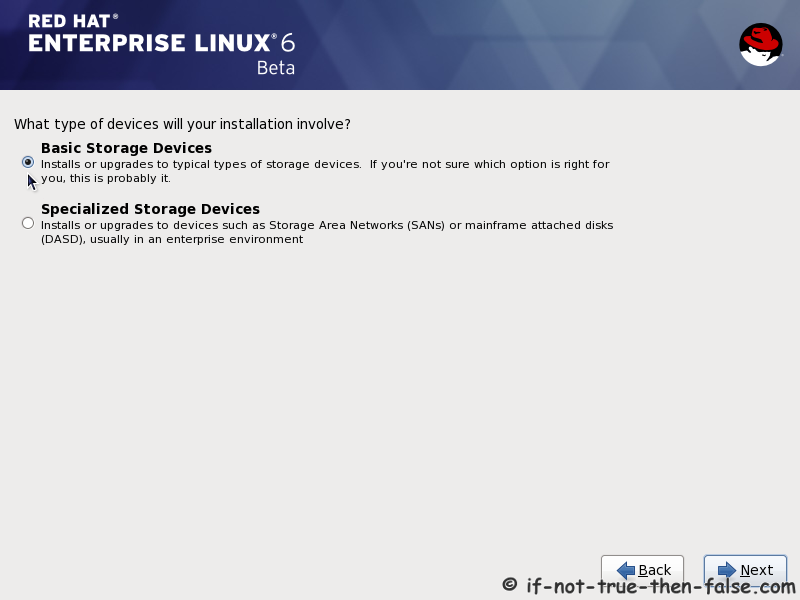
8. Select storage devices
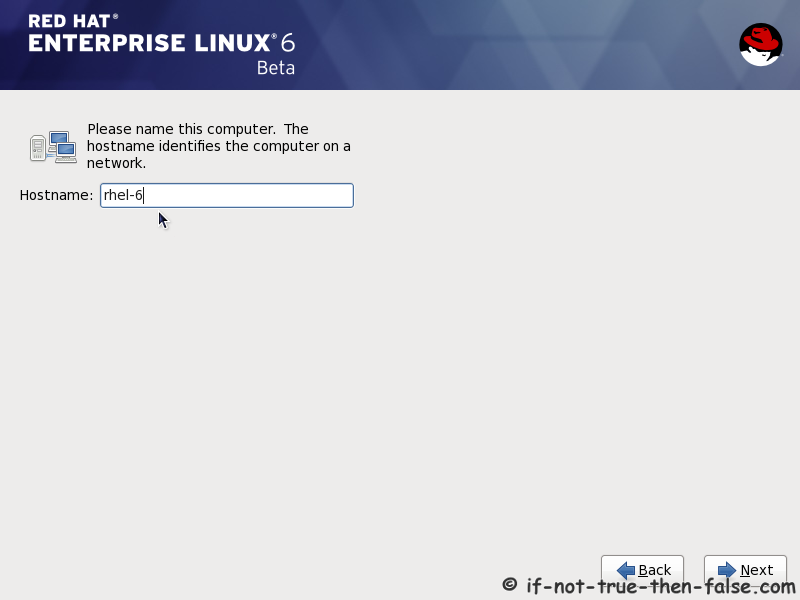
9. Insert computer name
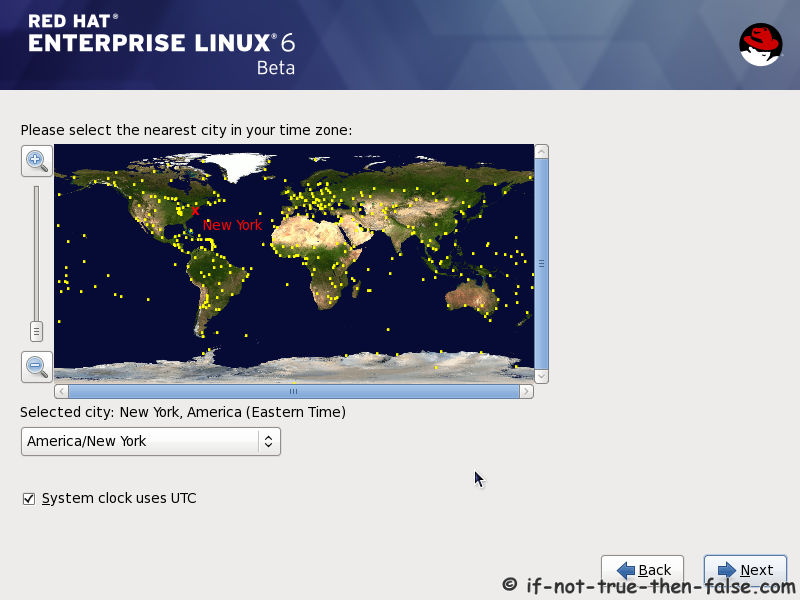
10. Select time zone
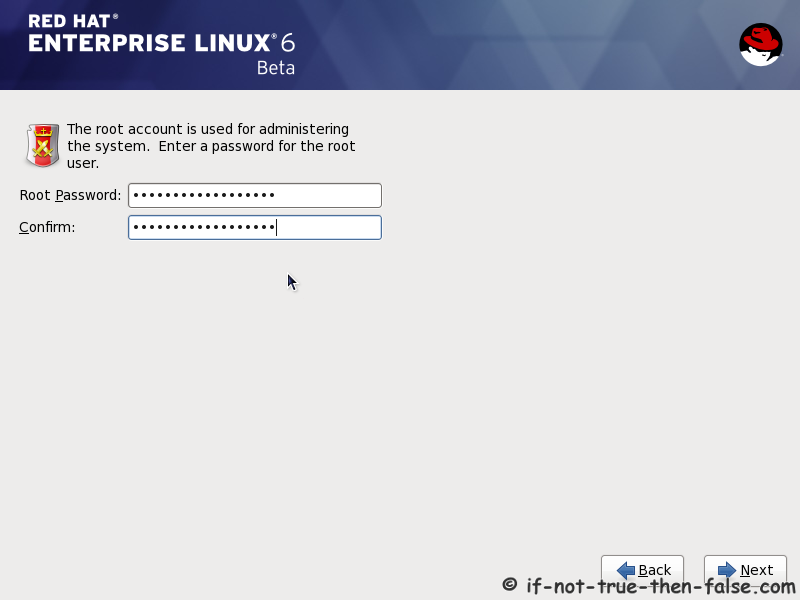
11. Enter a password for root user
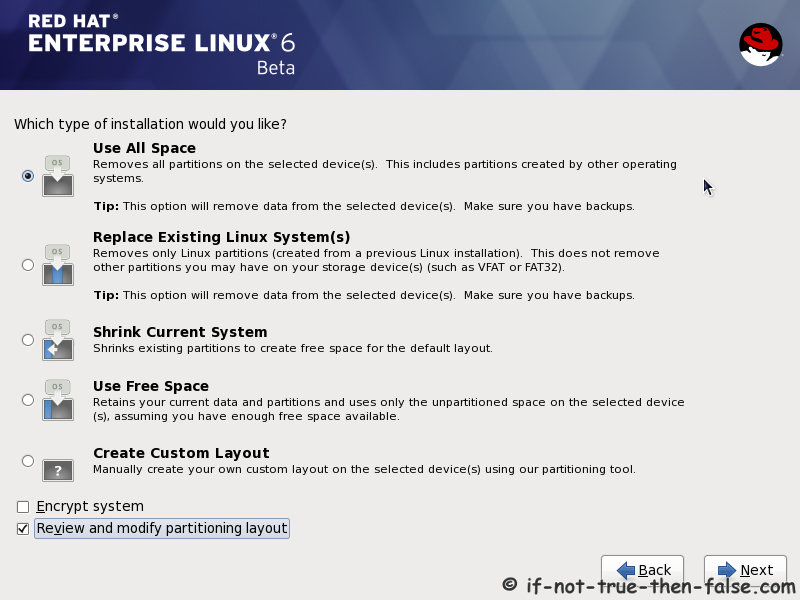
12. Select type of installation
Read every options info carefully. And select encrypting if needed and option to review and modify partition layout.
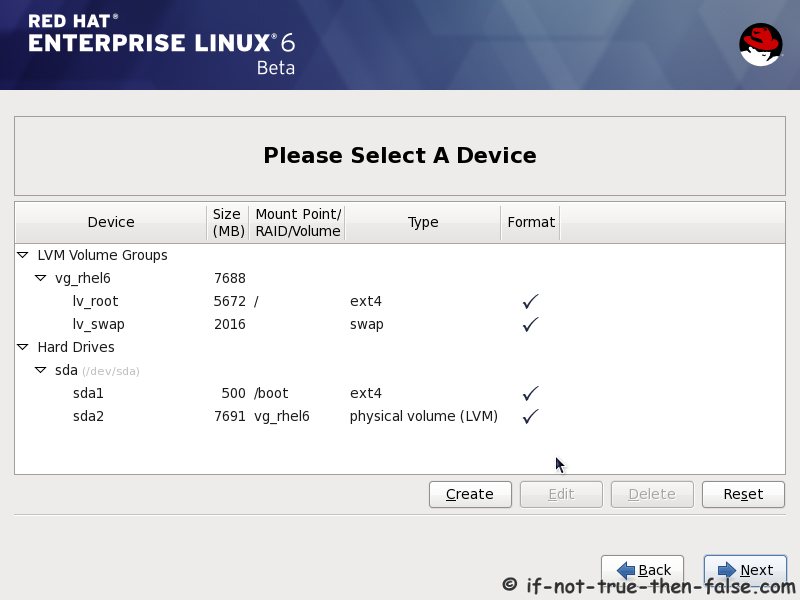
13. Review partition layout
Modify if needed. Default setup with ext4 and LVM looks good for desktop machine.
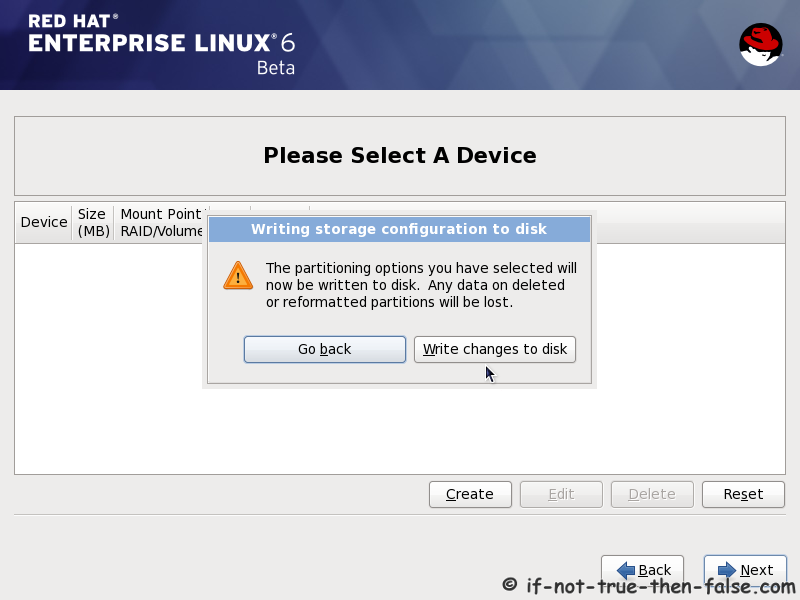
14. Accept write changes to disc
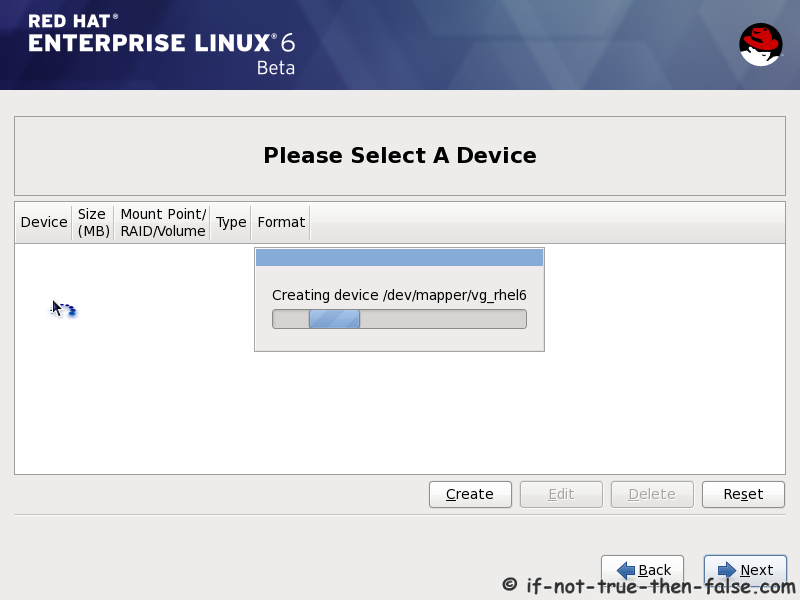
15. Writing changes (creating partitions) to disc
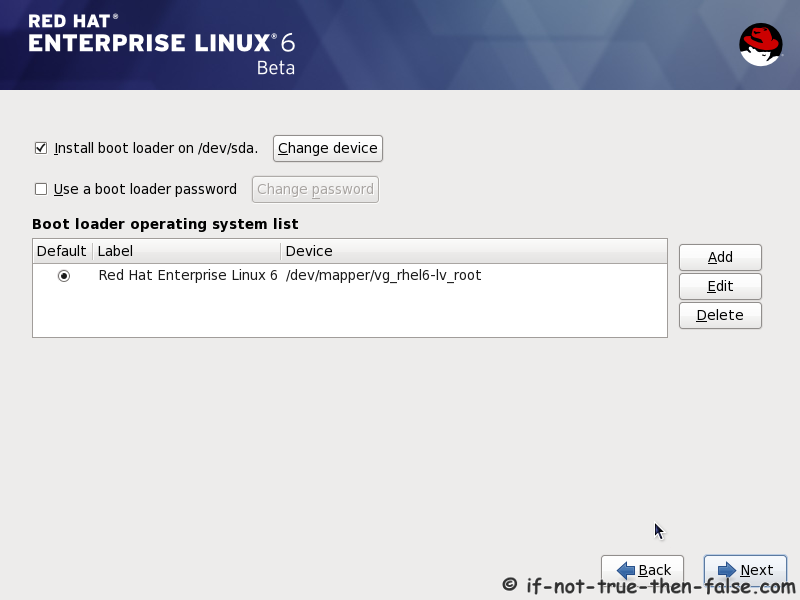
16. Configure boot loader options
Select device to install bootloader and check/create boot loader operating system list.
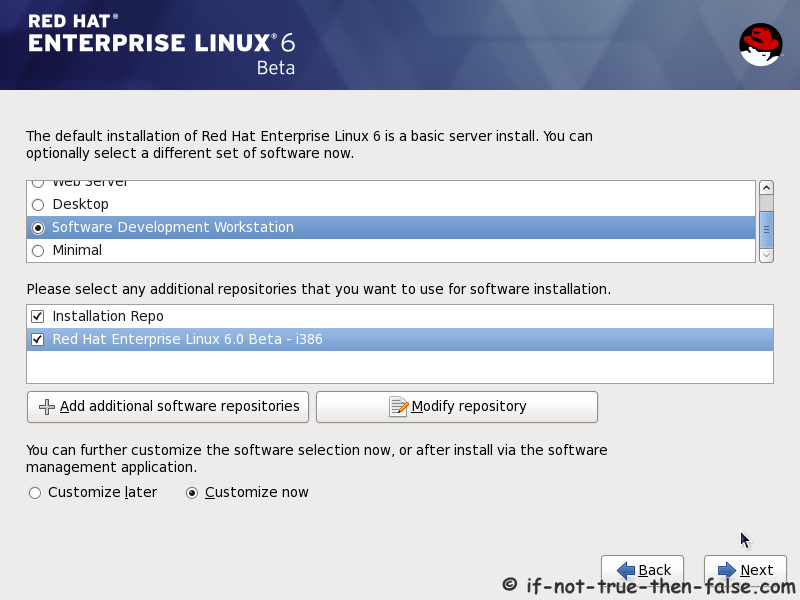
17. Select softwares to install and enable repositories
This case we select Software Development Workstation and enable Red Hat Enterprise Linux 6.0 Beta Repository and select Customize now.
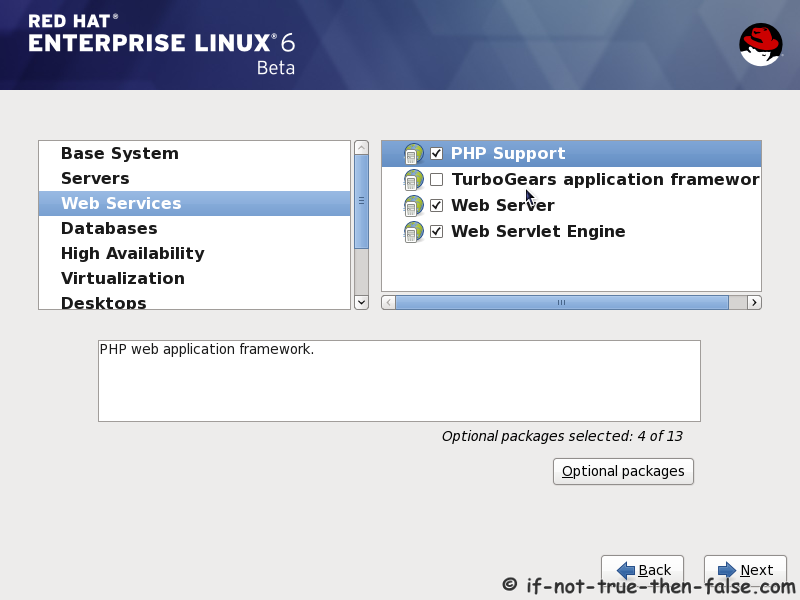
18. Customize package selection
Select PHP and Web Server to installation.
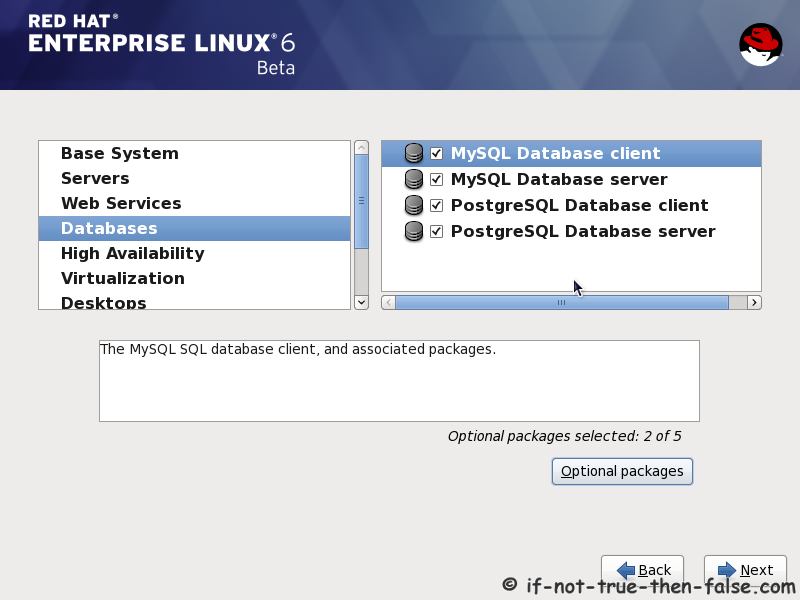
Select MySQL and PostgreSQL Databases.
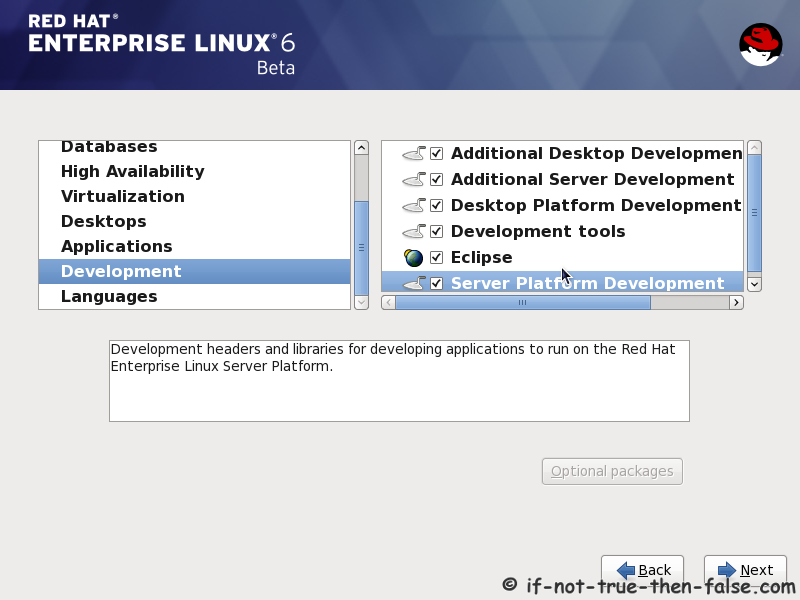
Select set of Development tools like Eclipse IDE.
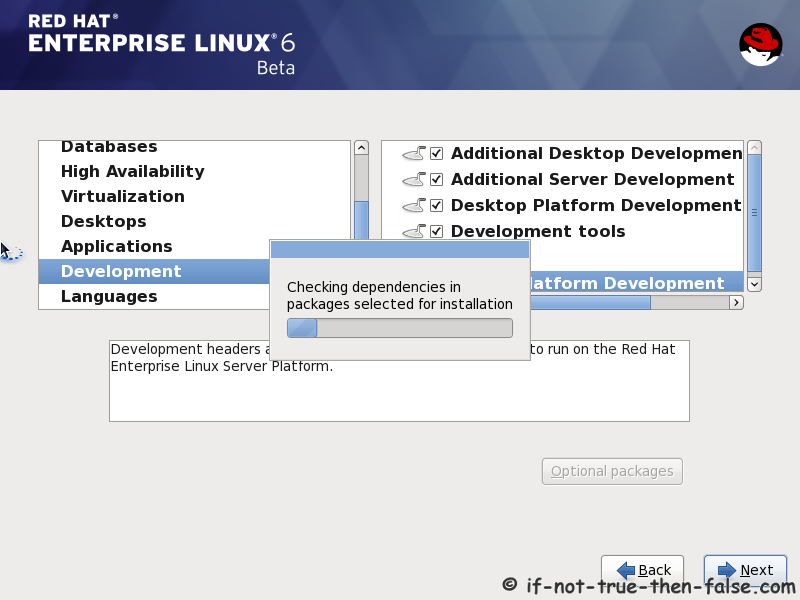
19. Checking dependencies for installation
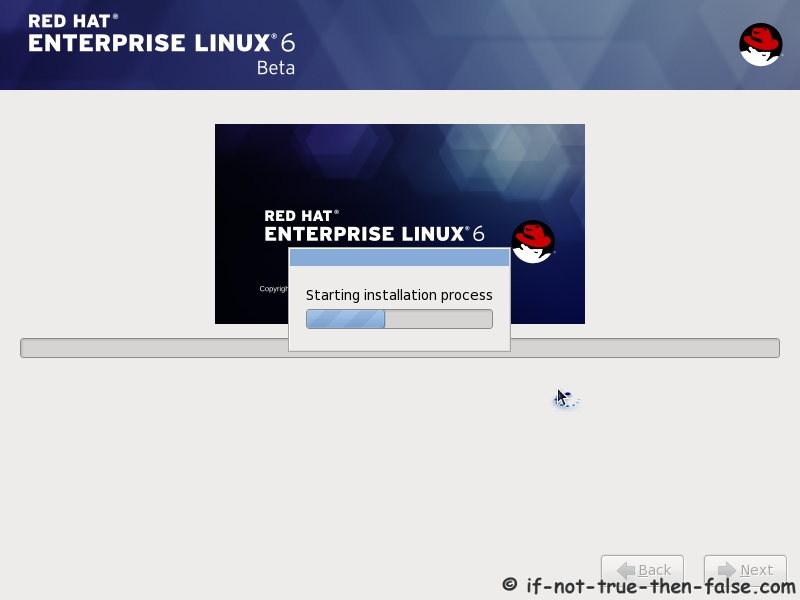
20. Starting installation process
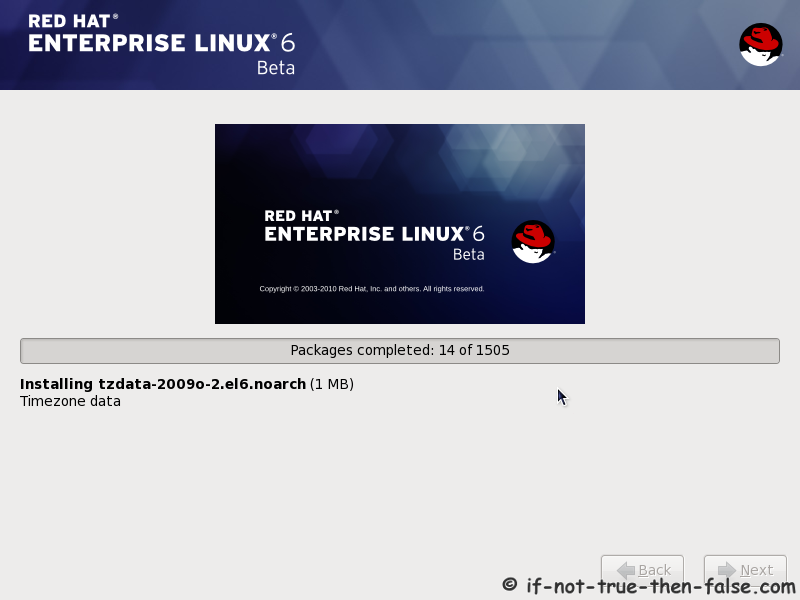
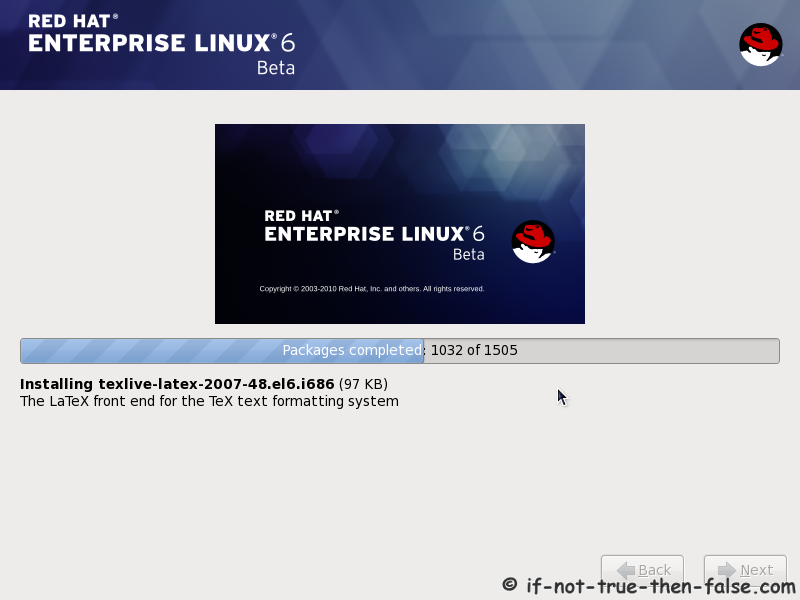
21. Installing packages
22. Installation is complete
Click reboot computer and remove installation media.

Red Hat 6 RHEL Finishing Installation
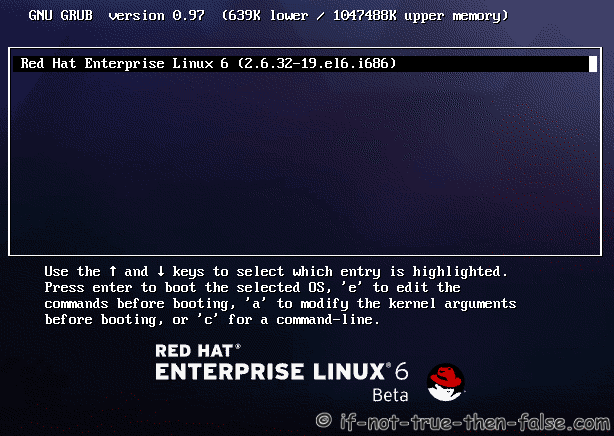
23. Selecting RHEL 6 from grub
24. Booting Red Hat 6
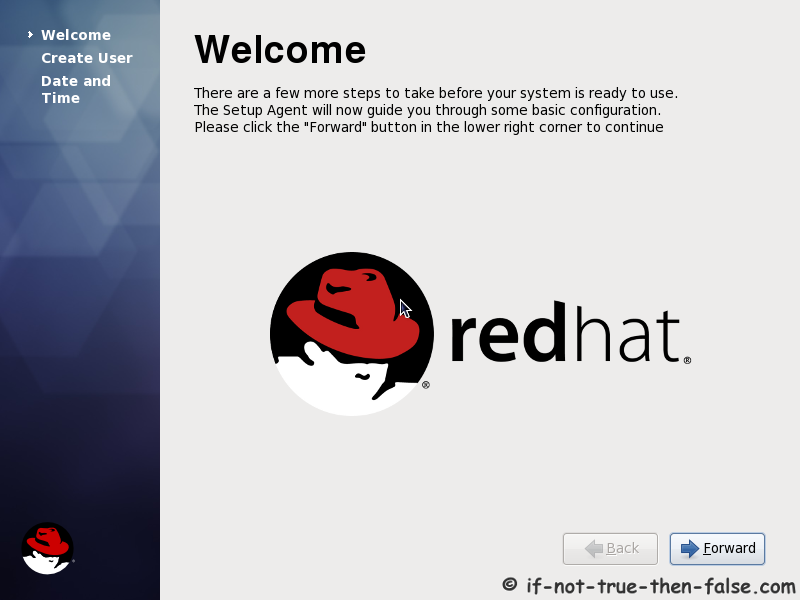
25. Red Hat 6 Welcome screen
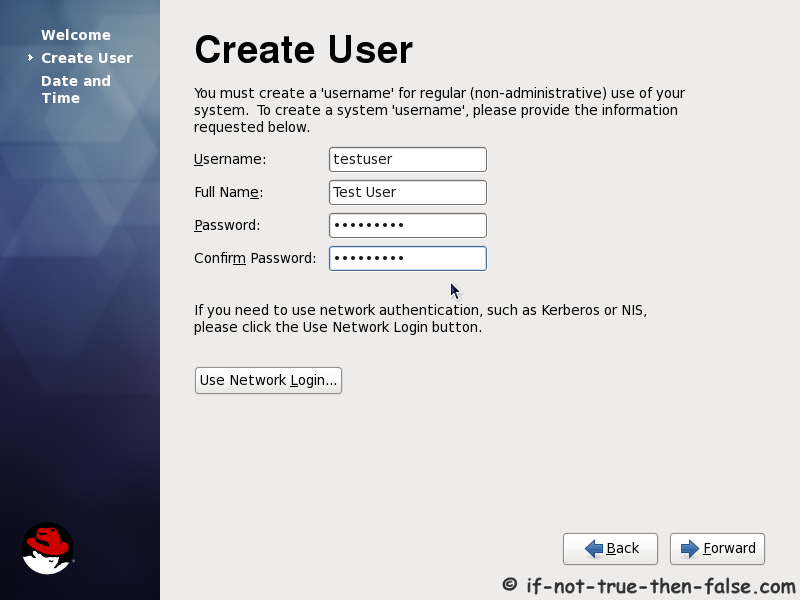
26. Create normal user
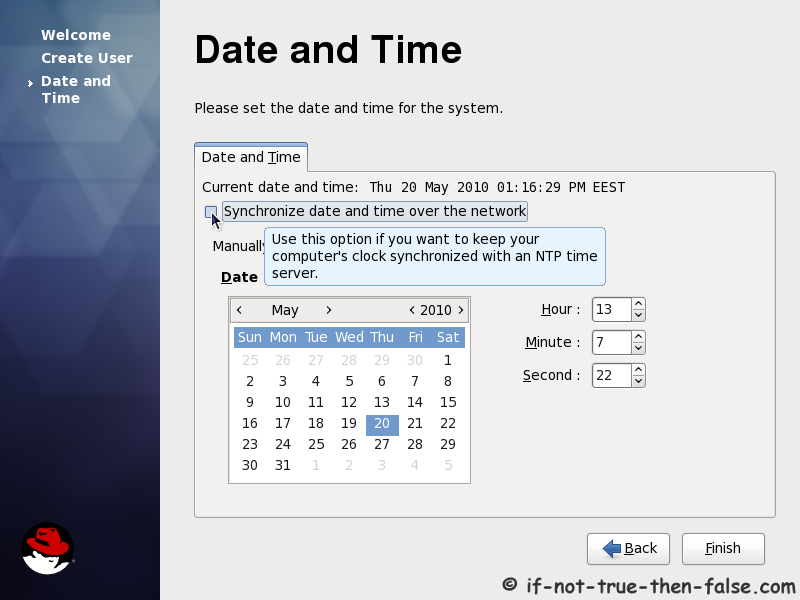
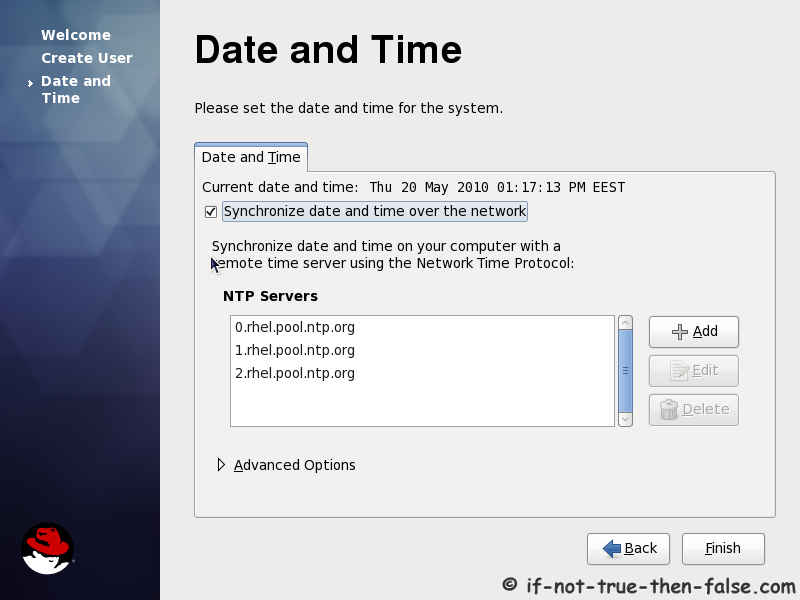
27. Setup date and time and keep up-to-date with NTP
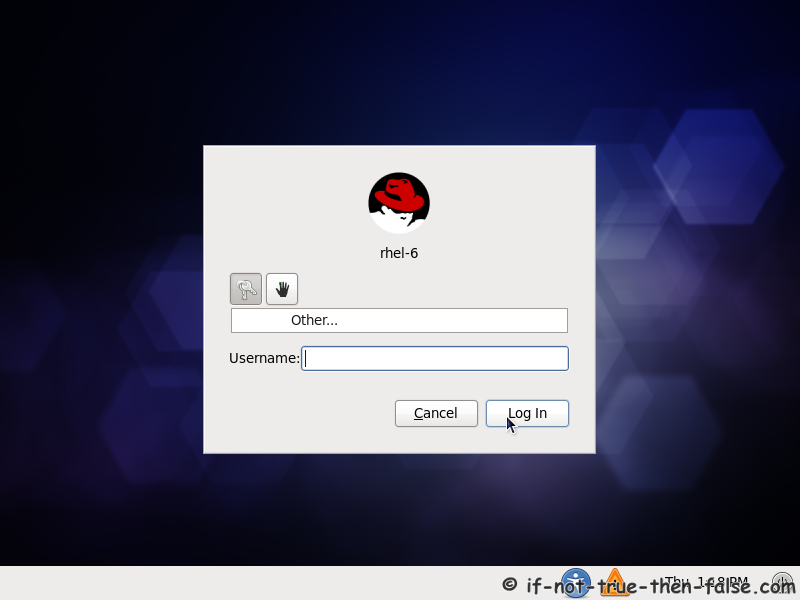
28. Login Red Hat 6 Gnome Desktop
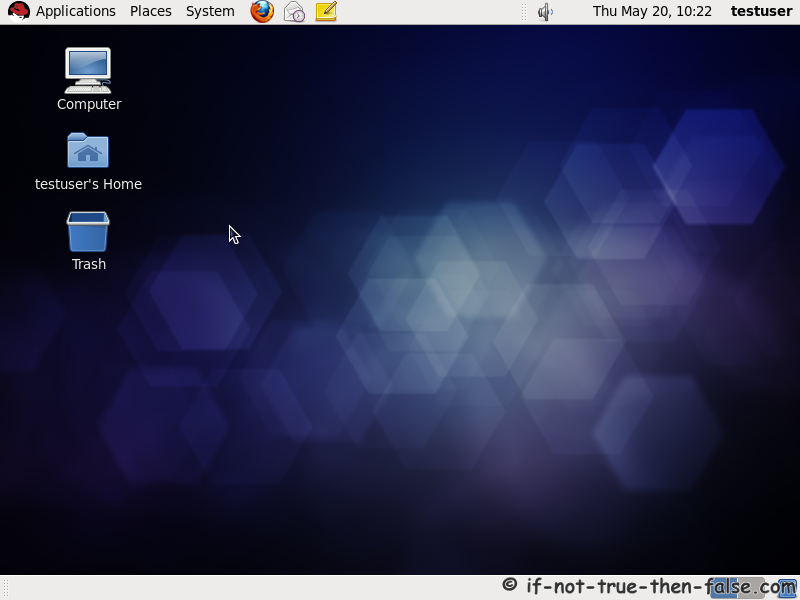
29. Red Hat (RHEL) 6 Gnome Desktop, empty and default look
What to do next?
Install Google Chrome Beta or Google Chrome Unstable on Red Hat (RHEL) 6
Install Adobe Flash Player 10 on Red Hat (RHEL) 6
Install Sun/Oracle Java (JDK, JRE) 6 on Red Hat (RHEL) 6
Install Adobe AIR 1.5 and 2 on Red Hat (RHEL) 6
Install Adobe (Acrobat PDF) Reader on Red Hat (RHEL) 6
Install VirtualBox (with yum) on Red Hat (RHEL) 6
Related posts:
- CentOS 6.2 Netinstall Guide – Network Installation Screenshots
- Install Google Chrome with YUM on Fedora 16/15, CentOS/Red Hat (RHEL) 6.2
- Install VirtualBox 4.1.8 on Fedora 16/15, CentOS/Red Hat (RHEL) 6.2/5.7
- NetBeans 7.1 on Fedora 16/15, CentOS/RHEL 6.2/5.7
- Fedora 16 “Verne” Install Guide with Screenshots
130 Comments
Leave a Comment
Trackbacks/Pingbacks
- Tweets that mention Red Hat 6 Installation Guide – RHEL 6 Install Screenshots | if not true then false -- Topsy.com - [...] This post was mentioned on Twitter by Zuissi, Zuissi. Zuissi said: New post: Red Hat 6 Installation Guide - ...
- Gadget Newz - [...] Red Hat 6 Installation Guide - RHEL 6 Install Screenshots [...]
- How to install xorg on RedHatLinux? - [...] Yum & up2date are for installing packages, I also downloaded the files that you downloaded and they are source ...


Hi JR,
As you said i deleted D partition and am having approx 80GB of free space.In step 12 I selected “use free space option and Review and Modify partition layout” and by clicking next it is throwing an error message that “could not allocate requested partitions: not enough space for LVM requests”.
please help me regarding this.
waiting for your reply,
thanks in advance.
Try to select “Create Custom Layout” and “Review and Modify partition layout” instead and check that it shows that you are really having 80 Gb free space? Then you can press back button and your hard disk stays untouched. :)
Sometimes Windows is not working as expected when you try to delete/manage partitions…
hi jr i tried it and it showed me 40gb and 40gb idividual drives free space.
Hi again kishore,
I can found some Fedora 12/RHEL 6 bug reports same issues, but nothing useful, howto solve your problem. I recommend you to create manually your custom partition layout.
You could create example something like following setup with our 80 Gb space (leave your Windows partition untouched):
1. Standard partition /boot 500 Mb ext4
2. LVM Physical Volume All free space
3. Create LVM Volume Group (example vg_rhel)
3. LVM Logical Volume Swap 1-1.5 * RAM (Example if you have 2Gb ram then Swap size is 2Gb-3Gb)
4. LVM Logical Volume Root / All free space
If you want separated home partition then create example 10-20 Gb root partion and use all free space for home partition.
Please let me know, if you have some problems with this setup?
hai
iam using toshiba laptop l500. i would installed redhat el 6.usb device not plugin any pendrive and external hdd
Getting an error
No Disks found
No usable disks have been found
back or exit installer
Installing rhel 6
Hi gagan malik,
Could you post some info about your current partition layout?
Could you also tell which kind of hard disks you have on your machine?
HI,
I am trying to install Linux 6.1 on my desktop. I have Intel core 2 quad 6600, GTX295 nvidia graphic card. I am trying to install the Linux in seperate unformated HDD. I am installing it through Linux 6.1 x86 CD install. I am not able to get the second step. I am getting “intialising Hardware and then it stops there… what to do… I am an new to linux so please guide me how to overcome this step by step from the Step 1 screen Your help would be appreciated.
Hi Navin,
Try to boot with following options:
Hi,
when I start X, I get:
(==) ServerLayout “X.org Configured”
(**) |–>Screen “Screen1″ (0)
(**) | |–>Monitor “Monitor1″
(**) | |–>Device “Card1″
(**) |–>Input Device “Mouse0″
(**) |–>Input Device “Keyboard0″
…
(==) NVIDIA(0): Depth 24, (==) framebuffer bpp 32
(==) NVIDIA(0): RGB weight 888
(==) NVIDIA(0): Default visual is TrueColor
(==) NVIDIA(0): Using gamma correction (1.0, 1.0, 1.0)
(II) Nov 08 21:20:49 NVIDIA(0): NVIDIA GPU Quadro 2000M (GF106GL) at PCI:1:0:0 (GPU-0)
(–) Nov 08 21:20:49 NVIDIA(0): Memory: 2097152 kBytes
(–) Nov 08 21:20:49 NVIDIA(0): VideoBIOS: 70.06.33.00.04
(II) Nov 08 21:20:49 NVIDIA(0): Detected PCI Express Link width: 1X
(–) Nov 08 21:20:49 NVIDIA(0): Interlaced video modes are supported on this GPU
(–) Nov 08 21:20:49 NVIDIA(0): Connected display device(s) on Quadro 2000M at PCI:1:0:0
(–) Nov 08 21:20:49 NVIDIA(0): none
(EE) Nov 08 21:20:49 NVIDIA(0): No display devices found for this X screen.
(II) UnloadModule: “nvidia”
(II) UnloadModule: “wfb”
(II) UnloadModule: “fb”
(EE) Screen(s) found, but none have a usable configuration.
[root@w520 ~]# lspci | grep VGA
00:02.0 VGA compatible controller: Intel Corporation 2nd Generation Core Processor Family Integrated Graphics Controller (rev 09)
01:00.0 VGA compatible controller: nVidia Corporation Device 0dda (rev a1)
[root@w520 ~]# uname -a
Linux w520.mibesis 2.6.32-131.17.1.el6.x86_64 #1 SMP Wed Oct 5 17:19:54 CDT 2011 x86_64 x86_64 x86_64 GNU/Linux
Section “Device”
Identifier “Card1″
Driver “nvidia”
VendorName “nVidia Corporation”
BoardName “Unknown Board”
BusID “PCI:1:0:0″
EndSection
xorg.conf
Section “Screen”
Identifier “Screen0″
Device “Card1″
Monitor “Monitor0″
SubSection “Display”
Viewport 0 0
Depth 1
EndSubSection
SubSection “Display”
Viewport 0 0
Depth 4
EndSubSection
SubSection “Display”
Viewport 0 0
Depth 8
EndSubSection
SubSection “Display”
Viewport 0 0
Depth 15
EndSubSection
SubSection “Display”
Viewport 0 0
Depth 16
EndSubSection
SubSection “Display”
Viewport 0 0
Depth 24
EndSubSection
EndSection
This is on a new Lenovo W520 with NVIDIA Optimus card, Quadro 2000M. How do I get this to work. I would like to run 2 external monitors. But can not get to run only laptop LCD. :/
Hi Miroslav,
Here is some sources to check out, howto configure dualhead setup:
intellinuxgraphics.org/dualhead.html
ozlabs.org/~jk/docs/mergefb/
xorg.conf.5.html#toc13
Hi JR
its me kishore again.some how i managed to do the installation.thanks for your support.
I have a small doubt again….how to register with RHN?
when i tried to register with RHN, it has given me the following error.
Problem registering system:
Error Class Code: 70
Error Class Info:
All available subscriptions for the requested channel have been exhausted.
Please contact a Red Hat Network Sales associate.
Explanation:
An error has occurred while processing your request. If this problem
persists please enter a bug report at bugzilla.redhat.com.
If you choose to submit the bug report, please be sure to include
details of what you were trying to do when this error occurred and
details on how to reproduce this problem.
please help me towards this.this will be much helpful to me.
thanks in advance.
hi JR
forgot to ask another doubt..
how to know the rhel6 which am using is a genuine version or not?
i downloaded it from some site.during installation it didn’t asked me any serial number or activation key.
am i using a genuine version?
is this the problem why am not registered to RHN??
please give me clarity regarding this.
thank you
Hi kishore,
Firt of all do you have RHEL subscription?
Hello Everyone, I need help in Linux. I just bought a Dell laptop, i3 processor ..500GB hard drive..4GB ram..I installed vmware and on vmware I tried to install RHEL 6..it throws some error of “X startup failed”and then it continues in text mode…my another frn have also del laptop i5 processor..she is also facing the same issue…….is there a way to resolve it?
I have windows2007 as my operating system
Please assist asap
Hi Shikha,
So do you get RHEL 6 installed or do you get this error before Anaconda starts?
Hi JR, It says starting anaconda and then it continues with this X startup failed error and it starts installation in text mode.
select ‘desktop’ in place od ‘basic server’ while you installed RHEL 6 or you have to configure YUM then you will have to install gnome package….
Hi Jr, I tried running installtion again to give you exact issus..I have iso file of rhel6 in my usb drive and I am instllating it on vmware on my windows 2007 laptop. It says”Install or upgrade..I select that first option..then it gives few things like vmlinuz ….etc , initializing hardware..running anaconda and then failed to install X startup..installaing in text mode…
I have further configued this linux machine on vmware as yum server now and insalled um instll x11-xorg* and it have succesfully instlled all packags.
now when I run startx, still it throws an error.
xinit: no such file or directory, unable to connect to X server
So you got RHEL 6 installed?
yes in text mode…however i want it in gui.
Hi shikha,
Try to install some full desktop example:
Then try reboot / startx command again.
It says:
Loaded plugins: rhnplugin
This system is not registered with RHN
RHN support will be disabled.
server
setting up group process
Warning: Group GNOME does not exist
Warning: Group Desktop does not exist
Warning: Group Enviorment does not exist.
No packages in any requested group available to install or upgrade
similar error with other command
JR
apologies for delayed response .
Hi shikha,
No problems with delay… :)
Do you have RHEL subscription?
Did you use quotation marks on following command?
I am not sure about Red hat subscrition and i don think I have that..I got the iso file for linux from my Mam (as I am pursuing some linux classes) and I made my usb bootable and installed that on vmware on my new Dell Inspiron.
No i dint not try wth quotes :-(
will try again now after reading your reply and update you
Thanks a ton fpr helping me out :)
Getting same thing with quotes as well..
I also tried
yum install kdebase and it installed succesfully and after that I rebooted vmware machine and then I ran startx command and it ran uptill 12th point and then it said
Illegal instruction at address 0xc8984d
Fatal server error:
caught signal 4 . server aborting
Please consult red hat support @
htps://www.redhat.com/apps/support
@shikha
Maybe RHEL is wrong Linux distribution for your use, if you won’t make RHEL subscription, better alternative could be CentOS 6 which is community version of RHEL or another good option is Fedora which is also community version but it’s much more desktop usage oriented than RHEL or CentOS.
Are you sure you got exactly same error with quotes…you shouldn’t get following part?
If you want install full KDE then use example following command:
No the exact error which I get is:
Till RHN support will be disabled its same and then I get:
Setting up group process
Warning: Group GNOME Desktop Enviorment does no exist.
No Packges in any requested group available to install or update.
and the kde one says:
No groups available in any repository
JR,
have to give certificaion exam on RHEL6 Next year Feb and hence I want to practice on the same.
Today I again installed Linux on vmware to try to make that one as a yum client..everything is working great except this error: X windows startup failed..falling in text mode..
Also I think there is some issue with Dell video adapters/drvers, not sure though, which stops x windows to install. (I got this clue from the below link:
http://www.linuxquestions.org/questions/linux-general-1/ctrl-alt-f1-%3D-black-blank-screen-385376/
I sent this forum a post however no one is replying there…they mentioned something about the same Dell issue in old posts which I am unable to understand. It says something like this:
The problem you are experiencing is most likely due to:
(1) the kernel framebuffer video driver. Do you have bootsplash, usplash, splashy, etc for a graphical boot process? If so, you may need to disable it. Look in /boot/grub/menu.lst (if using grub) and look for vga=XXX where XXX is a number, change it to vga=normal or delete vga altogether. If vga isn’t listed, look for “silent” or “verbose” and delete that to avoid using graphics during boot up.
(2) the video driver that xorg is using. In particular Nvidia drivers often cause that. The only way I have found to completely get rid of the blank screen problem is to not use the Nvidia drivers, but that means my TV-out functionality is gone I just load the nvidia driver when I want to watch a movie and use “nv” the rest of the time.
Also check this one:
http://www.cromwell-intl.com/unix/openbsd-dell.html
I am sure this is something to do with Dell Inspiron laptop settngs , not sure what :(
seems Dell models have same issue:
see this post:
http://fedoraforum.org/forum/showthread.php?t=250788
yes seems so..see this person has given someworkaround..
My laptop also have Intel drivers etc..
Mike Thompson 2008-10-30 23:11:00 EDT
You can get around the Intel video driver problem by forcing X to use the vesa
driver.
Either modify your /etc/X11/xorg.conf to include:
Section “Device”
Identifier “Videocard0″
Driver “vesa”
Or add the kernel boot parameter xdriver=vesa
I get the same problems (Intel video and FC10 boot failure) on my Toshiba L10.
To run the latest kernel(s) I have to overwrite the initrd with the one from
kernel 2.6.27-0.392.rc8.git7.fc10.
(In reply to comment #27)
> Just to chime in here:
>
> I’ve duplicated this issue on my Dell Inspiron 6000 with PATA hard drive
> (showing up as /dev/sda) on F9. The last two kernel releases have this bug. Let
> me know
> what testing will contribute to this thread.
>
> I couldn’t test F10 on my desktop using Intel due to X not loading the Intel
> Video drivers, even in anaconda, so I had to go back to F9. Once that problem
> is resolved, I can test with an Intel-based 32bit system (HP/Compaq dc5000 MT
> IDE) with on-board video. I’ll be looking for the BZ# on this one to follow-up.
>
> My 64-bit AMD system on nVidia chipset does not exibit this problem on F10, all
> updates applied. I installed this system from the iso and have been applying
> the updates daily.
>
> I also have a 32-bit AMD system on nVidia chipset installed using the
> development netboot which pulls the current packages from the dev tree, and it
> has been updated daily. Neither of the AMD nVidia-based systems exhibits this
> problem.
>
> There are a LOT of Dell Inspiron systems out there, and I’m willing to bet this
> issue affects a significant number of them.
I have dir till X11 however I donot even have xorg.conf in that dir…
First of all, if you really need RHEL 6, then you really need RHEL subscription, because RHEL is not usable without subscription! But if you want “Free RHEL” then use CentOS 6, which is same linux with different branding…
If you want to try boot with xdriver=vesa boot option then do following:
1. Access Grub boot menu
2. Press “e” (edit)
3. Select kernel line and press “e” (edit) again
4. Add xdriver=vesa at the end of line
5. Press Enter
6. Press “b” (boot) to boot with modified kernel line
xorg.conf is missing because it’s normally generated on the fly, but you can of course create xorg.conf manually and use it instead if you want.
4 step that is installation media is not appeared.
ir ask for load driver manually or enter disk driver list.
i have 3 cd of red hat 9. can someone help me
Hi jagvir,
So you have Red Hat 9 CDs? Red Hat 9 was released on 2003, so it’s very very old, because it wasn’t Enterprise Linux at all…I suggest you to try Fedora 16 or newer RHEL 6 or CentOS 6…