Nano Text Editor and nanorc Tips and Tricks
Table of Contents
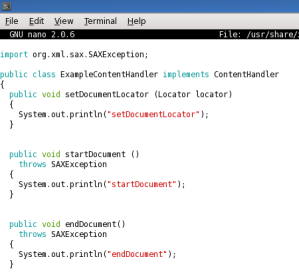
Nano is easy to use and lightweight command line text editor for Linux and UNIX systems. Nano text editor can use either the default settings or improve settings with customized nanorc-file. Here are some tips that can improve the usability of Nano. Changes can be made to nanorc file, either locally or to all users or options can be used as command line options.
First is good to check Nano compiled options, with command:
nano -V
Nano should be compiled with –enable-nanorc option.
Example configuration file can be copied from /usr/share/doc/nano-[version]/nanorc.sample. If you want to add the settings to all users, then copy nanorc to the /etc/nanorc and if you want to add the settings locally to one user then copy nanorc to the $HOME/.nanorc.
Nano Text Editor and nanorc Tips and Tricks⌗
1. Smooth Scrolling⌗
Text will scroll line-by-line, instead of the usual chunk-by-chunk behavior.
nanorc row:
set smooth
command line option:
-S or --smooth
2. Syntax Highlighting⌗
This feature is extremely useful when editing the source code, or modifying configuration files.
nanorc default rows:
## Nanorc files
include "/usr/share/nano/nanorc.nanorc"

## C/C++
include "/usr/share/nano/c.nanorc"

## HTML
include "/usr/share/nano/html.nanorc"

## TeX
include "/usr/share/nano/tex.nanorc"

## Quoted emails (under e.g. mutt)
include "/usr/share/nano/mutt.nanorc"

## Patch files
include "/usr/share/nano/patch.nanorc"

## Manpages
include "/usr/share/nano/man.nanorc"

## Groff
include "/usr/share/nano/groff.nanorc"

## Perl
include "/usr/share/nano/perl.nanorc"

## Python
include "/usr/share/nano/python.nanorc"

## Ruby
include "/usr/share/nano/ruby.nanorc"

## Java
include "/usr/share/nano/java.nanorc"

## Assembler
include "/usr/share/nano/asm.nanorc"

## Bourne shell scripts
include "/usr/share/nano/sh.nanorc"

## POV-Ray
include "/usr/share/nano/pov.nanorc"
command line option:
-Y str or --syntax str
You can also do your own syntax highlighting files easily. For example, the following code change the comment lines to blue:
syntax "comments" ".*"
color blue "^#.*"
And you can also use syntax highlighting files from the Internet. Here you can find example php.nanorc (PHP) and js.nanorc (JavaScript) file:
php.nanorc
js.nanorc
And then just copy files example to “/usr/share/nano/php.nanorc” and “/usr/share/nano/js.nanorc”
And enable PHP and JavaScript syntax highlighting files with:
## PHP
include "/usr/share/nano/php.nanorc"
## JavaScript
include "/usr/share/nano/js.nanorc"
3. Auto-indentation⌗
Indent new lines to the previous line’s indentation. This is also useful when editing source code.
nanorc row:
set autoindent
command line option:
-i or --autoindent
4. Backups⌗
When saving a file, back up the previous version of it to the current filename suffixed with a ~.
nanorc row:
set backup
command line option:
-B or --backup
You can also set the directory where Nano puts unique backup files if file backups are enabled.
nanorc row:
set backupdir "/home/user/nano-backups"
command line option:
-C /home/user/nano-backups or --backupdir=/home/user/nano-backups
5. Case Sensitive Searches⌗
Do case sensitive searches by default.
nanorc row:
set casesensitive
6. Nano History⌗
This is for saving search/replace strings. All search/replace strings are saved to the ~/.nano_history file, so they can be retrieved in later sessions, if nanorc support is available.
nanorc row:
set historylog
command line option:
-H or --historylog
7. More Space⌗
This option remove the blank line below the titlebar. So it’s possible to use the blank line below the titlebar as extra editing space.
nanorc row:
set morespace
command line option:
-O or --morespace
8. Hide Help from Bottom (nohelp)⌗
Remove shortcut lists at the bottom. This option hide the shortcut lists at the bottom of the screen.
nanorc row:
set nohelp
command line option:
-x or --nohelp
9. Disable Line Wrapping (nowrap)⌗
Don’t wrap long lines.
nanorc row:
set nowrap
command line option:
-w or --nowrap
10. Tab size⌗
Set width of a tab to #cols columns, must be greater than 0.
nanorc row:
set tabsize 10
command line option:
-T 10 or --tabsize=10
11. Convert Tabs to Spaces⌗
Convert typed tabs to spaces.
nanorc row:
set tabstospaces
command line option:
-E or --tabstospaces
12. Read Only Mode / View Only Mode⌗
View mode disallow file modification (read-only), not very useful in nanorc-file, but sometimes handy from command line.
nanorc row:
set view
command line option:
-v or --view
13. Enable Mouse⌗
Enable the use of the mouse. Good if you move the mouse to point to another on text file, and not so useful if you need to cut or copy text. You can of course cut and paste with Ctrl+k and Ctrl+u.
nanorc row:
set mouse
command line option:
-m or --mouse
14. Other Options⌗
Here is only my favourit options and you might need some other options, so then it’s better check Nano help or manual pages.
command line:
nano --help or man nano