Fedora NetInstall (Net Install) with gPXE and BFO (boot.fedoraproject.org)
This is guide with screenshots, howto install Fedora (currently Fedora 13) with gPXE and BFO (boot.fedoraproject.org). BFO combines a series of recent technologies to produce a new boot stack. The glue that holds everything together is gPXE. Boot method is similar to PXE Boot. It uses very small images (iso, floppy, disk) to bootstrap a machine that then contacts a remote server for boot information.
Why Should Use BFO Instaed of Normal Installer Image?
The BFO downloads are very small and once you have them, you’ll rarely have to download more. Even as more versions of Fedora come out, you just boot from your iso and they will appear. Users with fast internet connections will have the best experience with BFO. They basically replace having to regularly download large CD/DVD ISO images and burn them to disk. gPXE supports following techniques HTTP, DNS, TFTP, AoE, iSCSI, bzImage, COMBOOT, ELF, Multiboot, PXE, PXEXT.
Download Installation Image
Installer images found here.
ISO DVD/CD Image
Simply burn CD/DVD with your favourite program
USB Image
Add it to USB storage, with following command:
cat bfo.usb > /dev/sdX ## OR ## dd if=bfo.usb of=/dev/sdX |
Floppy Image
Add it to floppy disk, with following command:
cat bfo.dsk > /dev/fdX ## OR ## dd if=bfo.dsk of=/dev/fdX |
Boot with GRUB
Download lkrn image as root, with following command:
wget -O/boot/bfo.lkrn http://serverbeach1.fedoraproject.org/pub/alt/bfo/bfo.lkrn |
Add to GRUB using Grubby, with following command:
grubby --add-kernel=/boot/bfo.lkrn --title="Boot BFO" |
This guide uses basic BFO ISO image (bfo.iso, size 626 kB), but this works with any other option too.
Howto NetInstall (Net Install) Fedora with gPXE and BFO (boot.fedoraproject.org)
1. Booting with BFO image
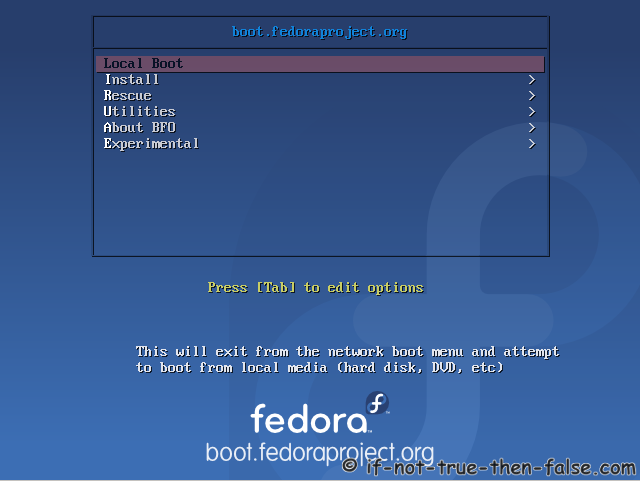
2. BFO main boot menu
3. BFO boot menu – Select install image
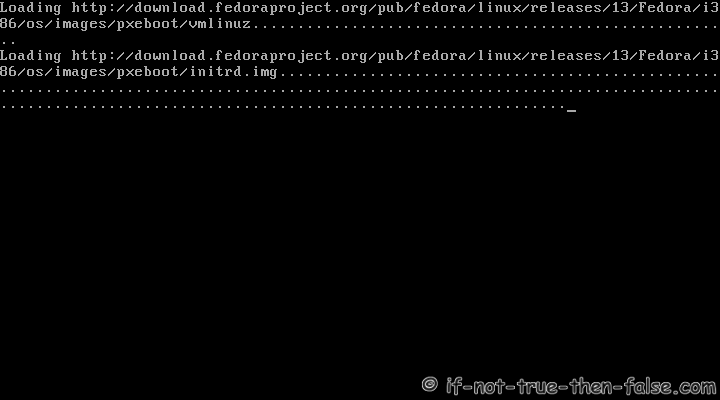
4. Downloading installation media
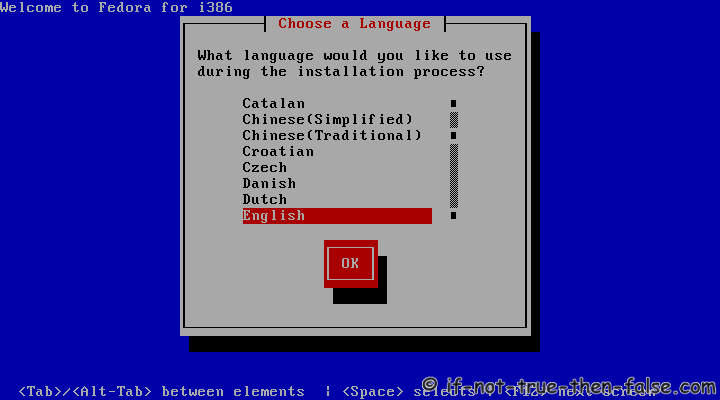
5. Select language
6. Select keyboard layout type
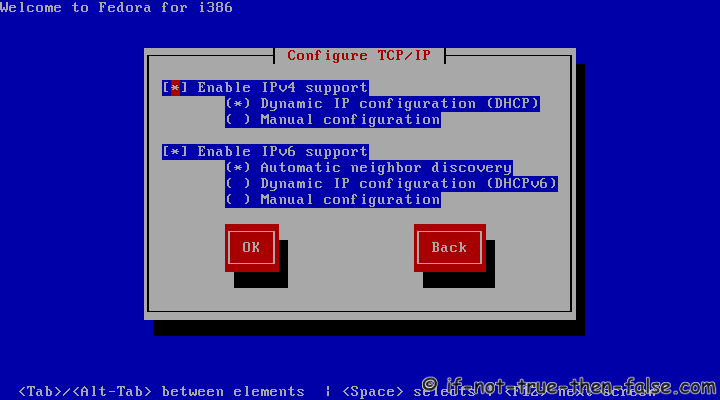
7. Configure TCP/IP settings
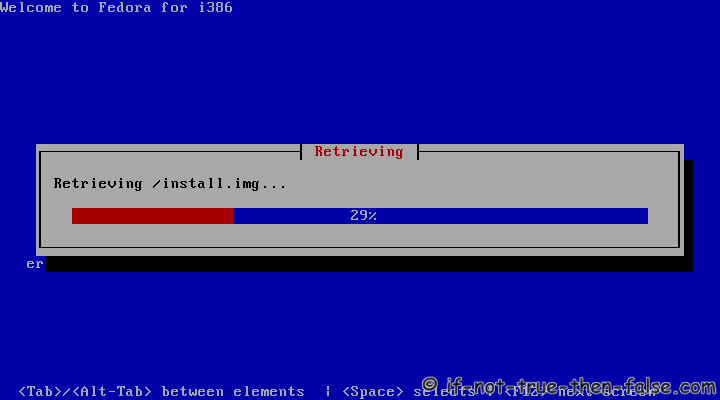
8. Downloading Fedora install images
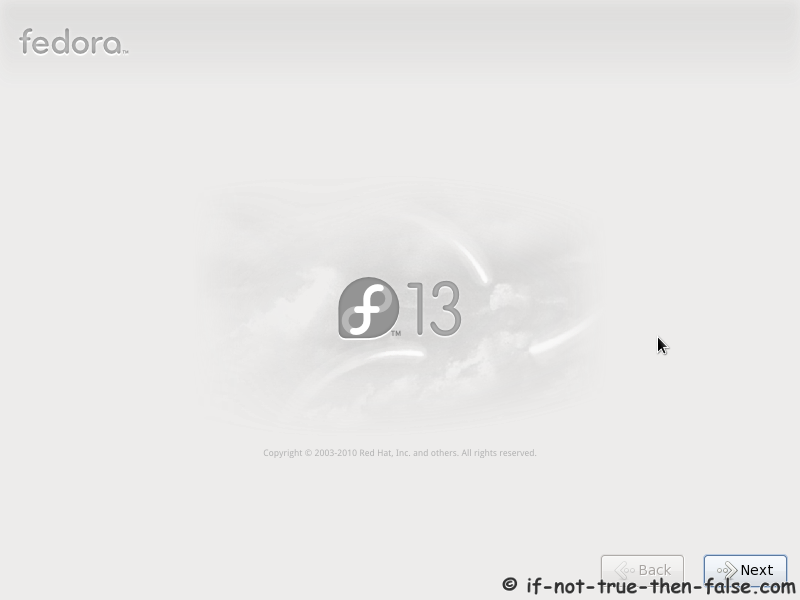
9. Anaconda installer started using downloaded images, select next
10. Select storage devices
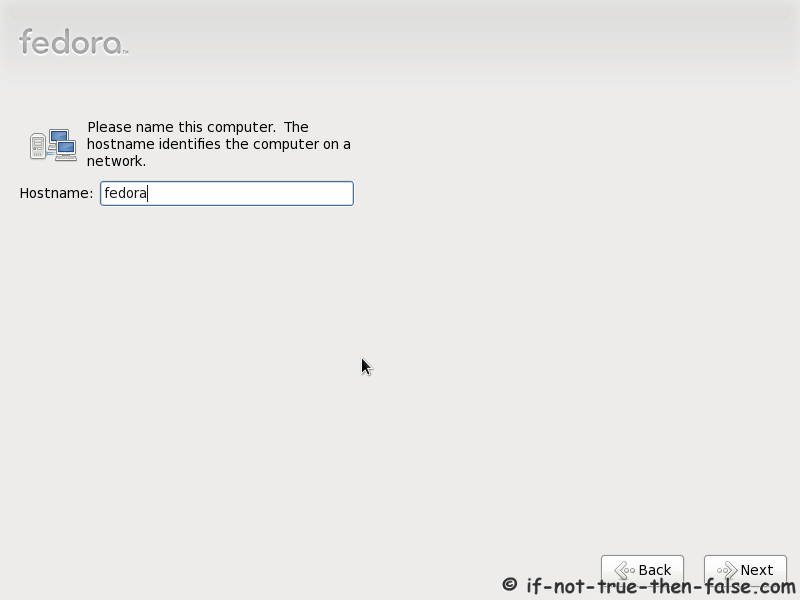
11. Insert computer hostname
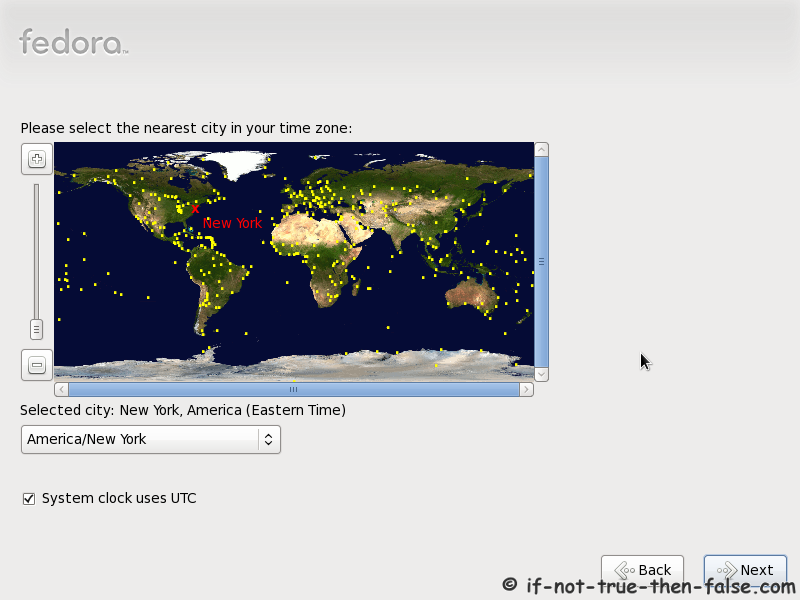
12. Select time zone
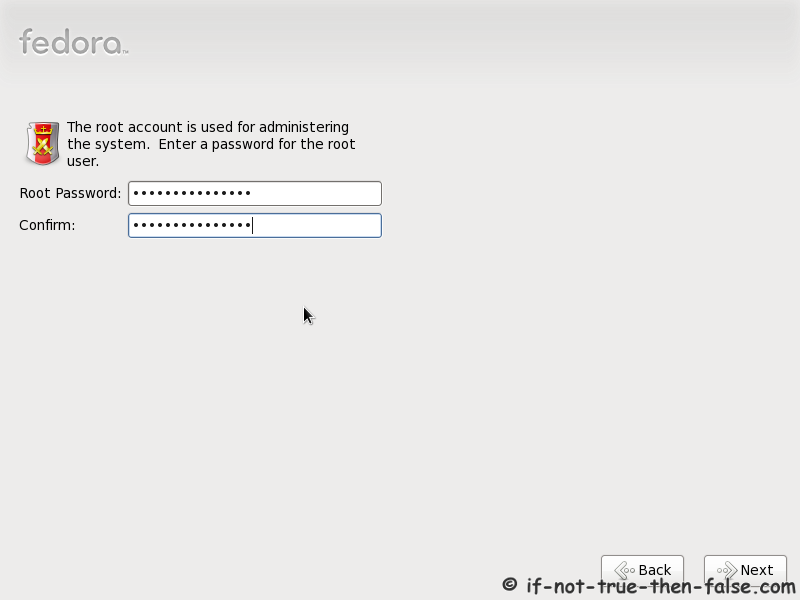
13. Enter a password for root user
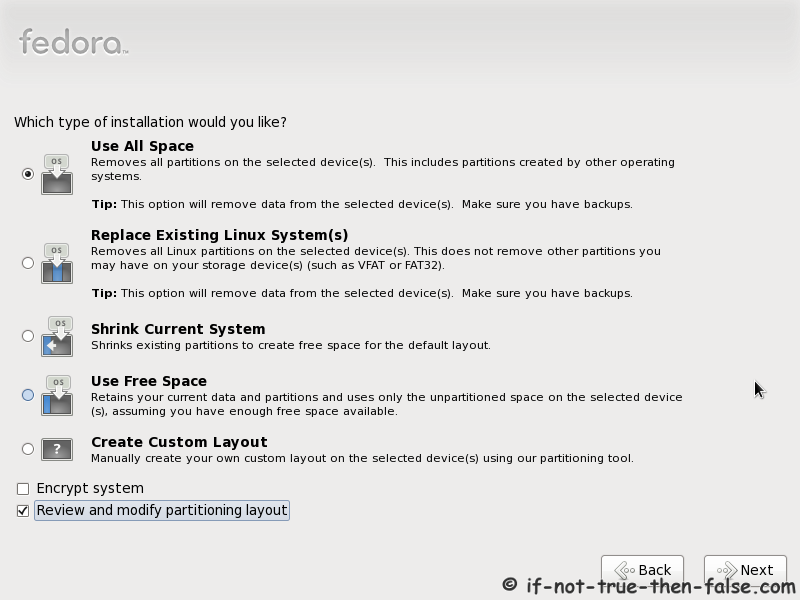
14. Select type of installation
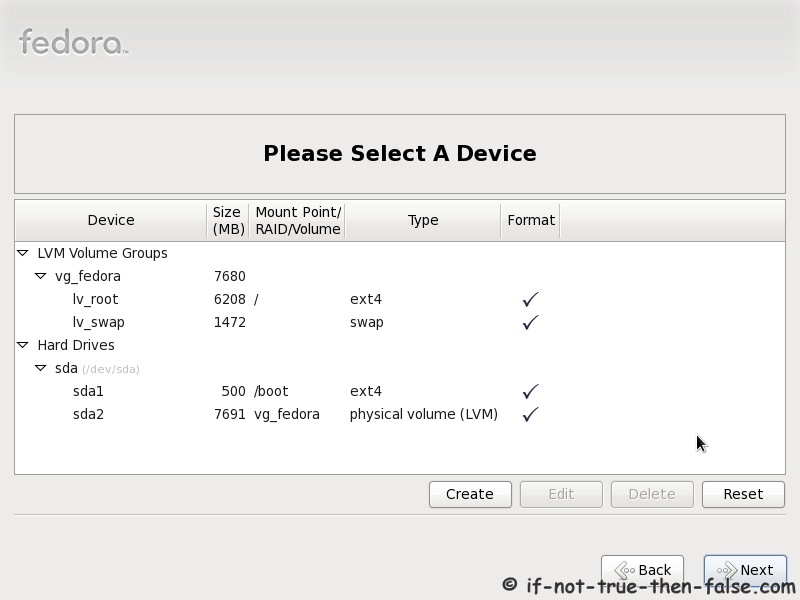
Read every options info carefully. And select encrypting if needed and option to review and modify partition layout.
15. Review partition layout
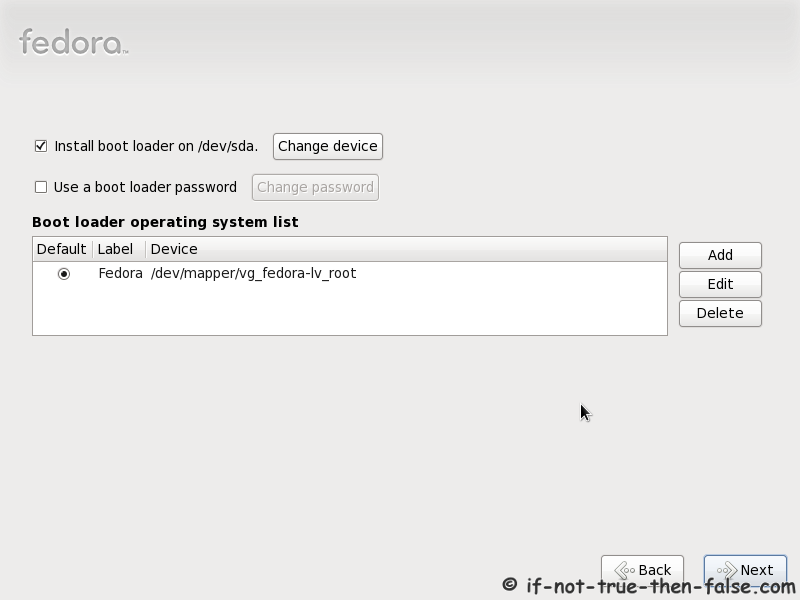
16. Configure boot loader options
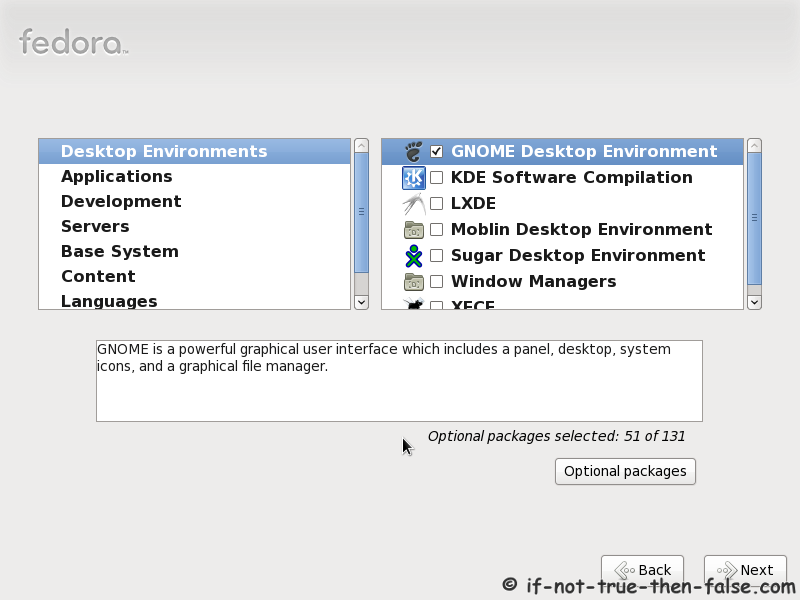
17. Select softwares to install and enable repositories
Select customize package selection, if you want customize it.
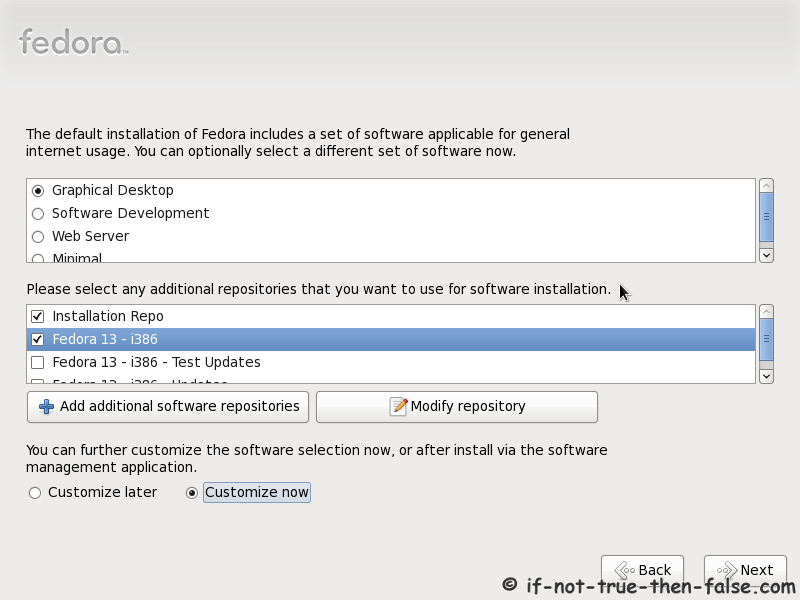
18. Customize package selection
19. BFO Starting Installation Process
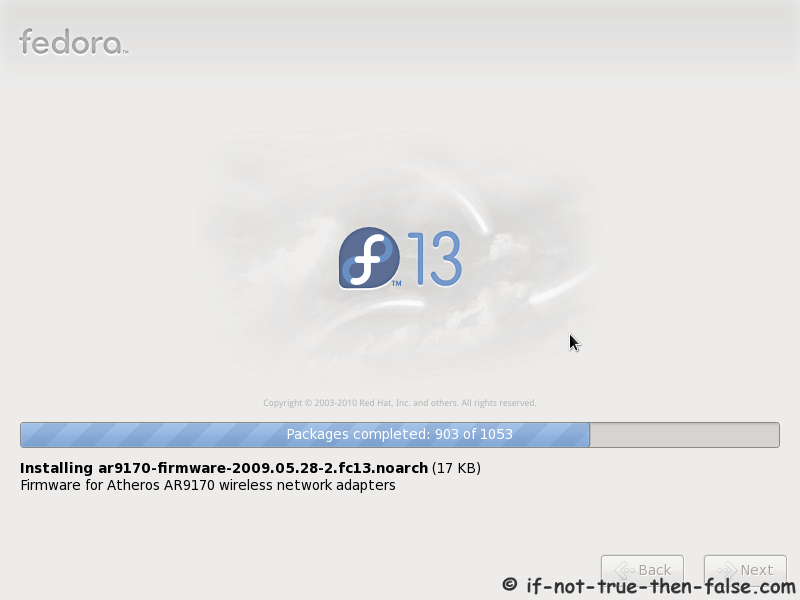
This take while, depending on package selection and Internet connection speed.
20. Installing packages
21. Installation is complete
Click reboot computer and remove installation media.
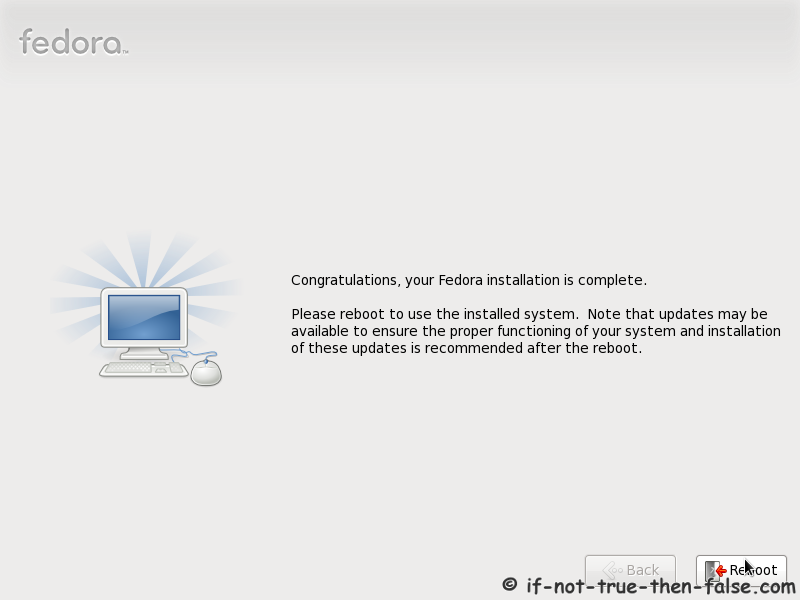
Finishing Fedora Installation
22. Booting Fedora
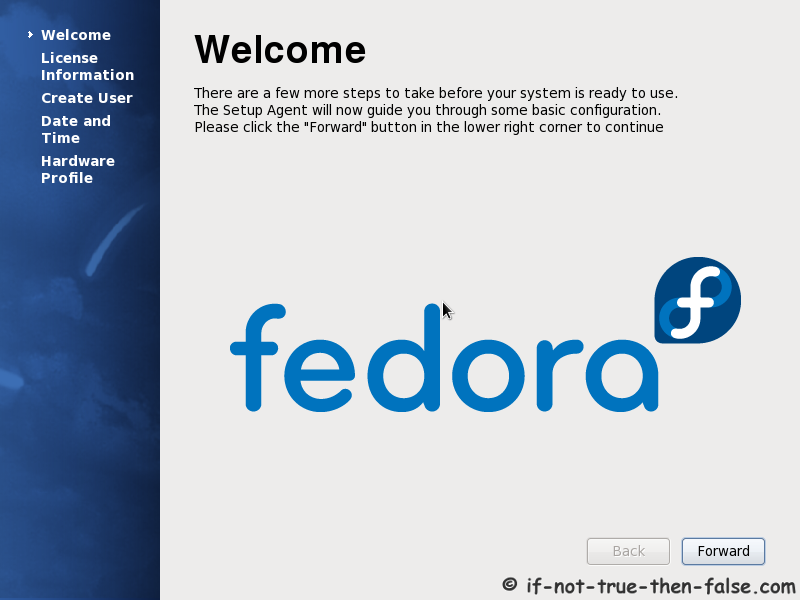
23. Fedora welcome screen
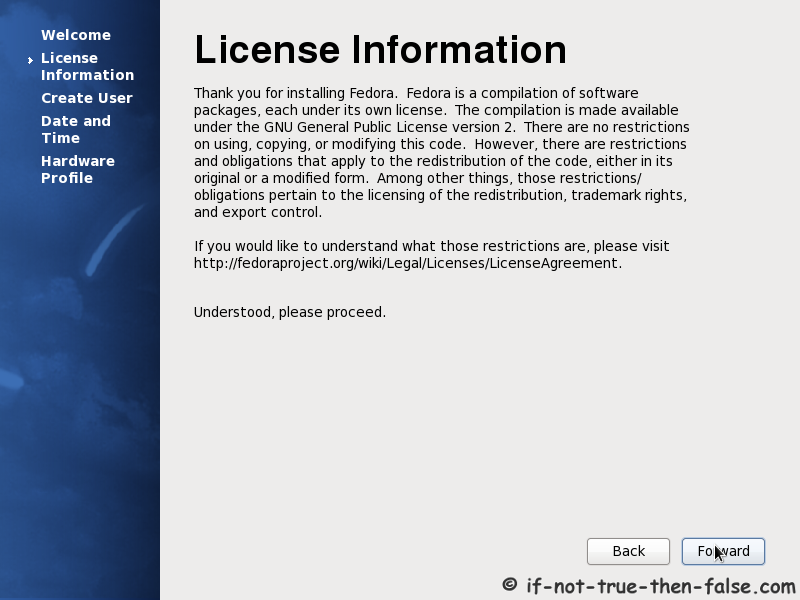
24. Accecpt Fedora License
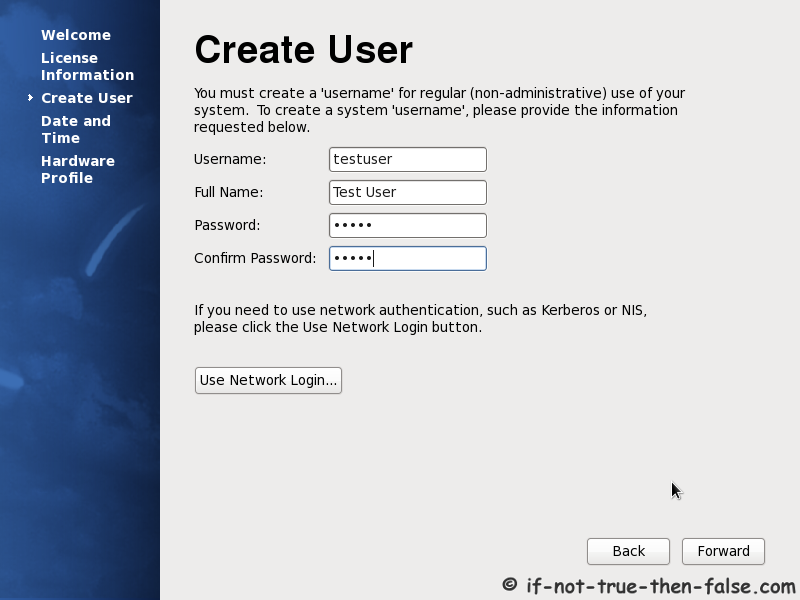
25. Create Fedora user
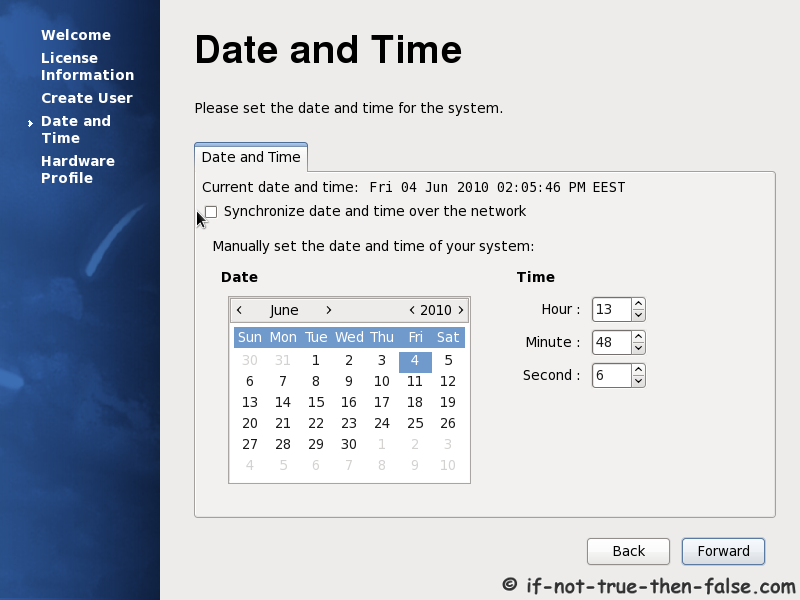
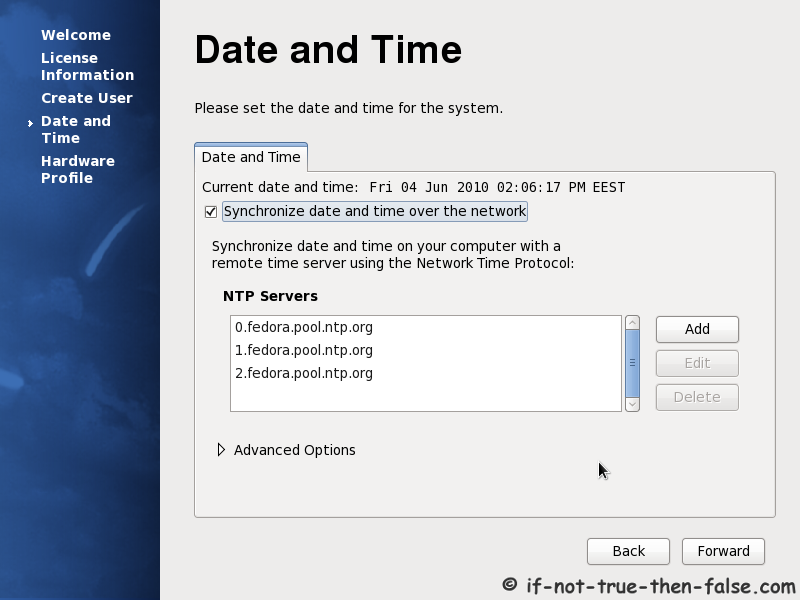
26. Setup date and time – Set NTP servers
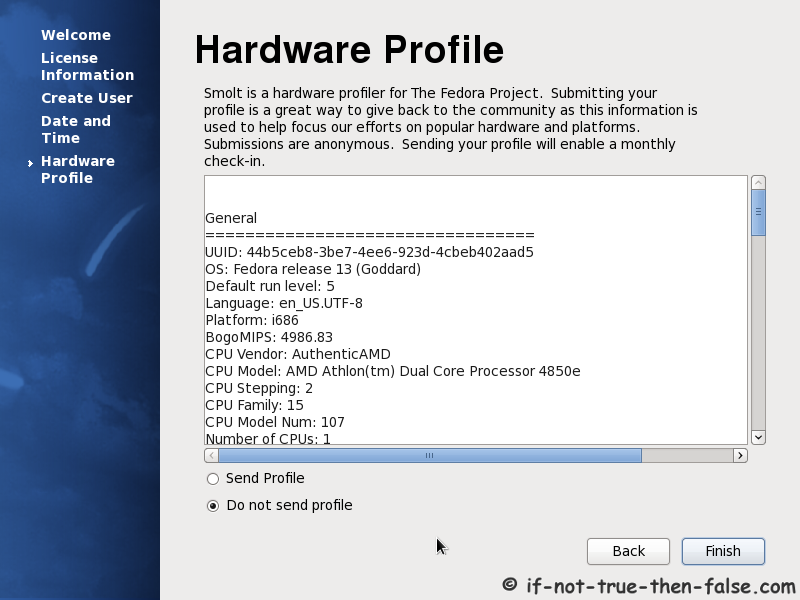
27. Send hardware profile
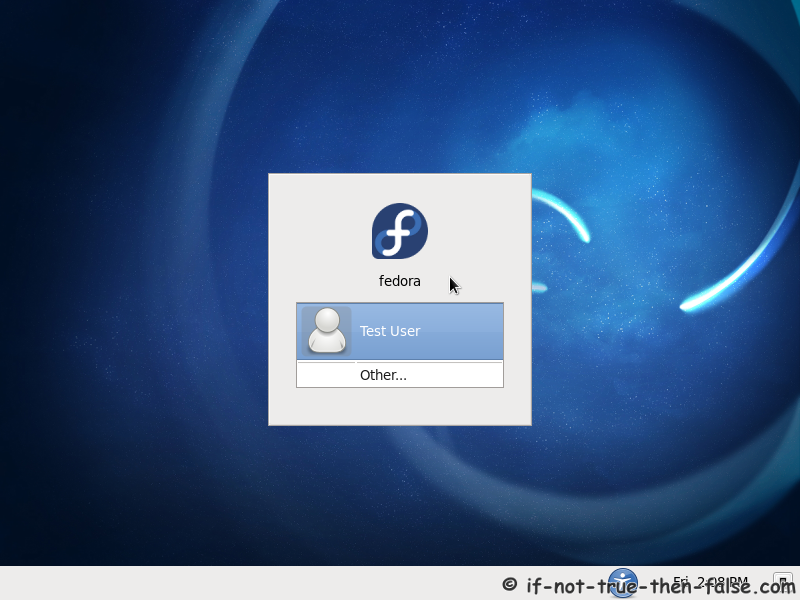
28. Login Fedora
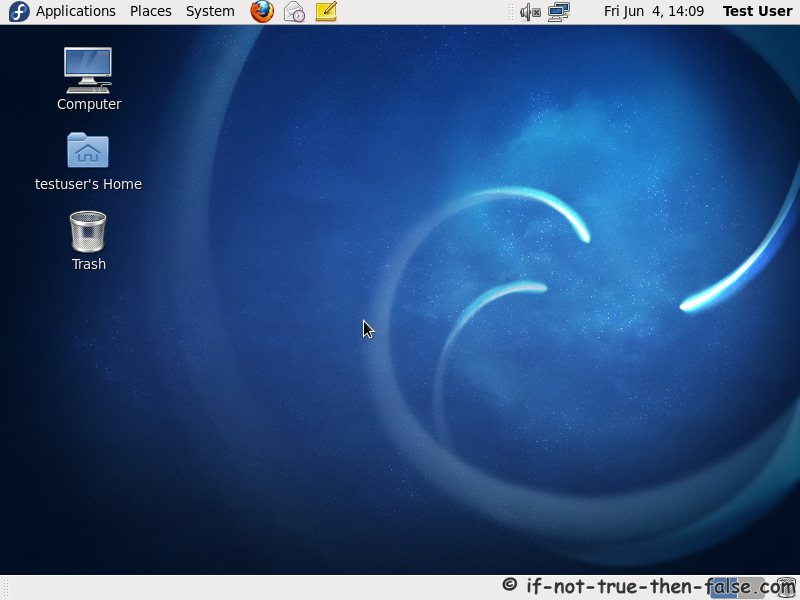
29. Fedora desktop
What to do next?
Install nVidia Drivers on Fedora 13
Install Google Chrome Beta or Google Chrome Unstable on Fedora 13
Install Adobe Flash Player 10 on Fedora 13
Install Sun/Oracle Java (JDK, JRE) 6 on Fedora 13
Install Adobe AIR 1.5 and 2 on Fedora 13
Install Adobe (Acrobat PDF) Reader on Fedora 13
Install VirtualBox (with yum) on Fedora 13
Install PostgreSQL 8.4 Database Server on Fedora 13
Install NetBeans 6.9 on Fedora 13
Install tint2 Panel/Taskbar and tint2 Themes on Fedora 13
10 Comments
Leave a Comment
Trackbacks/Pingbacks
- Fedora 14 Install Guide (Live CD/Live USB) – Windows Dual Boot - [...] Fedora 14 Install Guide with screenshots using Live CD or Live USB and Dual Booting with Windows. Fedora 14 ...
This is guide with screenshots, howto install Fedora (currently Fedora 13) with gPXE and 


This is all great in theory, but gPXE is UTTER CRAP. It uses a constant TCP window of 4 kilobytes, which means that it’s extremely slow even for downloading small things.
For example, from my home, the latency to Fedora mirrors is 70 milliseconds; this gives gPXE a theoretical maximal throughput of 57 kB/s, in practice it’s under 40! Even downloading the 30 MB initrd image takes 15 MINUTES!
No thanks! I can download a complete ISO and burn it faster than that.
Hi foobar,
I just tested boot Fedora 13 i386 installer using bfo.iso and download of vmlinuz and initrd.img took less than minute. So speed is not actually the problem, in my opinion.
It is also very practical to boot the same iso and install Fedora 13 or Fedora 14 Alpha and so on.
Trying to install latest using BFO and PXE. BFO boots and downloads installer images, asks for language and keyboard layout then start anaconda. except anaconda hangs, it starts it’s gui so i have a mouse cursor but the screen stays blank. there is relatively no activity on the nic so it isn’t waiting on a download and i have let it sit in this state for several hours with no progress. This is a small form factor pc with no room for an optical drive and i don’t have an external drive. any ideas?
Hi smokes2345,
Could you tell more specific your pc and hardware and what version of Fedora you are installing?
This software is the bee’s knees — its small, amazing and works. I was getting stopped with Fedora 16 and 17 installs at the ISOLINUX ( H Peter Anvin et al ) boot start-up freeze page. Machines would install Fedora 11 just fine, so it was not hardware. I was able to install Fedora 16 at first-try after starting with this software. Also it brought down only latest updates so the OS was complete and didn’t have to run Yum to get latest updates after first boot. Overall faster than downloading DVD (if that media had worked). This is very small and provides a lot of machine hardware info if run standalone. Thanks to the wonderful people who figured out another boot approach and make it available; and to JR for this helpful writeup that made the solution understandable.
You are welcome Larrya, nice to hear that you find this helpful! :)
writing “USB memory” is, IMHO, not very useful. Why not use a phrase such as “USB storage”, “USB stick”, or such? Memory is memory (RAM, ROM). Yeah, I know, flash is memory, but the role of a USB stick is not that of memory, but rather of storage.
Hi Rob,
Good point, I updated it to “USB storage”.
In a corporate network, where access to the Internet is blocked by a proxy, BFO is prone to fail, as there is no way to configure proxy settings (but I guess a transparent proxy — with no autentication — would work).
Hi Marlon,
BFO might be tricky with proxy. So in your case it might be much simpler, if you download full install media and install Fedora using it. Then it should be simpler configure your proxy settings.