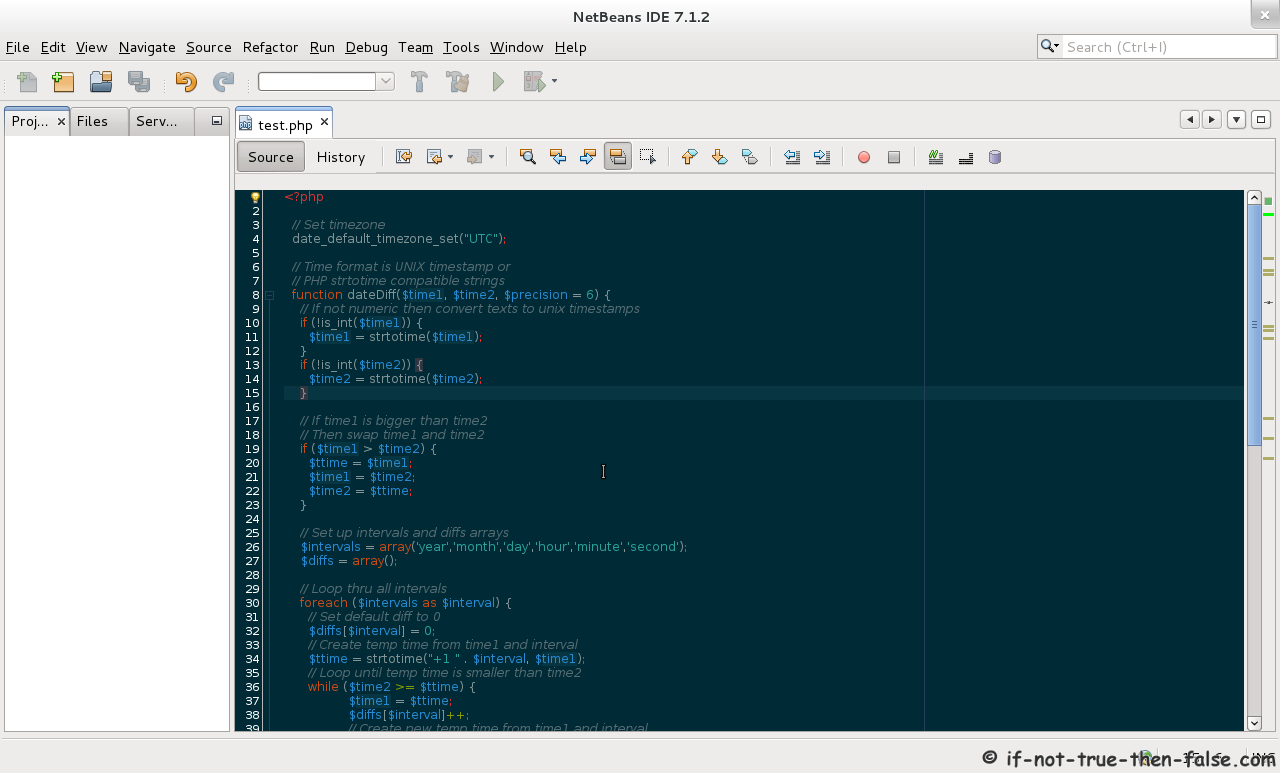
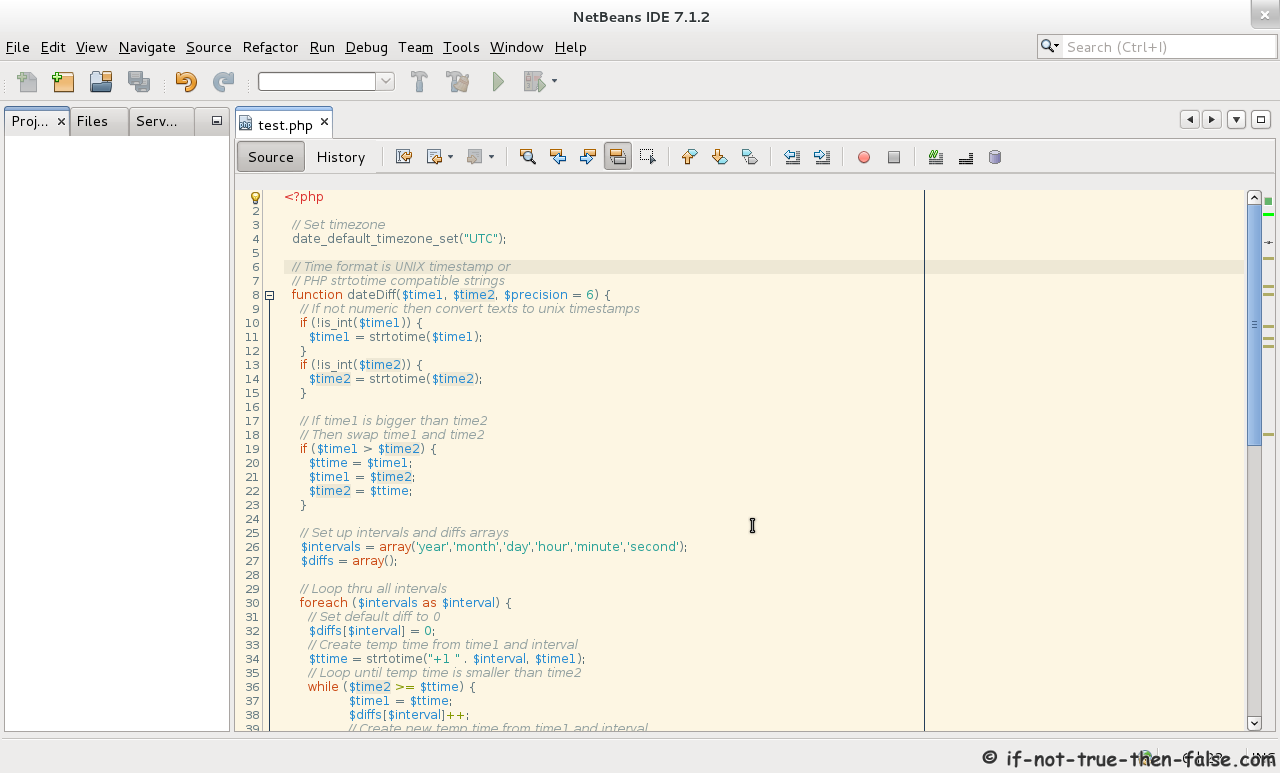
Solarized Linux

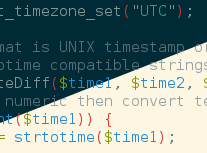
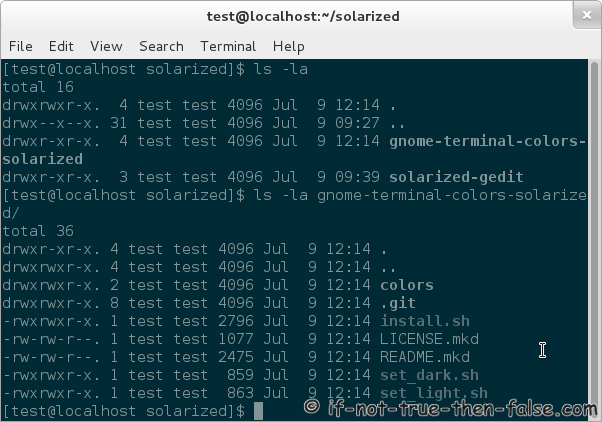
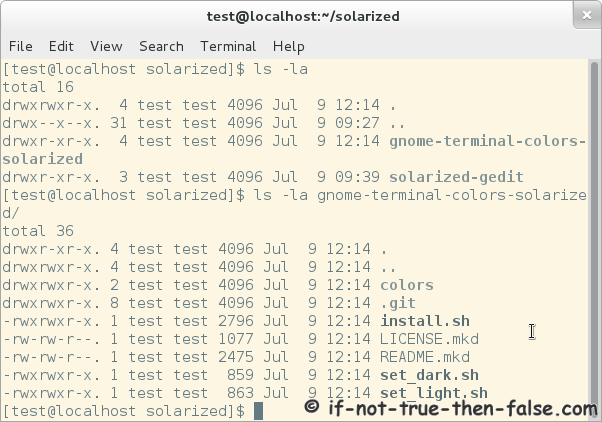
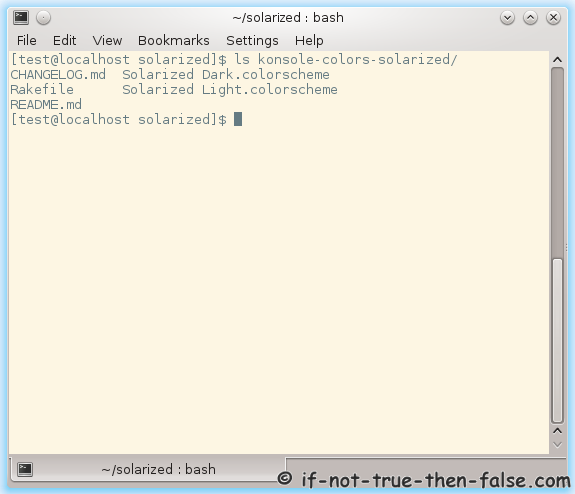
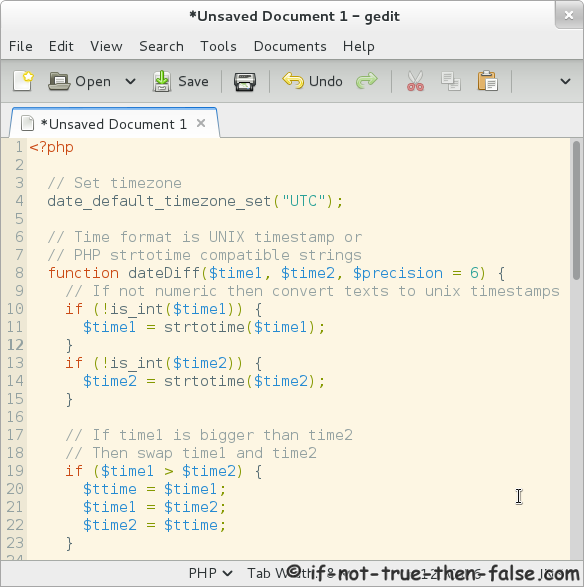
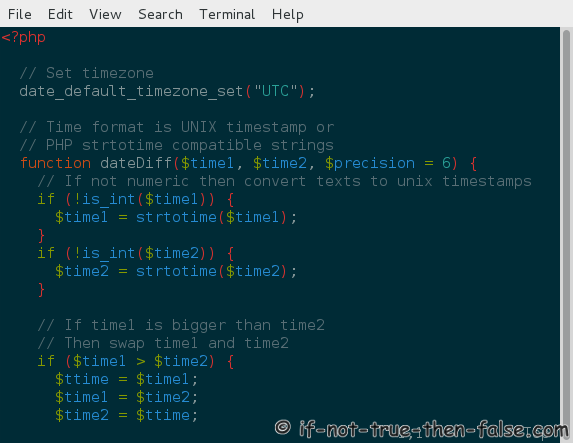
I like very much Ethan Schoonover Solarized color palette. So I decided write a guide, howto get Solarized colors to most commonly used Linux terminals (Gnome-Terminal, Konsole), Text editors (Gedit, Vim) and IDEs (Eclipse, NetBeans). These are not my projects, so the greatest honor belongs, of course, these projects owners and Ethan Schoonover.

1. Install Needed Tools (git, mercurial, 7-zip)

This is normally easiest do with you package management system, like:

## Fedora, CentOS, Red Hat (RHEL), Scientific Linux (SL) ##
yum install git
## needed only with Eclipse ##
yum install mercurial
## needed only with NetBeans ## 
yum install p7zip 
 
## Debian, Ubuntu, Linux Mint ##
aptitude install git
## needed only with Eclipse ##
aptitude install mercurial
## needed only with NetBeans ##
aptitide install p7zip 
 
## Gentoo ##
emerge --ask --verbose dev-vcs/git
## needed only with Eclipse ##
emerge --ask --verbose dev-vcs/mercurial
## needed only with NetBeans ##
emerge --ask --verbose app-arch/p7zip

2. Create and Change to Solarized Directory (as normal user)

mkdir ~/solarized
 
cd ~/solarized

3. Solarized Terminals

3.1 Solarized Gnome-Terminal

1. Get Solarized Gnome-Terminal

Run following command on ~/solarized directory.

git clone https://github.com/sigurdga/gnome-terminal-colors-solarized.git

2. Set Solarized Dark or Light Theme

## Set dark Solarized theme ##
gnome-terminal-colors-solarized/set_dark.sh
 
## Set light Solarized theme ##
gnome-terminal-colors-solarized/set_light.sh

3. Screenshots

Check GitHub repo page.

3.2 Solarized Konsole (KDE terminal)

1. Get Solarized Konsole (KDE terminal)

Run following command on ~/solarized directory.

git clone https://github.com/phiggins/konsole-colors-solarized.git

2. Copy Solarized Dark or Light Theme

cp konsole-colors-solarized/*.colorscheme ~/.kde/share/apps/konsole/
 
## OR ##
 
cp konsole-colors-solarized/*.colorscheme ~/.kde4/share/apps/konsole/

3. Select Solarized Dark or Light Theme

Open Konsole and select Settings -> Manage Profiles -> Edit Profile -> Appearance

4. Screenshots

Check GitHub repo page.

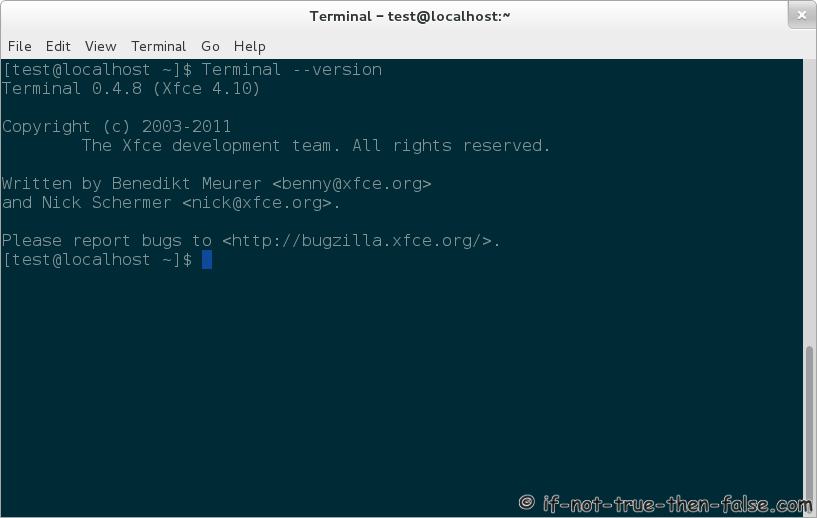
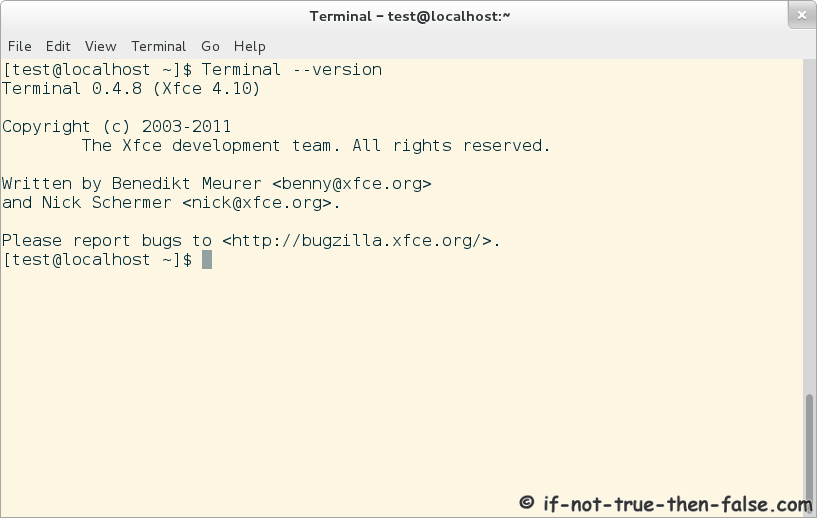
3.3 Solarized Terminal (XFCE Terminal)

1. Get Solarized Terminal (XFCE Terminal)

Run following command on ~/solarized directory.

git clone https://github.com/sgerrand/xfce4-terminal-colors-solarized.git

2. Create ~/.config/Terminal Directory

Just make sure that Terminal directory exists.

mkdir ~/.config/Terminal

3. Copy Solarized Dark or Light Theme

## Copy Solarized Dark Theme ##
cp xfce4-terminal-colors-solarized/dark/terminalrc ~/.config/Terminal/
 
## Copy Solarized Light Theme ##
cp xfce4-terminal-colors-solarized/light/terminalrc ~/.config/Terminal/

4. Screenshots

Check GitHub repo page.

4. Solarized Editors

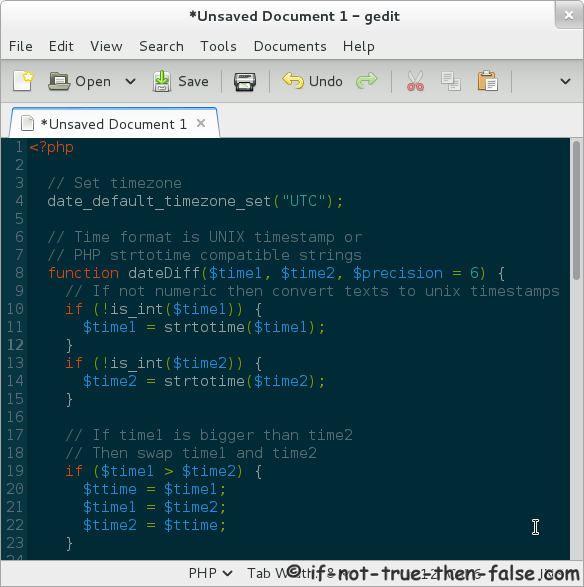
4.1 Solarized Gedit

1. Get Solarized Gedit

Run following commands on ~/solarized directory.

git clone https://github.com/craig552uk/solarized-gedit.git

2. Install Globally (all users)

cp solarized-gedit/*.xml /usr/share/gtksourceview-3.0/styles/

Select your dark or light Solarized theme in Gedit Edit > Preferences > Font & Colors

3. Install Locally (one user)

  1. In Gedit Go to Edit > Preferences > Font & Colors
  2. Browse to Solarized Directory
  3. Click Add (+ sign)
  4. Select Dark or Light Solarized Theme xml File

4. Screenshots

Check GitHub repo page.

4.2 Solarized Vim

1. Get Solarized Vim

Run following command on ~/solarized directory.

git clone https://github.com/altercation/vim-colors-solarized.git

2. Copy Vim Solarized Color Theme

First make sure you have ~/.vim/colors/ directory

mkdir -p ~/.vim/colors
 
cp vim-colors-solarized/colors/solarized.vim ~/.vim/colors/

3. Add following to ~/.vimrc

Dark

syntax enable
set background=dark
colorscheme solarized

Light

syntax enable
set background=light
colorscheme solarized

4. Solarized Vim Screenshots

Check GitHub repo page.

5. Solarized IDEs

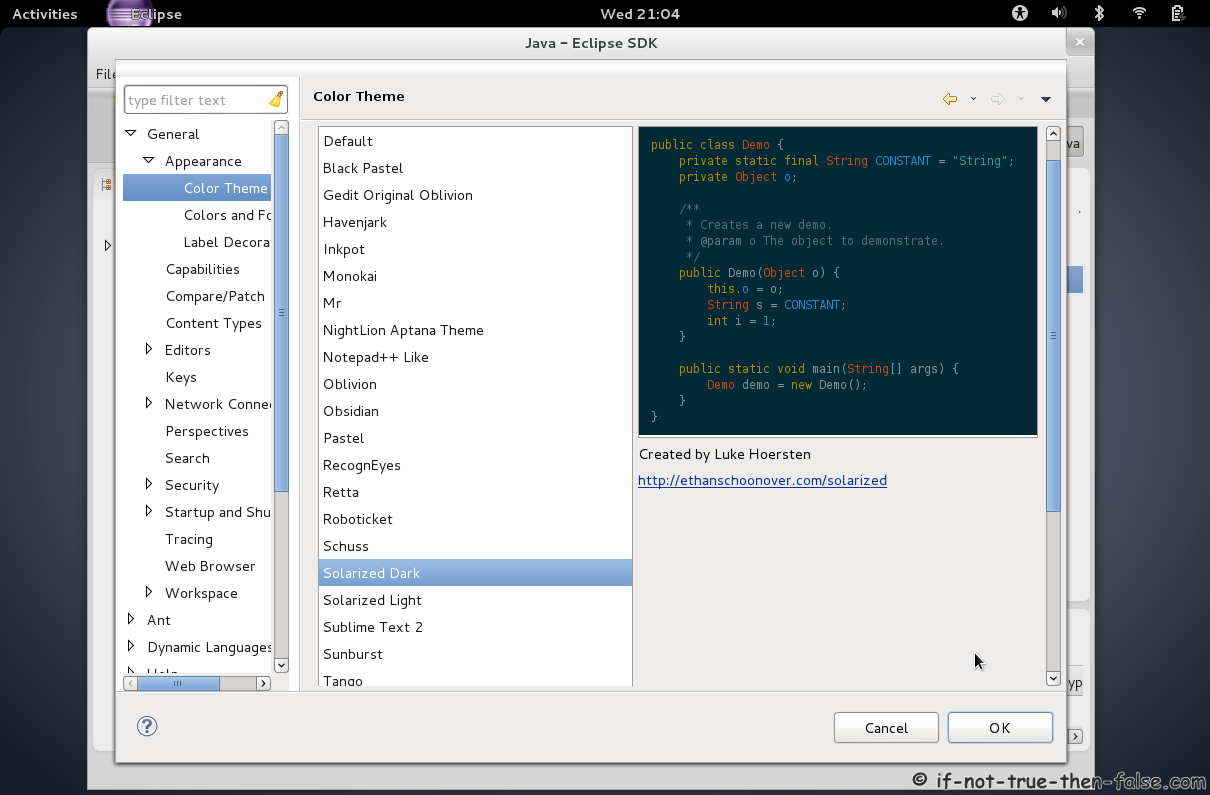
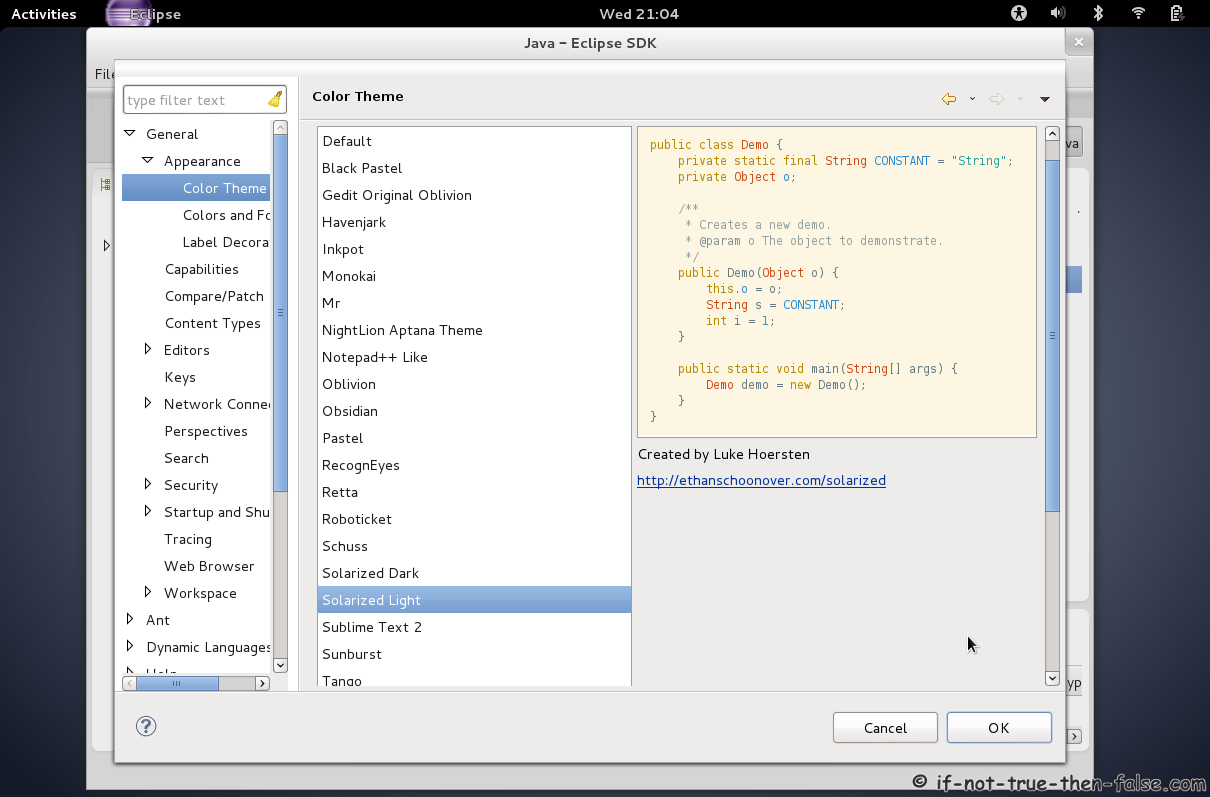
5.1 Solarized Eclipse

1. Get Solarized Eclipse

Run following command on ~/solarized directory.

hg clone https://bitbucket.org/LukeHoersten/eclipse-solarized-color-theme

2. Install Eclipse Color Theme plugin

Use Eclipse Market Place or download it from Eclipse Color Theme Plugin site.

3. Import Solarized theme XML files

Go to Preferences > General > Appearance > Color Theme.

Select Import and browse xml files.

4. Solarized Eclipse Screenshots

Check Bitbucket repo page.

5.2 Solarized NetBeans

1. Get Solarized NetBeans

Run following command on ~/solarized directory.

git clone https://github.com/fentie/netbeans-colors-solarized.git

2. Create Solarized zip file

Make sure that you have 7zip installed, then run following commands:

cd netbeans-colors-solarized/
 
7z a solarized.zip config/

3. Import solarized.zip file

Open NetBeans and select Tools > Options and select Import from lower left.

Browse your solarized.zip file from ~/solarized/netbeans-colors-solarized/ directory.

Restart NetBeans.

4. Select Solarized theme

Open NetBeans and go to Tools > Options > Fonts & Colors and select profile.

5. NetBeans Solarized Screenshots

Check GitHub repo page.

Follow If Not True Then False Updates!

20 Comments

  1. i got the following error:_ :( when i type gnome-terminal-colors-solarized/set_dark.sh same for *_light.sh

    (gconftool-2:3501): GConf-WARNING **: Client failed to connect to the D-BUS daemon:
    Did not receive a reply. Possible causes include: the remote application did not send a reply, the message bus security policy blocked the reply, the reply timeout expired, or the network connection was broken.
    Error setting value: No D-BUS daemon running

    (gconftool-2:3502): GConf-WARNING **: Client failed to connect to the D-BUS daemon:
    Did not receive a reply. Possible causes include: the remote application did not send a reply, the message bus security policy blocked the reply, the reply timeout expired, or the network connection was broken.
    Error setting value: No D-BUS daemon running

    (gconftool-2:3504): GConf-WARNING **: Client failed to connect to the D-BUS daemon:
    Did not receive a reply. Possible causes include: the remote application did not send a reply, the message bus security policy blocked the reply, the reply timeout expired, or the network connection was broken.
    Error setting value: No D-BUS daemon running

    (gconftool-2:3506): GConf-WARNING **: Client failed to connect to the D-BUS daemon:
    Did not receive a reply. Possible causes include: the remote application did not send a reply, the message bus security policy blocked the reply, the reply timeout expired, or the network connection was broken.
    Error setting value: No D-BUS daemon running

    (gconftool-2:3508): GConf-WARNING **: Client failed to connect to the D-BUS daemon:
    Did not receive a reply. Possible causes include: the remote application did not send a reply, the message bus security policy blocked the reply, the reply timeout expired, or the network connection was broken.
    Error setting value: No D-BUS daemon running

    (gconftool-2:3509): GConf-WARNING **: Client failed to connect to the D-BUS daemon:
    Did not receive a reply. Possible causes include: the remote application did not send a reply, the message bus security policy blocked the reply, the reply timeout expired, or the network connection was broken.
    Error setting value: No D-BUS daemon running

    • Hi arshperrst,

      Could you tell more about your system, what os and version you are running?

      And did you run this command when Gnome-Desktop is running on Gnome-Terminal?

      You can post also output of following commands:

      uname -a
       
      lsb_release -a
       
      gnome-terminal --version
       
      gnome-shell --version
       
      env |grep -i dbus
  2. Thank you!!!!! It finally got these amazing colors. Thanks

  3. Hello , and thanks for the guide.I have the same errors as arshperrst.

    Linux 3.4.0-sabayon #1 SMP …2012 x86_64 AMD Athlon(tm) 64 X2 Dual Core Processor 4200+ AuthenticAMD GNU/Linux

    lsb_release -a -> command not found

    GNOME 3.4.1.1
    GNOME Shell 3.4.1

    DBUS_SESSION_BUS_ADDRESS=unix:abstract=/tmp/dbus-…7,guid=…..fbe

    Thanks

  4. Well, i found the solution to the above problem.

    You must write ” su – ” and then the “gnome-terminal-colors-solarized/set_light.sh”

    But , i can’t apply this to the terminal.I go to Configuration->Profile->Colors
    but there,at the themes ,it has only “Tango,linux console,Xterm,Rxvt,adjust”.

    What can i do?

  5. here is my output :-

    [root@redhat mercy]# uname -a
    Linux redhat 3.5.4-1.fc17.i686 #1 SMP Mon Sep 17 15:41:12 UTC 2012 i686 i686 i386 GNU/Linux
    [root@redhat mercy]# lsb_release -a
    bash: lsb_release: command not found…
    [root@redhat mercy]# lsb_release
    bash: lsb_release: command not found…
    [root@redhat mercy]# gnome-terminal –version
    GNOME Terminal 3.4.1.1
    [root@redhat mercy]# env |grep -i dbus
    DBUS_SESSION_BUS_ADDRESS=unix:abstract=/tmp/dbus-irqZK3Gz72,guid=5c24c9e8c1a665d78551972700000033

  6. Hi George and arshperrst,

    I just tested this Gnome-Terminal part and it works normally with GNOME Shell 3.4.2 and GNOME Terminal 3.4.1.1.

    And you don’t need be root user to set normal user terminal colors. And terminal colors change to Solarized instantly after you run script you don’t have to go to Configuration -> Profile -> Colors.

    Then back to your real problem:
    Error setting value: No D-BUS daemon running

    Still looks like that you don’t have D-BUS deamon running. Could you both post output of following commands:

    ps aux |grep -i dbus
     
    env |grep -i desktop
  7. Hello,
    so ,i need to update to gnome shell 3.4.2?

    The output
    ps aux |grep -i dbus
    103 8265 …. ? Ss 10:36 0:00 /usr/bin/dbus-daemon –system
    geo 11368 …. ? S 10:39 0:00 /usr/bin/dbus-launch –exit-with-session /usr/bin/ssh-agent — gnome-session
    geo 11369 …..? Ss 10:39 0:00 /usr/bin/dbus-daemon –fork –print-pid 5 –print-address 7 –session
    geo 12521 ….2 pts/0 S+ 10:42 0:00 grep –colour=auto -i dbus

    env |grep -i desktop
    DESKTOP_SESSION=gnome
    GNOME_DESKTOP_SESSION_ID=this-is-deprecated

    • Hello,

      Gnome Shell 3.4.2 is not needed. I just tested this also on CentOS Gnome-Terminal 2.31.3 and it works normally.

      Your dbus-daemon is running normally. So could you post full error message when you run following command as normal user (geo)?

      gnome-terminal-colors-solarized/set_light.sh

      You can also try following command and check errors:

      gnome-terminal-colors-solarized/install.sh

      Both scripts do the same thing, but if you use install.sh then you can select Gnome-Terminal profile also.

      Could you also post output of following command:

      gconftool-2 -v
  8. gnome-terminal-colors-solarized/set_light.sh
    -bash: gnome-terminal-colors-solarized/set_light.sh: No such file or folder

    gnome-terminal-colors-solarized/install.sh
    -bash: gnome-terminal-colors-solarized/install.sh: No such file or folder

    gconftool-2 -v
    3.2.5

    Thanks!

    • Hi George,

      You have run first commands just there where you clone gnome-terminal-colors-solarized.git repo or use full paths, like:

      /path/to/gnome-terminal-colors-solarized/set_light.sh
  9. Hello,

    if i run as normal user “cd ~/solarized” it says “no such file or directory.
    Only as root i can have access to ~/solarized.And there (as root) it gives me no message when i run the command you say.

    Thanks

    • So do you created ~/solarized directory as root user?

      Create ~/solarized directory as normal user, clone git repo and then run gnome-terminal-colors-solarized/set_light.sh?

  10. Oh!!I missed that!I thought it was as root!
    Ok,it works fine now!

    (If i delete the ~/solarized (as root) it will clean also the clone git from there?(from root))?

    • Excellent! :)

      Yes you can delete /root/solarized and it will clean also cloned git repo. This script only change terminal colors so even if you delete ~/solarized directory from normal user dir, you won’t lose colors from terminal until you change terminal colors manually. If you change colors manually and want restore Solarized terminal colors again, then you need set_light.sh or set_dark.sh scripts next time. :)

  11. Wow, dude. This is an amazing compilation for Solarized-happy folks. Thanks a million!

  12. fibsask@fibsask-netbook:~$ gnome-terminal-colors-solarized/set_dark.sh
    Default is not a valid profile

    What am I doing wrong?

    • Hi FibSaSk,

      If you check Gnome-Terminal Edit -> Profiles… what you see?

      • Ah, embarassing newbie mistake from my part. Installed it easily on gnome-terminal, but I want to install it on xfce terminal. Any way to do that?
        There’s no Edit -> Profiles in this one.

Leave a Comment

Your email address will not be published. Required fields are marked *

You may use these HTML tags and attributes: <a href="" title=""> <abbr title=""> <acronym title=""> <b> <blockquote cite=""> <cite> <code> <del datetime=""> <em> <i> <q cite=""> <strike> <strong>

Trackbacks/Pingbacks

  1. Dagorim | Readability – Solarized - [...] If !1 0′s Solarizer walkthroughs – this site is rapidly becoming one of my default go-tos. [...]