Install Skype 4.1/4.0 on Fedora 18/17, CentOS/RHEL/SL 6.3

This is guide, howto install Skype 4.1 on Fedora 18/17/16/15/14 and Skype 4.0 on CentOS/Red Hat (RHEL)/Scientific Linux (SL) 6.3/6.2/6.1/6. This is actually easy process, but I won’t use Skype own RPM package, which works only with Fedora 16+. Skype package also doesn’t care about any needed dependencies on 64-bit (x86_64) systems nor 32-bit (i686) systems. This guide uses Skype dynamic package (for Fedora) and static package (for CentOS/Red Hat (RHEL)/Scientific Linux (SL) 6.3/6.2/6.1/6) and all dependencies are installed manually.

1. Install Skype 4.1 on Fedora 18/17/16/15 and Skype 4.0 on CentOS/Red Hat (RHEL) 6.3/6.2/6.1/6

1.1 Change root user

su -
## OR ##
sudo -i

1.2 Install Needed Dependencies

yum install alsa-lib.i686 fontconfig.i686 freetype.i686 glib2.i686 libSM.i686 libXScrnSaver.i686 libXi.i686 libXrandr.i686 libXrender.i686 libXv.i686 libstdc++.i686 pulseaudio-libs.i686 qt.i686 qt-x11.i686 zlib.i686

Same command on multiple lines:

yum install alsa-lib.i686 fontconfig.i686 freetype.i686 \
glib2.i686 libSM.i686 libXScrnSaver.i686 libXi.i686 \
libXrandr.i686 libXrender.i686 libXv.i686 libstdc++.i686 \
pulseaudio-libs.i686 qt.i686 qt-x11.i686 zlib.i686

On Fedora install also following package:

yum install qtwebkit.i686

1.3 Download Skype 4.1 Dynamic or Skype 4.0 Static Package

cd /tmp
 
## Skype 4.1 Dynamic for Fedora ##
wget --trust-server-names http://www.skype.com/go/getskype-linux-dynamic
 
## Skype 4.0 Static for CentOS / Red Hat (RHEL) / Scientific Linux (SL) ##
wget http://download.skype.com/linux/skype_static-4.0.0.8.tar.bz2

1.4 Extract Skype

mkdir /opt/skype
 
## Extract Skype 4.1 on Fedora ##
tar xvf skype-4.1* -C /opt/skype --strip-components=1
 
## Extract Skype 4.0 on CentOS / Red Hat (RHEL) / Scientific Linux (SL) ##
tar xvf skype_static* -C /opt/skype --strip-components=1

1.5 Create libtiff.so.4 link on CentOS / Red Hat (RHEL) / Scientific Linux (SL)

Note: This is not needed on Fedora

cd /usr/lib
 
ln -s libtiff.so.3 /usr/lib/libtiff.so.4

1.6 Create Launcher, Link icons, lang and sounds

ln -s /opt/skype/skype.desktop /usr/share/applications/skype.desktop
ln -s /opt/skype/icons/SkypeBlue_48x48.png /usr/share/icons/skype.png
ln -s /opt/skype/icons/SkypeBlue_48x48.png /usr/share/pixmaps/skype.png
 
touch /usr/bin/skype
chmod 755 /usr/bin/skype

Open /usr/bin/skype with text editor and add following content:

#!/bin/sh
export SKYPE_HOME="/opt/skype"
 
$SKYPE_HOME/skype --resources=$SKYPE_HOME $*

2. Use Skype

2.1 Start Skype

From command line use skype command

skype

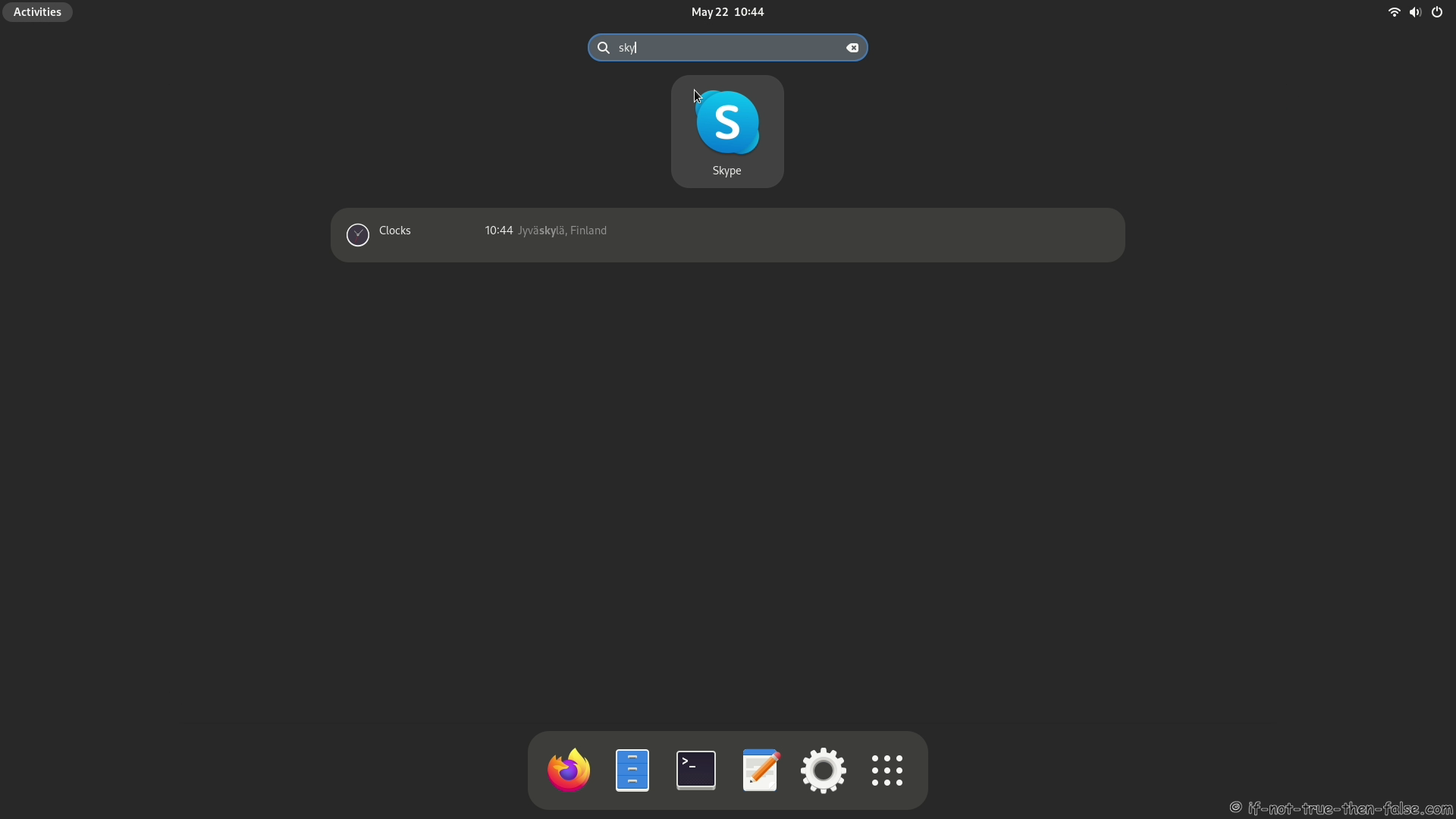
From Desktop menu on Fedora 16 Gnome 3.2 Skype 4.0 Launcher

From Desktop menu CentOS 6.2 Gnome 2 and Skype 4.0 Launcher

2.2 Accept Skype End User License Agreement

2.3 Login Skype

Skype 4.1 Login

Skype 4.0 Login

2.4 Skype 4.1 running on Fedora 18

2.5 Skype 4.1/4.0 running on Fedora 17

Follow If Not True Then False Updates!

195 Comments

  1. Here are my results when I enter
    wget –trust-server-name http://www.skype.com/go/getskype-linux-beta-static

    wget: unrecognized option ‘–trust-server-name’
    Usage: wget [OPTION]… [URL]…

    Try ‘wget –help’ for more options.

    The tutorial looks good but I’m dead at the first command. I didn’t see that anyone else was having this problem. Please advise.

    • I bumped against the same challenge, but I downloaded the Dynamic version of Skype. And then used the steps described in the tutorial. But then again I bumped at adding the lines to /usr/bin/skype because it is a binary file. I’m using CENTOS i386.

    • Hi Edwin,

      I updated this tutorial, because of latest Skype update. I assume that you are using CentOS 6.3, Red Hat (RHEL) 6.3 or Scientific Linux (SL) 6.3? Currently Skype 4.1 won’t work on CentOS, RHEL or SL. You have to use older version Skype 4.0 instead, because Skype 4.1 requires Qt 4.7 and Enterprise Linux 6 have only 4.6.

  2. Hello fellas,
    I’ve used this tutorial to install skype on CentOS 5 server( with X window System ).
    I’m stuck at adding lines to /usr/bin/skype because it is a binary file.

    I tried starting skype without the modification and I get the error (which I can understand):

    Segmentation fault

    How can we get skype working on this system?

    • #su
      #chmod 755 /usr/bin/skype
      #cat > /usr/bin/skype [Enter]

      #!/bin/sh
      export SKYPE_HOME=”/opt/skype”

      $SKYPE_HOME/skype –resources=$SKYPE_HOME $*

      [Control+D]

      • After I add the commands to the /user/bin/skype file, I attempt to launch and get the following error message:

        /usr/bin/skype: line 4: ”/opt/skype”/skype: No such file or directory

        I seem to be missing something but I can’t figure out what or where it is.

        • Hi Brentley3,

          Could you post output of following commands:

          cat /usr/bin/skype
           
          ls -la /opt/skype
          • I found my error. I’ve got it up and running now. Thanks for the assistance.

            • Hi Brentley3, I got similar problem as yours. Mind to share what you did to fix it ?
              Thanks

              • nvm. my error msg is about Segmentation Fault.
                Running on centos 6.3

                • Hi Evan,

                  Could you post full error message and output of following commands:

                  cat /usr/bin/skype
                   
                  ls -la /opt/skype
                  • Hi JR, below are the output:

                    [root@localhost dev]# cat /usr/bin/skype
                    #!/bin/sh
                    export SKYPE_HOME=”/opt/skype”
                    $SKYPE_HOME/skype –resources=$SKYPE_HOME $*
                    [root@localhost dev]#
                    [root@localhost dev]# ls -la /opt/skype
                    total 28100
                    drwxr-xr-x 6 root root 4096 Jan 21 12:28 .
                    drwxr-xr-x. 7 root root 4096 Jan 21 12:28 ..
                    drwxr-xr-x 2 root root 4096 Nov 1 04:21 avatars
                    drwxr-xr-x 2 root root 4096 Nov 1 04:21 icons
                    drwxr-xr-x 2 root root 4096 Nov 1 04:21 lang
                    -rw-r–r– 1 root root 33513 Nov 1 04:21 LICENSE
                    -rw-r–r– 1 root root 5352 Nov 1 04:21 README
                    -rwxr-xr-x 1 root root 28687700 Nov 1 04:21 skype
                    -rw-r–r– 1 root root 453 Nov 1 04:21 skype.conf
                    -rw-r–r– 1 root root 223 Nov 1 04:21 skype.desktop
                    drwxr-xr-x 2 root root 4096 Nov 1 04:21 sounds
                    -rw-r–r– 1 root root 7128 Nov 1 04:21 third-party_attributions.txt
                    [root@localhost dev]# skype
                    /usr/bin/skype: line 3: 11895 Segmentation fault (core dumped) $SKYPE_HOME/skype –resources=$SKYPE_HOME $*
                    [root@localhost dev]#

                    • What version of Skype you are installing?

                    • I am trying to install skype 4.1
                      Currently already have 4.0 installed.

                    • Sorry, but Skype 4.1 won’t work on CentOS/Red Hat (RHEL) 6, because Skype 4.1 requires Qt 4.7 and Enterprise Linux 6 have only 4.6.

                      Skype 4.0 works flawlessly on Enterprise Linux 6 (RHEL/CentOS/SL), so that’s why this guide uses Skype 4.0 for EL6.

                    • Ah I see… Thanks a lot JR for your assistance :D

                    • You are very welcome!

                      In theory, you can install newer Qt on EL 6 (example compiling from sources), but it’s definitely not worth the effort. :)

    • Hi Gilberto,

      The current version of Skype 4.1 (and 4.0) won’t work on CentOS 5. You can download an older, static version of Skype (2.1) which should work on CentOS 5 from here.

      • Okayyy, thank you very much. Will try the older version of Skype and let you guys know if it worked :)

  3. Yaaayyyyy, guys! Skype_static 2.1 started successful on CentOS 5.2 Server with the new instructions of “JR”. Thanks again! (Y)

    • You are welcome, Skype 2.1 is little bit oldish, but works anyway. :)

  4. I am using RHEL 6 (64bit).

    when i run skype i got this error “/opt/skype/skype: error while loading shared libraries: libQtisWebKit.so.4: cannot open shared object file: No such file or directory”

    Please help me to get out this.

    • Hi Bimal,

      Did you installed Skype 4.0 version?

      • I am install skype-4.1.0.20.

        • It won’t work on RHEL 6, because Skype 4.1 requires Qt 4.7 and Enterprise Linux 6 have only 4.6.

          Skype 4.0 works on Enterprise Linux 6 (RHEL/CentOS/SL), so that’s why this guide uses Skype 4.0 for EL6.

          • I am update it.Now “/opt/skype/skype: error while loading shared libraries: libQtisWebKit.so.4: cannot open shared object file: No such file or directory” is error not come. Now I get the error “/usr/bin/skype: line 3: 22685 Illegal instruction $SKYPE_HOME/skype –resources=$SKYPE_HOME$*”.
            Thanks for supporting.
            Actually I want video chat. In version 4.0 I am not able to do video chat.
            For this reason I am update it 4.1

  5. Works fine! – Thank you!

  6. # ls -la /opt/skype
    total 39068
    drwxr-xr-x. 6 root root 4096 Nov 9 16:40 .
    drwxr-xr-x. 5 root root 4096 Nov 9 15:43 ..
    drwxr-xr-x. 2 root root 4096 Jul 13 14:13 avatars
    drwxr-xr-x. 2 root root 4096 Jul 13 14:13 icons
    drwxr-xr-x. 2 root root 4096 Jul 13 14:13 lang
    -rw-r–r–. 1 root root 33513 Jul 13 14:13 LICENSE
    -rw-r–r–. 1 root root 5246 Jul 13 14:13 README
    -rwxr-xr-x. 1 root root 39916000 Jul 13 14:13 skype
    -rw-r–r–. 1 root root 453 Jul 13 14:13 skype.conf
    -rw-r–r–. 1 root root 161 Jul 13 14:13 skype.desktop
    drwxr-xr-x. 2 root root 4096 Jul 13 14:13 sounds
    -rw-r–r–. 1 root root 7128 Jul 13 14:13 third-party_attributions.txt
    [root@chandrakant ~]# skype
    /usr/bin/skype: line 1: !/bin/sh: No such file or directory
    /usr/bin/skype: line 3: ”/opt/skype”/skype: No such file or directory

    • Hi chandrakant,

      Could you post output of following commands:

      cat /usr/bin/skype
       
      env |grep PATH
  7. [root@chandrakant ~]# cat /usr/bin/skype
    !/bin/sh
    export SKYPE_HOME=”/opt/skype”
    $SKYPE_HOME/skype –resources=$SKYPE_HOME $*
    [root@chandrakant ~]# env |grep PATH
    PATH=/usr/lib64/qt-3.3/bin:/usr/local/sbin:/usr/local/bin:/usr/sbin:/usr/bin:/sbin:/bin:/root/bin
    WINDOWPATH=1
    QT_PLUGIN_PATH=/root/.kde/lib64/kde4/plugins/:/usr/lib64/kde4/plugins/:/usr/lib/kde4/plugins

    • Hi again ,

      You need hash before at the beginning of first line:

      #!/bin/sh 
      export SKYPE_HOME="/opt/skype"
       
      $SKYPE_HOME/skype --resources=$SKYPE_HOME $*
      • [root@ckk ~]# skype
        /usr/bin/skype: line 5: ”/opt/skype”/skype: No such file or directory

        • Check your quotation marks, looks like you have some “styled” quotation marks and your SKYPE_HOME is ”/opt/skype” and not /opt/skype which it should be. So write quotation marks again manually, also copying from real code block from here should remove styling if you use example nano, vi etc, this also depends on your browser.

  8. I am getting this error message when I try to run skype
    /usr/bin/skype: /opt/skype/skype: /lib/ld-linux.so.2: bad ELF interpreter: No such file or directory
    help greatly appreciated

    • Hi Keegan,

      Could you post output of following commands:

      uname -a
       
      lsb_release -a
       
      rpm -qa glib\* |sort
      • Linux Arctostaphylos.netgear.com 3.6.6-3.fc18.x86_64 #1 SMP Mon Nov 5 16:26:34 UTC 2012 x86_64 x86_64 x86_64 GNU/Linux

        LSB Version: :core-4.1-amd64:core-4.1-noarch:cxx-4.1-amd64:cxx-4.1-noarch:desktop-4.1-amd64:desktop-4.1-noarch:languages-4.1-amd64:languages-4.1-noarch:printing-4.1-amd64:printing-4.1-noarch
        Distributor ID: Fedora
        Description: Fedora release 18 (Spherical Cow)
        Release: 18
        Codename: SphericalCow

        glib2-2.34.2-1.fc18.x86_64
        glibc-2.16-20.fc18.x86_64
        glibc-common-2.16-20.fc18.x86_64
        glibmm24-2.34.1-1.fc18.x86_64
        glib-networking-2.34.2-1.fc18.x86_64

        • Hi Keegan,

          Did you installed 32-bit dependencies succesfully on step 1.2?

  9. Please update your

    1.5 Create libtiff.so.4 link on CentOS / Red Hat (RHEL) / Scientific Linux (SL)

    Note: This is not needed on Fedora

    since i’ve fedora and also need to create for below error.

    [root@ckk ~]# skype
    /opt/skype/skype: error while loading shared libraries: libtiff.so.4: cannot open shared object file: No such file or directory

    Thanks a lot finally skype runs.

    • Excellent to hear that you got it working!

      I can update this guide, but could you also tell your Fedora version?

      • [root@ckk ~]# uname -a
        Linux ckk106 3.3.4-5.fc17.x86_64 #1 SMP Mon May 7 17:29:34 UTC 2012 x86_64 x86_64 x86_64 GNU/Linux

        i think above information is sufficient for you.

        • Thanks! Yes it’s sufficient for me. Once I checked that the latest Fedora versions create that libtiff.so.4 link automatically, but maybe I had it already on my test machine or something, but thanks, I will check this again soon and update guide.

          • Hi again chandrakant,

            I just checked this guide on clean installed Fedora 17 with all latest updates and there is /usr/lib/libtiff.so.3.9.7 link (created automatically) and Skype runs normally without doing this /usr/lib/libtiff.so.4 link.

            I try to check this in more detail, but some reason I can’t reproduce your error, even if libtiff.so.4 link doesn’t exists.

  10. I am new to Linux, and I do not know why when I try to do step 1.6, when adding the contents to text editor, it won’t save because I apparently don’t have permissions to save the file.

    • Hi Madnessfan,

      You have to save it as root user. You can use command line editors, like Vi, nano, etc. or open Gedit as root user.

      Example:

      sudo gedit /usr/bin/skype
       
      ## OR ##
      su -
      gedit /usr/bin/skype
  11. Great guide, I seem to be having a dependency problem :( Gotta love Beta Release ;)

    uname -a


    Linux localhost.localdomain 3.6.11-3.fc18.x86_64 #1 SMP Mon Dec 17 21:35:39 UTC 2012 x86_64 x86_64 x86_64 GNU/Linux

    lsb_release -a


    LSB Version: :core-4.1-amd64:core-4.1-noarch:cxx-4.1-amd64:cxx-4.1-noarch:desktop-4.1-amd64:desktop-4.1-noarch:languages-4.1-amd64:languages-4.1-noarch:printing-4.1-amd64:printing-4.1-noarch
    Distributor ID: Fedora
    Description: Fedora release 18 (Spherical Cow)
    Release: 18
    Codename: SphericalCow

    rpm -qa glib\* | sort


    glib2-2.34.2-1.fc18.x86_64
    glibc-2.16-28.fc18.x86_64
    glibc-common-2.16-28.fc18.x86_64
    glibc-devel-2.16-28.fc18.x86_64
    glibc-headers-2.16-28.fc18.x86_64
    glibmm24-2.34.1-1.fc18.x86_64
    glib-networking-2.34.2-1.fc18.x86_64

    When I ran the yum line for the 32-bit dependencies, I ran into this:


    Error: Package: glibc-2.16-24.fc18.i686 (fedora)
    Requires: glibc-common = 2.16-24.fc18
    Installed: glibc-common-2.16-28.fc18.x86_64 (@updates-testing)
    glibc-common = 2.16-28.fc18
    Available: glibc-common-2.16-24.fc18.x86_64 (fedora)
    glibc-common = 2.16-24.fc18
    You could try using --skip-broken to work around the problem
    You could try running: rpm -Va --nofiles --nodigest

    :( I need Skype for work. Any ideas?

    • Hi MindlessJohnny,

      You have glibc-common x86_64 package installed from updates-testing repo, this is normal when you use Fedora 18 Alpha, Beta or TC.

      So install all Skype dependencies with following command:

      yum --enablerepo=updates-testing install alsa-lib.i686 fontconfig.i686 freetype.i686 glib2.i686 libSM.i686 libXScrnSaver.i686 libXi.i686 libXrandr.i686 libXrender.i686 libXv.i686 libstdc++.i686 pulseaudio-libs.i686 qt.i686 qt-x11.i686 zlib.i686 qtwebkit.i686
      • Thanks for the suggestion, after Googling around after reading this and being super frustrated, I found the command:
        yum sync-distro

        And it downgraded everything back to what it needed to be. Skype 4.1 works flawlessly on my F18 machine now. Thanks!! :)

        • Hi MindlessJohnny,

          Yes, yum distro-sync is a another alternative, if downgrading packages is ok. :)

          Excellent to hear that you got Skype working on your system! :)

  12. Thanks! Working excellent on my Fedora 18 (final version).

  13. Works like a charm !

  14. Isn’t it easier to do:
    yum localinstall skype-4.1.0.20-fedora.i586.rpm
    Works perfectly for Fedora 18 x86_64!

    • Hi boyan,

      Yes, it’s easier to use RPM on latest Fedora versions, but this is more universal method, which works also with CentOS, Red Hat (RHEL) and Scientific Linux (SL). But you are right, maybe I should add this method for Fedora 18/17/16 users. :)

    • You are right. thanks!

  15. The first comment never got resolved and I’m havig the same issue.
    Command line error: no such option: –trust-server-names

  16. OK disregard, I had to install wget. Duh! LOL
    Everything else went fine

  17. Hi there,
    I am kind of new to Linux and after I followed all the steps from the tutorial I got the following error:
    Bash: /usr/bin/skype: permission denied
    I am using fedora18 64bit

    Can someone help here.

    • Got it! Just changed the permissions on the skype file…. long time with using linux :(
      Thanks a lot for the tutorial.

  18. having same problem as others getting; /usr/bin/skype: line 4: ”/opt/skype”/skype: No such file or directory. When i enter skype into terminal, because it won’t boot from activities.

    Linux anonymous.westell.com 3.6.10-4.fc18.x86_64 #1 SMP Tue Dec 11 18:01:27 UTC 2012 x86_64 x86_64 x86_64 GNU/Linux

    bash: lsb_release: command not found…

    glib2-2.34.2-2.fc18.i686
    glib2-2.34.2-2.fc18.x86_64
    glibc-2.16-28.fc18.i686
    glibc-2.16-28.fc18.x86_64
    glibc-common-2.16-28.fc18.x86_64
    glibmm24-2.34.1-1.fc18.x86_64
    glib-networking-2.34.2-1.fc18.x86_64

  19. Hi there I am having this problem with fedora 18:

    /usr/bin/skype: line 4: ”/opt/skype”/skype: No such file or directory

    I followed directions above to a T

    • Hi Bryan,

      Could you post output of following command:

      cat /usr/bin/skype
  20. I am new to linux, fedora, all of the above… I am getting the following error when I type “skype” in terminal:

    [root@localhost /]# skype
    /opt/skype/skype: error while loading shared libraries: libtiff.so.4: cannot open shared object file: No such file or directory

    I have tried step 1.5 and messed around so much, I don’t know what else to do.

    Linux localhost.localdomain 3.7.5-201.fc18.x86_64 #1 SMP Mon Jan 28 19:54:41 UTC 2013 x86_64 x86_64 x86_64 GNU/Linux

    Thank you for the guide though. I feel like I’m close to it working! lol

  21. HI!! I tryed to install this and it worked, but I can’t launch it by cliking the skype icon, I have to go to the command line and write these lines
    #!/bin/sh
    export SKYPE_HOME=”/opt/skype”

    $SKYPE_HOME/skype –resources=$SKYPE_HOME $*

    otherwise it won’t work… can you tell me how to, based on this tutorial, remove skype in order to install it by fedora utils??? I’m using fedora 18, thanks!!

    • Hi NM,

      If running those lines on command line work, then also your /usr/bin/skype should work, right?

      If you want to remove this installation then just remove /opt/skype, all symbolic links and /usr/bin/skype file.

  22. Thanks for the help!!! I follow the instructions and now, I have skype on my Fedora 18 64 bits!

  23. Thanks for this JR! A very complete and clean install, and your instructions worked perfectly on Fedora 18. Good job!

  24. Thanks!!

  25. Excellent post, thanks for the guide.

  26. I keep getting this error: /opt/skype/skype: error while loading shared libraries: /lib/libXss.so.1: file too short

    I do yum provides “” and find that I already have it installed. Uninstalling and reinstalling the X screen saver library does not help either. I looked at the file in the library and it is empty. What is odd about this to me is that I have already installed skype successfully on Fedora 18… dunno what is happening here.

    • Hi TJR,

      Could you post output of following commands:

      uname -a
       
      lsb_release -a
       
      ls -la /lib/libXss*
       
      rpm -qa libXScrn\*
      • Thanks for getting back to me!

        [root@moon Downloads]# uname -a
        Linux moon 3.8.2-206.fc18.x86_64 #1 SMP Fri Mar 8 15:03:34 UTC 2013 x86_64 x86_64 x86_64 GNU/Linux
        [root@moon Downloads]# lsb_release -a
        bash: lsb_release: command not found…
        [root@moon Downloads]# ls -la /lib/libXss*
        lrwxrwxrwx. 1 root root 15 Mar 12 11:28 /lib/libXss.so.1 -> libXss.so.1.0.0
        -rwxr-xr-x. 1 root root 10600 Jul 20 2012 /lib/libXss.so.1.0.0
        [root@moon Downloads]# rpm -qa libXScrn\*
        libXScrnSaver-1.2.2-2.fc18.i686
        libXScrnSaver-1.2.2-2.fc18.x86_64

      • I also think I may have made a mistake, because when I would reinstall the package that provided the needed library file, another missing one would emerge. Soon it was leading me down a rabbit hole of library roullette. This is a brand new install, and I would be amenable to reinstalling the OS just to get thing back to normal, if necessary.

        • Hi again TJR,

          I tested this guide on clean installed Fedora 18 and it works just like before with libXScrnSaver-1.2.2-2 so it’s hard to say why you get this error. But if you can do clean install, then it could be easiest way to resolve this strange library problem.

  27. worked very well, thanks for all the work you put into it!

  28. Worked well with me!!! RH6. Thanks so much guys!!!

  29. Hi, I install the skype, but when I am trying to run, I am getting error on Centos 6

    root@artur lib]# skype
    /opt/skype/skype: error while loading shared libraries: libXv.so.1: cannot open shared object file: No such file or directory

    • Hi Artur,

      Could you post output of following commands:

      uname -a
       
      rpm -qa libXv
  30. Very nice job on the howto! Got me going on Scientific Linux 6.3 lickety-split.

  31. here is the output

    [root@artur Desktop]# uname -a
    Linux artur 2.6.32-279.el6.x86_64 #1 SMP Fri Jun 22 12:19:21 UTC 2012 x86_64 x86_64 x86_64 GNU/Linux
    [root@artur Desktop]# rpm -qa libXv
    libXv-1.0.5-1.el6.x86_64
    [root@artur Desktop]#

    • Hi Artur,

      Did you installed all 32-bit dependencies in step 1.2?

      Run following command (as root):

      yum install alsa-lib.i686 fontconfig.i686 freetype.i686 glib2.i686 libSM.i686 libXScrnSaver.i686 libXi.i686 libXrandr.i686 libXrender.i686 libXv.i686 libstdc++.i686 pulseaudio-libs.i686 qt.i686 qt-x11.i686 zlib.i686
  32. am installing skype4.1 on Fedora14 but last time so following error–

    [root@MC_L1 maths]# $SKYPE_HOME/skype –resources=$SKYPE_HOME $*
    bash: /skype: No such file or directory
    [root@MC_L1 maths]#

    [root@MC_L1 maths]# $SKYPE_HOME/skype –resources=$SKYPE_HOME $*
    /opt/skype/skype: error while loading shared libraries: libQtWebKit.so.4: cannot open shared object file: No such file or directory
    [root@MC_L1 maths]#

    • Hi Rahul,

      On Fedora 14, try to install qt-webkit package:

      yum install qt-webkit.i686
  33. Awesomely helpful!

  34. Thats what happened when I run the command as a root

    Protected multilib versions: libSM-1.2.1-2.el6.i686 != libSM-1.1.0-7.1.el6.x86_64
    Error: Protected multilib versions: zlib-1.2.3-29.el6.i686 != zlib-1.2.3-27.el6.x86_64
    Error: Protected multilib versions: libXrender-0.9.7-2.el6.i686 != libXrender-0.9.5-1.el6.x86_64
    Error: Protected multilib versions: libXrandr-1.4.0-1.el6.i686 != libXrandr-1.3.0-4.el6.x86_64
    Error: Protected multilib versions: pulseaudio-libs-0.9.21-14.el6_3.i686 != pulseaudio-libs-0.9.21-13.el6.x86_64
    Error: Protected multilib versions: libstdc++-4.4.7-3.el6.i686 != libstdc++-4.4.6-4.el6.x86_64
    Error: Protected multilib versions: libXScrnSaver-1.2.2-2.el6.i686 != libXScrnSaver-1.2.0-1.el6.x86_64
    Error: Protected multilib versions: libXi-1.6.1-3.el6.i686 != libXi-1.3-3.el6.x86_64
    Error: Protected multilib versions: libXv-1.0.7-2.el6.i686 != libXv-1.0.5-1.el6.x86_64
    You could try using –skip-broken to work around the problem
    ** Found 1 pre-existing rpmdb problem(s), ‘yum check’ output follows:
    1:emacs-23.1-21.el6_2.3.x86_64 has missing requires of libotf.so.0()(64bit)

    I do not know how to resolve the problem?
    any sugestions.
    Thanks a lot

    • Hi Artur,

      Try following:

      yum clean all
       
      yum update

      And then try to install those packages again, is it working then?

  35. Hi..I’m struggling here, worst part is that I’m impatient…please someone help..
    trying to use fedora 17, and I don’t know which skype I’m installing…woah that sounds lame :/
    my problem:

    [root@localhost bin]# skype
    ./skype: line 3: /opt/skype/skype: No such file or directory
    [root@localhost bin]# cat /usr/bin/skype
    #!/bin/sh
    export SKYPE_HOME=”/opt/skype”
    $SKYPE_HOME/skype –resources=$SKYPE_HOME $*
    [root@localhost bin]# ls -la /opt/skype
    total 8
    drwxr-xr-x. 2 root root 4096 Mar 31 04:29 .
    drwxr-xr-x. 4 root root 4096 Mar 31 04:29 ..

    • Hi No_comprendo,

      Looks like you are missing whole /opt/skype directory content try installation again from step 1.4.

  36. I’m mess :D I did it from 1.4 and now I get:

    [root@localhost ~]# skype
    /opt/skype/skype: error while loading shared libraries: libQtWebKit.so.4: cannot open shared object file: No such file or directory

    I’ve tried what you said to Rahul (if I’m not wrong) but it’s for Fedora 14, and I’m using Fedora 17…

    • Hi No_comprendo,

      Install qtwebkit.i686 package:

      yum install qtwebkit.i686

      This same info found also on step 1.2.

Leave a Comment

Your email address will not be published. Required fields are marked *

You may use these HTML tags and attributes: <a href="" title=""> <abbr title=""> <acronym title=""> <b> <blockquote cite=""> <cite> <code> <del datetime=""> <em> <i> <q cite=""> <strike> <strong>

Trackbacks/Pingbacks

  1. Skype hanging on CentOS 6.4 - [...] of this advertisement]'); I've installed a CentOS 6.4 system and have following the instructions here that explains ...